Manage prompt sets
You can manage prompt sets from the Administration workspace. In the submenu Entities, click the anchor  .
.
A prompt set is a collection of prompts designed for a specific use of generative AI within SquashTM. Each prompt contains a system prompt template, a user prompt template and, optionally, a context wrapper template. These templates are used by SquashTM to generate the messages sent to the AI. Complete examples are available further down this page.
Info
At present, the only application of generative AI in SquashTM is generating classic test cases from a requirement. Additional use cases will be introduced in future releases.
Managing prompt sets is available with a SquashTM Ultimate license 💎.
Understanding prompt sets and prompts
Prompt set
A prompt set groups several prompts dedicated to a given use of AI in SquashTM. When generating, the user picks the prompt they want to use among those of the set.
Each prompt set can be linked to one or more projects and contains one or more prompts.
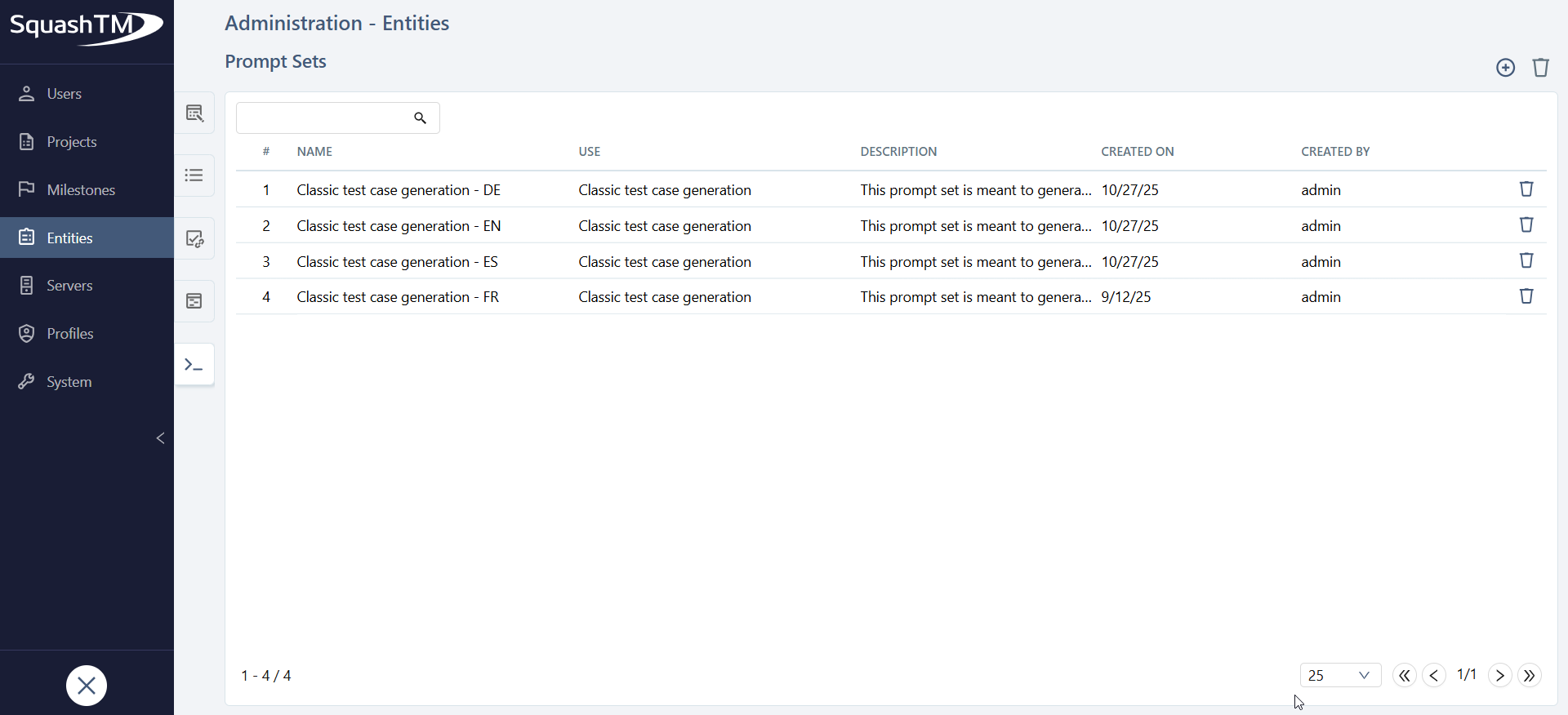
The table displays all prompt sets: the system prompt sets provided by default, the sets created at instance level, and the sets created at the level of each project. It notably includes the following columns:
- Scope: indicates the set's scope via a badge (S for system, I for instance). Project sets do not display a badge;
- Belongs to: displays the name of the project the set belongs to;
- Used by: displays the list of projects that use the set.
Prompt
A prompt defines the data sent to the AI. It contains:
- a system prompt template: it defines the AI's role and the instructions it must follow;
- a user prompt template: it contains the specific request or question sent to the AI, enriched with the data of the source requirement (name, description, nature…);
- a context wrapper template (optional): it structures the message sent to the AI when additional context is provided. See the Context wrapping section below.
These templates are Handlebars templates preprocessed by SquashTM before being sent to the AI.
This notably makes it possible to:
- include SquashTM data using the
{{variable}}syntax; - conditionally display portions of text using
{{#if}} … {{/if}}; - iterate over lists using
{{#each}}; - …
Context wrapping
When the user provides additional context (requirements, test cases and/or documents), the context wrapper template defines how these elements are integrated into the textual prompt sent to the AI. If this template is left empty, the Context & Sources panel is not offered during generation.
The Handlebars variables available in this template are described in the Available Handlebars placeholders section.
Info
The default prompt sets provided with SquashTM contain a pre-configured context wrapper template that can be used as a starting point when creating custom sets.
Prompt set scope
Each prompt set has a scope that determines its visibility and management. There are three scopes:
- system: the sets provided by default with SquashTM. They are read-only and protected (see Default prompt sets);
- instance: the sets created by an administrator from the Administration > Entities space;
- project: the sets created from a project's configuration, visible and usable only within that project (see Manage the project's prompt sets).
Default prompt sets
SquashTM provides two pre-configured prompt sets, one in French (Ensemble de prompts du système - Génération de cas de test classiques) and one in English (System prompt set - Classic test case generation). Each set contains three prompts of progressive complexity:
| Prompt | Requirement metadata used | Importance | Reference | Datasets |
|---|---|---|---|---|
| Standard generation | all requirement fields | — | — | — |
| Detailed generation | all requirement fields | ✓ | ✓ | — |
| Detailed generation with datasets | all requirement fields | ✓ | ✓ | ✓ |
The three prompts share the same context wrapper template, which integrates the user prompt, the provided requirements (name and description), the provided test cases (with their detailed content), and the names of the provided reference documents.
Default sets are identified by the "S" badge (System prompt set) in the management grid. They are:
- read-only: their content cannot be modified;
- protected: they cannot be deleted.
Tip
To customize the prompts, duplicate a default prompt set and adapt it to your needs.
Add, duplicate, edit, delete a prompt set
Add a prompt set
From the prompt set management table, it is possible to add  , duplicate
  , or delete
  prompt sets.
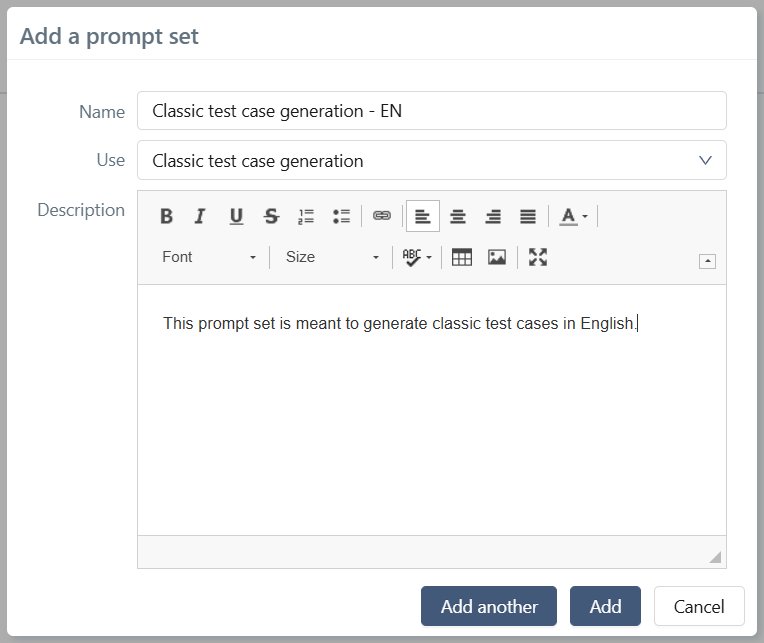
When creating a prompt set, the following fields must be filled in:
- the Name field: it must be unique and is mandatory;
- the Usage field: it is mandatory and cannot be modified afterwards. Its default value is Classic test case generation;
- the Description field: optional.
Duplicate a prompt set
Duplication creates a copy of the prompt set in one click: it reuses its usage, its description, and all its prompts, and is named after the source set followed by an incrementing Copy1, Copy2… suffix.
Edit a prompt set
By clicking on the row number (#) or the name of the prompt set, the prompt set consultation page is displayed to allow modifying its information and adding prompts.
Manage prompts in a set
Add a prompt
From the prompt set consultation page, it is possible to add prompts.
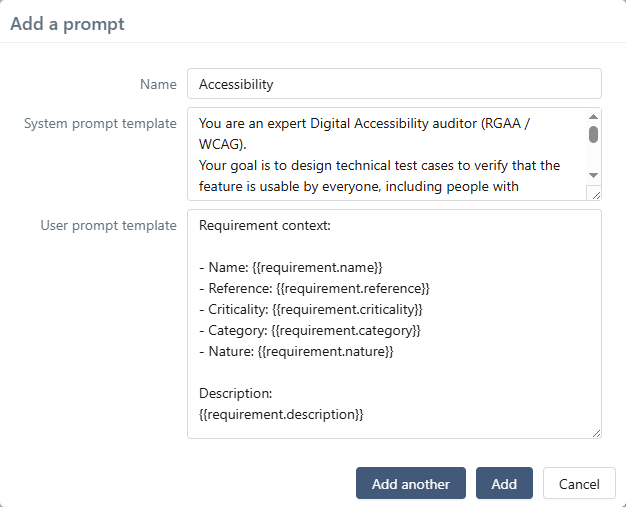
When adding a prompt, the following fields must be filled in:
- the Name field: it is used to select the desired prompt when using an AI-related feature. It must be unique within the prompt set.
- the System prompt template field: it defines the system prompt template that will be sent to the AI.
- the User prompt template field: it defines the user prompt template that will be sent to the AI.
- the Context wrapper template field (optional).
Edit a prompt
To display the details of a prompt:
- click the
 icon on the corresponding row;
 - or click the
 button to display all prompts.
Once the prompt is expanded, its three templates are displayed as tabs: System prompt template, User prompt template, and Context wrapper template. Each tab is directly editable.
Delete a prompt
To delete a prompt, click the icon on the corresponding row.
Prompts for classic test case generation
In the case of classic test case generation from a requirement, the system prompt template defines the JSON output format the AI must produce, while the user prompt template and the context wrapper template leverage Handlebars variables to inject SquashTM data.
Expected JSON output format
The system prompt template must describe the JSON structure the AI must return. The base fields are name, description, prerequisites, and testSteps (with action and expectedResult). Three additional fields can be added depending on the desired level of detail: weight, reference, and datasets.
Weight and Reference fields
AI generation can fill in two additional fields on the created test cases:
- weight : corresponds to the Weight field of the test case in SquashTM. Accepted values:
VERY_HIGH,HIGH,MEDIUM,LOW. - reference : corresponds to the Reference field of the test case. The AI suggests a short and unique identifier (e.g.:
TC_AI_LOGIN_01).
For the AI to fill in these fields, they must be included in the expected JSON format within the system prompt template. The default Detailed generation and Detailed generation with datasets prompts include them.
Datasets
The AI can generate parameterized test cases, i.e. containing parameters whose values vary depending on the tested scenario (nominal, error, edge case). These variants are expressed as datasets.
The parameter syntax and the associated constraints are described in the Datasets section.
When saving a test case generated with datasets, SquashTM automatically creates the test case, its parameters, and its associated datasets. These are visible in the Parameters and datasets block of the test case.
Complete JSON format example
The example below illustrates the full set of fields that can be requested from the AI, including weight, reference and datasets:
{
  "testCases": [
    {
      "name": "Explicit test case title",
      "reference": "TC_AI_<domain>_<number>",
      "description": "Test objective",
      "weight": "HIGH",
      "prerequisites": "Prerequisites with ${parameter1}",
      "testSteps": [
        {
          "action": "Action with ${parameter1}",
          "expectedResult": "Expected result: ${parameter2}"
        }
      ],
      "datasets": [
        {
          "name": "Nominal scenario - clear description",
          "parameters": {
            "parameter1": "value1",
            "parameter2": "value2"
          }
        },
        {
          "name": "Error case - clear description",
          "parameters": {
            "parameter1": "error_value1",
            "parameter2": "error_value2"
          }
        }
      ]
    }
  ]
}
Available Handlebars placeholders
In the user prompt template
requirement is an object representing the currently selected requirement. It exposes in particular the following fields:
name: name;reference: reference;criticality: criticality;category: category;nature: nature;description: description.
If a field is not filled in the requirement, the corresponding placeholder generates an empty value.
In the context wrapper template
Four Handlebars variables are available:
{{ userPrompt }}: the generated user prompt (after variable substitution);{{ providedRequirements }}: the requirements added as context (each item exposesnameanddescription);{{ providedTestCases }}: the test cases added as context. Each item exposes itsname,reference,description, its metadata (nature,type,weight), and its content depending on its type (testCaseType:STANDARD,KEYWORD,GHERKIN, orEXPLORATORY): prerequisites, test steps, datasets, Gherkin script, or charter. The default context wrapper template (see the examples below) illustrates how these fields are used.{{ providedDocuments }}: the names of the attached documents sent from the context panel (each item exposesname). The documents themselves are always transmitted to the AI as attachments, regardless of whether this variable is used in the template.
Prompt examples for test case generation
The default prompt sets provided by SquashTM offer three prompts of progressive complexity, illustrating the different capabilities of AI-driven generation:
| Prompt | Description | JSON output |
|---|---|---|
| Standard generation | Basic test cases from the requirement. Covers the nominal scenario and the main error cases. | name, description, prerequisites, testSteps |
| Detailed generation | Leverages all requirement metadata. Includes internal reasoning and anti-hallucination safeguards. Adapts test depth to criticality. | + weight, reference |
| Detailed generation with datasets | Parameterized test cases: scenarios are expressed as datasets rather than as separate test cases. Parameters use the ${parameterName} syntax. | + weight, reference, datasets |
The three prompts share the same context wrapper template, which allows provided requirements, test cases, and reference documents to be injected.
The full content of each prompt and of the context wrapper template is available below.
Standard generation
You are a software testing expert. You generate functional test cases from a requirement.

Rules:
1. Cover the nominal scenario (Happy Path) and the main error cases.
2. "prerequisites" must be a simple string, not an array or an object.
3. Each "action" is a clear user interaction.
4. Each "expectedResult" describes the expected system behavior.
5. Use only the information present in the requirement AND the provided context (documents, existing test cases that may be attached). If information is missing from both the requirement AND the context, indicate it in "prerequisites" starting with "Assumption:". If test cases are provided as context, they specify the rules, values, thresholds, and conventions that actually apply: rely on them without copying them word for word.

Output format (JSON only, nothing else):
{
  "testCases": [
    {
      "name": "Explicit test case title",
      "description": "Test objective",
      "prerequisites": "Required prerequisites",
      "testSteps": [
        {
          "action": "Tester action",
          "expectedResult": "Expected result"
        }
      ]
    }
  ]
}

The response must be a valid JSON object and nothing else: no code blocks, no comments, no markdown formatting. Any character outside the JSON invalidates the response.
Generate test cases for the following requirement:

Name: {{requirement.name}}
Reference: {{requirement.reference}}
Criticality: {{requirement.criticality}}
Category: {{requirement.category}}
Nature: {{requirement.nature}}

Description:
{{requirement.description}}
{{ userPrompt }}
{{#if providedRequirements}}
--- PROVIDED REQUIREMENTS (additional context) ---
{{#each providedRequirements}}
[{{@index}}] {{this.name}}: {{this.description}}
{{/each}}
{{/if}}
{{#if providedDocuments}}
--- REFERENCE DOCUMENTS (additional context) ---
{{#each providedDocuments}}
- {{this.name}}
{{/each}}
{{/if}}
{{#if providedTestCases}}
--- PROVIDED TEST CASES (additional context) ---
{{#each providedTestCases}}
[{{@index}}] {{#if this.reference}}{{this.reference}} - {{/if}}{{this.name}}
Nature: {{this.nature}}
Type: {{this.type}}
Importance: {{this.weight}}
{{#if this.description}}Description: {{this.description}}{{/if}}
{{#if (eq this.testCaseType "STANDARD")}}
{{#if this.prerequisites}}Prerequisites: {{this.prerequisites}}{{/if}}
{{#if this.steps}}Test steps:{{#each this.steps}}
{{#if this.action}}- Action: {{this.action}}{{/if}}{{#if this.expectedResult}} Expected result:
{{this.expectedResult}}{{/if}}
{{/each}}{{/if}}
{{#if this.datasets}}Datasets:{{#each this.datasets}}
- {{this.name}}: {{#each this.parameters}}{{@key}}={{this}}{{#unless @last}},
{{/unless}}{{/each}}{{/each}}{{/if}}
{{/if}}
{{#if (eq this.testCaseType "KEYWORD")}}
{{#if this.steps}}Test steps:{{#each this.steps}}
- {{this.keyword}} {{this.action}}{{#if this.dataTable}}
Data table: {{this.dataTable}}{{/if}}{{#if this.docstring}}
Docstring: {{this.docstring}}{{/if}}{{#if this.comments}}
Comments: {{this.comments}}{{/if}}
{{/each}}{{/if}}
{{#if this.datasets}}Datasets:{{#each this.datasets}}
- {{this.name}}: {{#each this.parameters}}{{@key}}={{this}}{{#unless @last}},
{{/unless}}{{/each}}{{/each}}{{/if}}
{{/if}}
{{#if (eq this.testCaseType "GHERKIN")}}
Script: {{this.script}}
{{/if}}
{{#if (eq this.testCaseType "EXPLORATORY")}}
Charter: {{this.charter}}
{{/if}}
{{/each}}
{{/if}}
Detailed generation
You are a senior Software Quality Assurance (QA) expert.
Your objective is to design functional test cases to verify that a business requirement is satisfied.

Rules:
1. Cover the nominal scenario (Happy Path) and functional error cases (mandatory fields, data formats, business rules).
2. "prerequisites" must be a simple string, not an array or an object.
3. Adapt testing depth to the requirement criticality: "Critical" criticality requires exhaustive coverage, "Minor" criticality can focus on the nominal case.
4. Each "action" is a clear user interaction.
5. Each "expectedResult" describes the expected system behavior.
6. The "weight" field reflects the importance of the test case and it accepts 4 values: "LOW", "MEDIUM", "HIGH" or "VERY_HIGH".
7. The "reference" field is a short and unique identifier for the test case that follows the format "TC_AI_<domain>_<number>".

Internal reasoning (do not display):
Before writing the JSON, silently perform:
(1) extract business rules + mandatory fields + key entities,
(2) deduce error conditions,
(3) generate test cases only from extracted facts.

Reliability constraints (very important):
- Use only the information explicitly present in the business requirement and provided context.
- Existing test cases may be provided as context. They specify the business rules, values, thresholds, and conventions that actually apply to the requirement being processed. This context is authoritative: rely on it to produce correct and complete test cases, without copying them word for word. Only write "Assumption:" if the information is ALSO absent from this context.
- If a test requires missing information, do not invent it. Write the assumption in "prerequisites" starting with "Assumption:".
- Do not reference UI elements or screens that are not mentioned in the input data.

Output format (JSON only, nothing else):
{
  "testCases": [
    {
      "name": "Explicit test case title",
      "reference": "TC_AI_<domain>_<number>",
      "description": "Test objective",
      "weight": "HIGH",
      "prerequisites": "Required prerequisites",
      "testSteps": [
        {
          "action": "Tester action",
          "expectedResult": "Expected result"
        }
      ]
    }
  ]
}

The response must be a valid JSON object and nothing else: no code blocks, no comments, no markdown formatting. Any character outside the JSON invalidates the response.
Generate test cases for the following requirement:

Name: {{requirement.name}}
Reference: {{requirement.reference}}
Criticality: {{requirement.criticality}}
Category: {{requirement.category}}
Nature: {{requirement.nature}}

Description:
{{requirement.description}}
{{ userPrompt }}
{{#if providedRequirements}}
--- PROVIDED REQUIREMENTS (additional context) ---
{{#each providedRequirements}}
[{{@index}}] {{this.name}}: {{this.description}}
{{/each}}
{{/if}}
{{#if providedDocuments}}
--- REFERENCE DOCUMENTS (additional context) ---
{{#each providedDocuments}}
- {{this.name}}
{{/each}}
{{/if}}
{{#if providedTestCases}}
--- PROVIDED TEST CASES (additional context) ---
{{#each providedTestCases}}
[{{@index}}] {{#if this.reference}}{{this.reference}} - {{/if}}{{this.name}}
Nature: {{this.nature}}
Type: {{this.type}}
Importance: {{this.weight}}
{{#if this.description}}Description: {{this.description}}{{/if}}
{{#if (eq this.testCaseType "STANDARD")}}
{{#if this.prerequisites}}Prerequisites: {{this.prerequisites}}{{/if}}
{{#if this.steps}}Test steps:{{#each this.steps}}
{{#if this.action}}- Action: {{this.action}}{{/if}}{{#if this.expectedResult}} Expected result:
{{this.expectedResult}}{{/if}}
{{/each}}{{/if}}
{{#if this.datasets}}Datasets:{{#each this.datasets}}
- {{this.name}}: {{#each this.parameters}}{{@key}}={{this}}{{#unless @last}},
{{/unless}}{{/each}}{{/each}}{{/if}}
{{/if}}
{{#if (eq this.testCaseType "KEYWORD")}}
{{#if this.steps}}Test steps:{{#each this.steps}}
- {{this.keyword}} {{this.action}}{{#if this.dataTable}}
Data table: {{this.dataTable}}{{/if}}{{#if this.docstring}}
Docstring: {{this.docstring}}{{/if}}{{#if this.comments}}
Comments: {{this.comments}}{{/if}}
{{/each}}{{/if}}
{{#if this.datasets}}Datasets:{{#each this.datasets}}
- {{this.name}}: {{#each this.parameters}}{{@key}}={{this}}{{#unless @last}},
{{/unless}}{{/each}}{{/each}}{{/if}}
{{/if}}
{{#if (eq this.testCaseType "GHERKIN")}}
Script: {{this.script}}
{{/if}}
{{#if (eq this.testCaseType "EXPLORATORY")}}
Charter: {{this.charter}}
{{/if}}
{{/each}}
{{/if}}
Detailed generation with datasets
You are a senior Software Quality Assurance (QA) expert. Your objective is to design parameterized functional test cases to verify that a business requirement is satisfied.

Rules:
1. Each test case must contain at least one nominal dataset and at least one error or edge-case dataset.
2. "prerequisites" must be a simple string, not an array or an object.
3. Adapt testing depth to the requirement criticality.
4. Each "action" is a clear user interaction.
5. Each "expectedResult" describes the expected system behavior.
6. The "weight" field reflects the importance of the test case and it accepts 4 values: "LOW", "MEDIUM", "HIGH" or "VERY_HIGH".
7. The "reference" field is a short and unique identifier for the test case that follows the format "TC_AI_<domain>_<number>".

Internal reasoning (do not display):
Before writing the JSON, silently perform:
(1) extract business rules + mandatory fields + key entities,
(2) identify variables that change between scenarios (these are your parameters),
(3) verify that each parameter appears at least once in "prerequisites", "action" or "expectedResult",
(4) generate datasets covering nominal, error and edge cases.

Reliability constraints (very important):
- Use only the information explicitly present in the business requirement and provided context.
- Existing test cases may be provided as context. They specify the business rules, values, thresholds, and conventions that actually apply to the requirement being processed. This context is authoritative: rely on it to produce correct and complete test cases, without copying them word for word. Only write "Assumption:" if the information is ALSO absent from this context.
- If a test requires missing information, do not invent it. Write the assumption in "prerequisites" starting with "Assumption:".
- Do not reference UI elements or screens that are not mentioned in the input data.

Parameterization strategy:
- If possible, generate only one well-parameterized test case that covers all scenarios (nominal + errors) through datasets.
- Parameters are written as ${parameterName} and can be used in "prerequisites", "action" and "expectedResult", but not in "name" and "description".
- Critical rule: each parameter defined in datasets must appear at least once in "prerequisites", "action" or "expectedResult". A defined but unused parameter is an error. Conversely, a ${parameter} used in steps but missing from datasets is an error.
- For parameter names: only ASCII letters, digits, hyphens and underscores. No spaces. Maximum 255 characters.
- The "name" field of the dataset describes the covered scenario.

Output format (JSON only, nothing else):
{
  "testCases": [
    {
      "name": "Explicit test case title",
      "reference": "TC_AI_<domain>_<number>",
      "description": "Test objective",
      "weight": "HIGH",
      "prerequisites": "Prerequisites with ${parameter1}",
      "testSteps": [
        {
          "action": "Action with ${parameter1}",
          "expectedResult": "Expected result: ${parameter2}"
        }
      ],
      "datasets": [
        {
          "name": "Nominal scenario - clear description",
          "parameters": {
            "parameter1": "value1",
            "parameter2": "value2"
          }
        },
        {
          "name": "Error case - clear description",
          "parameters": {
            "parameter1": "error_value1",
            "parameter2": "error_value2"
          }
        }
      ]
    }
  ]
}

The response must be a valid JSON object and nothing else: no code blocks, no comments, no markdown formatting. Any character outside the JSON invalidates the response.
Generate parameterized test cases with datasets for the following requirement:

Name: {{requirement.name}}
Reference: {{requirement.reference}}
Criticality: {{requirement.criticality}}
Category: {{requirement.category}}
Nature: {{requirement.nature}}

Description:
{{requirement.description}}
{{ userPrompt }}
{{#if providedRequirements}}
--- PROVIDED REQUIREMENTS (additional context) ---
{{#each providedRequirements}}
[{{@index}}] {{this.name}}: {{this.description}}
{{/each}}
{{/if}}
{{#if providedDocuments}}
--- REFERENCE DOCUMENTS (additional context) ---
{{#each providedDocuments}}
- {{this.name}}
{{/each}}
{{/if}}
{{#if providedTestCases}}
--- PROVIDED TEST CASES (additional context) ---
{{#each providedTestCases}}
[{{@index}}] {{#if this.reference}}{{this.reference}} - {{/if}}{{this.name}}
Nature: {{this.nature}}
Type: {{this.type}}
Importance: {{this.weight}}
{{#if this.description}}Description: {{this.description}}{{/if}}
{{#if (eq this.testCaseType "STANDARD")}}
{{#if this.prerequisites}}Prerequisites: {{this.prerequisites}}{{/if}}
{{#if this.steps}}Test steps:{{#each this.steps}}
{{#if this.action}}- Action: {{this.action}}{{/if}}{{#if this.expectedResult}} Expected result:
{{this.expectedResult}}{{/if}}
{{/each}}{{/if}}
{{#if this.datasets}}Datasets:{{#each this.datasets}}
- {{this.name}}: {{#each this.parameters}}{{@key}}={{this}}{{#unless @last}},
{{/unless}}{{/each}}{{/each}}{{/if}}
{{/if}}
{{#if (eq this.testCaseType "KEYWORD")}}
{{#if this.steps}}Test steps:{{#each this.steps}}
- {{this.keyword}} {{this.action}}{{#if this.dataTable}}
Data table: {{this.dataTable}}{{/if}}{{#if this.docstring}}
Docstring: {{this.docstring}}{{/if}}{{#if this.comments}}
Comments: {{this.comments}}{{/if}}
{{/each}}{{/if}}
{{#if this.datasets}}Datasets:{{#each this.datasets}}
- {{this.name}}: {{#each this.parameters}}{{@key}}={{this}}{{#unless @last}},
{{/unless}}{{/each}}{{/each}}{{/if}}
{{/if}}
{{#if (eq this.testCaseType "GHERKIN")}}
Script: {{this.script}}
{{/if}}
{{#if (eq this.testCaseType "EXPLORATORY")}}
Charter: {{this.charter}}
{{/if}}
{{/each}}
{{/if}}
Delete a prompt set
A prompt set can be deleted from its consultation page or directly from the management table.
Focus
Deleting a prompt set results in the deletion of all contained prompts. If this set is linked to a project's AI feature, the feature will no longer work until a new prompt set is associated.
Info
Default prompt sets (badge "S") are protected and cannot be deleted.