Step 2: Prepare a prompt set
A prompt set groups several prompts dedicated to a given use of AI in SquashTM (today, classic test case generation). It dictates how the AI should reply: its role, the expected output format, and the variables injected from SquashTM.
Prerequisites
- An account with administrator rights (for an instance-level set) or project leader rights (for a project-level set).
- A SquashTM Ultimate 💎 license.
Option A: Use a default prompt set
SquashTM ships with two pre-configured prompt sets, one in French and one in English. Each set contains three ready-to-use prompts that produce test cases of increasing richness:
| Prompt | What the generated test case contains |
|---|---|
| Standard generation | Name, description, prerequisites, and test steps. |
| Detailed generation | Same, plus weight and reference. |
| Detailed generation with datasets | Same, plus datasets that allow parameterizing the test case. |
These sets are identified by the "S" badge (System prompt set) in the management grid. They are read-only and cannot be deleted.
For a quick start, use a default prompt set
If this is your first setup, jump directly to step 3 and associate the default prompt set that matches your project's language. You can create a custom set later.
Option B: Create a custom prompt set
If you need to adjust the tone, the output format, or inject specific data, create your own set. Depending on your rights, two levels are available:
- at instance level (administrator rights): a set available to every project. Go to Administration > Entities, then click the Prompt sets anchor
 ;
; - at project level (project leader rights): a set usable only within that project. Go to the project's AI configuration, then click the [Manage project prompt sets] button.
In both cases, the management table and the set creation work in the same way.
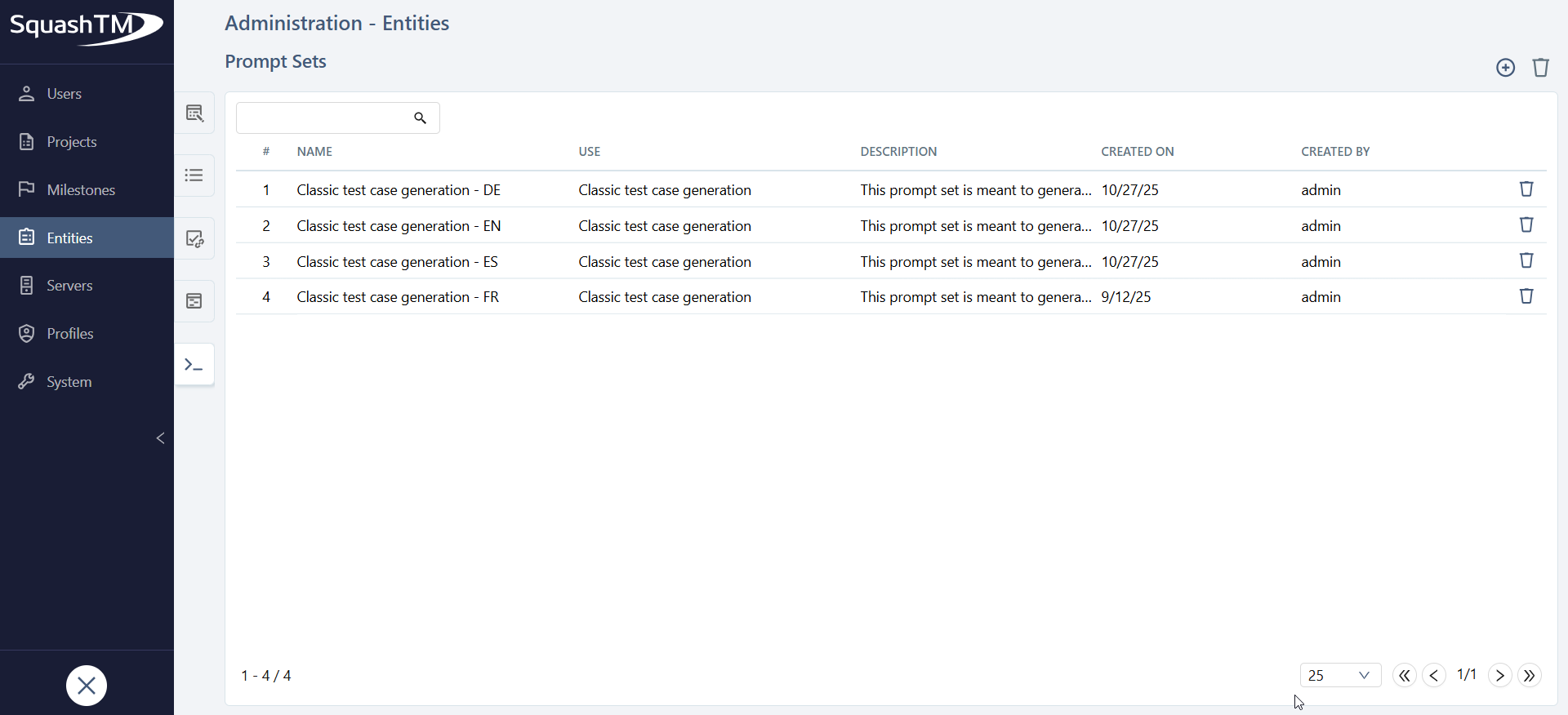
Faster: duplicate an existing set
Rather than starting from scratch, duplicate an existing set (for example a system set) from the management table: the copy keeps all its prompts and is immediately editable.
Create the set
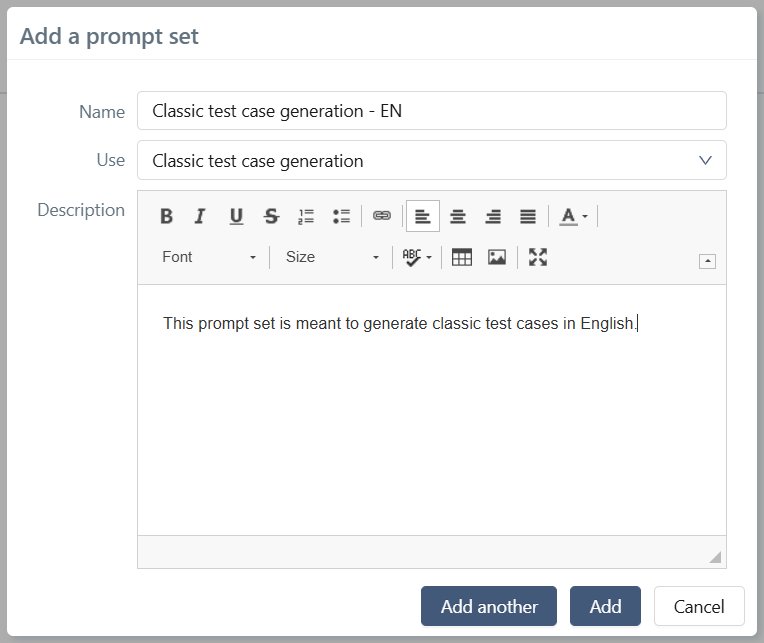
Click Add  and fill in:
- Name: unique, mandatory;
- Usage: Classic test case generation (the only usage available today);
- Description: optional.
Add one or more prompts to the set
Open the set by clicking its # or its Name, then add a prompt with .
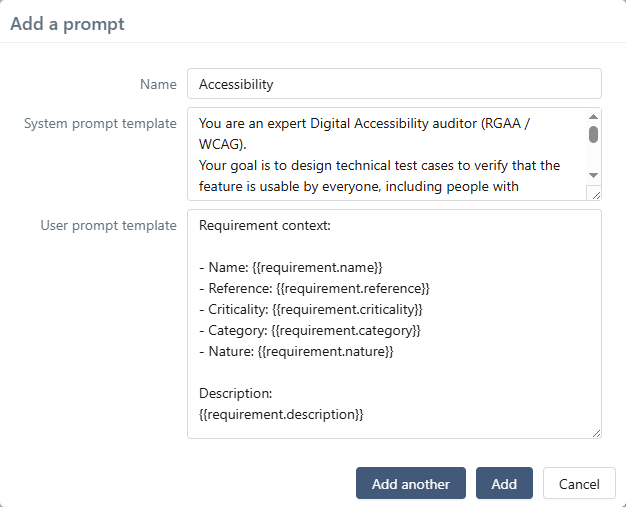
A prompt is composed of three elements:
- a system prompt template: defines the AI's role and the expected JSON output format;
- a user prompt template: carries the request, enriched with the requirement data (
{{requirement.name}},{{requirement.description}}, etc.); - a context wrapper template (optional): controls how the provided requirements, test cases, and attached documents are integrated into the message sent to the AI.
Handlebars syntax
The three templates use the Handlebars syntax ({{variable}}, {{#if}}…{{/if}}, {{#each}}…{{/each}}). For the full list of available placeholders and detailed examples, see Manage prompt sets.
Take inspiration from the default prompts
The full content of the three default prompts (system, user, context wrapper) is available on the reference page: Prompt examples for test case generation. Copy them as a starting point and adapt them to your needs.
What is the context wrapper used for?
The context refers to the additional information that the tester can add to their request at generation time: requirements, existing test cases, and attached documents (specifications, mock-ups, etc.). The context wrapper template controls how this information is formatted and inserted into the message sent to the AI.
If this template is filled in, the Context & Sources panel will be offered to the tester during generation, allowing them to add requirements, test cases, and documents as context.
If this template is left empty, the panel will not be displayed and the generation will rely solely on the source requirement.
What you have accomplished
- You decided to use a default prompt set or created a custom set;
- the chosen set contains at least one ready-to-use prompt;
- this set is now available in the AI configuration of the relevant projects: all projects for a set created at instance level, only the project itself for a set created at project level.