Assistance in selecting test cases to automate
The assistance in selecting test cases to automate allows you to automatically identify the most relevant tests to automate based on objective criteria. This feature calculates a priority score for each non-automated test and provides a prioritized list to optimize your automation strategy.
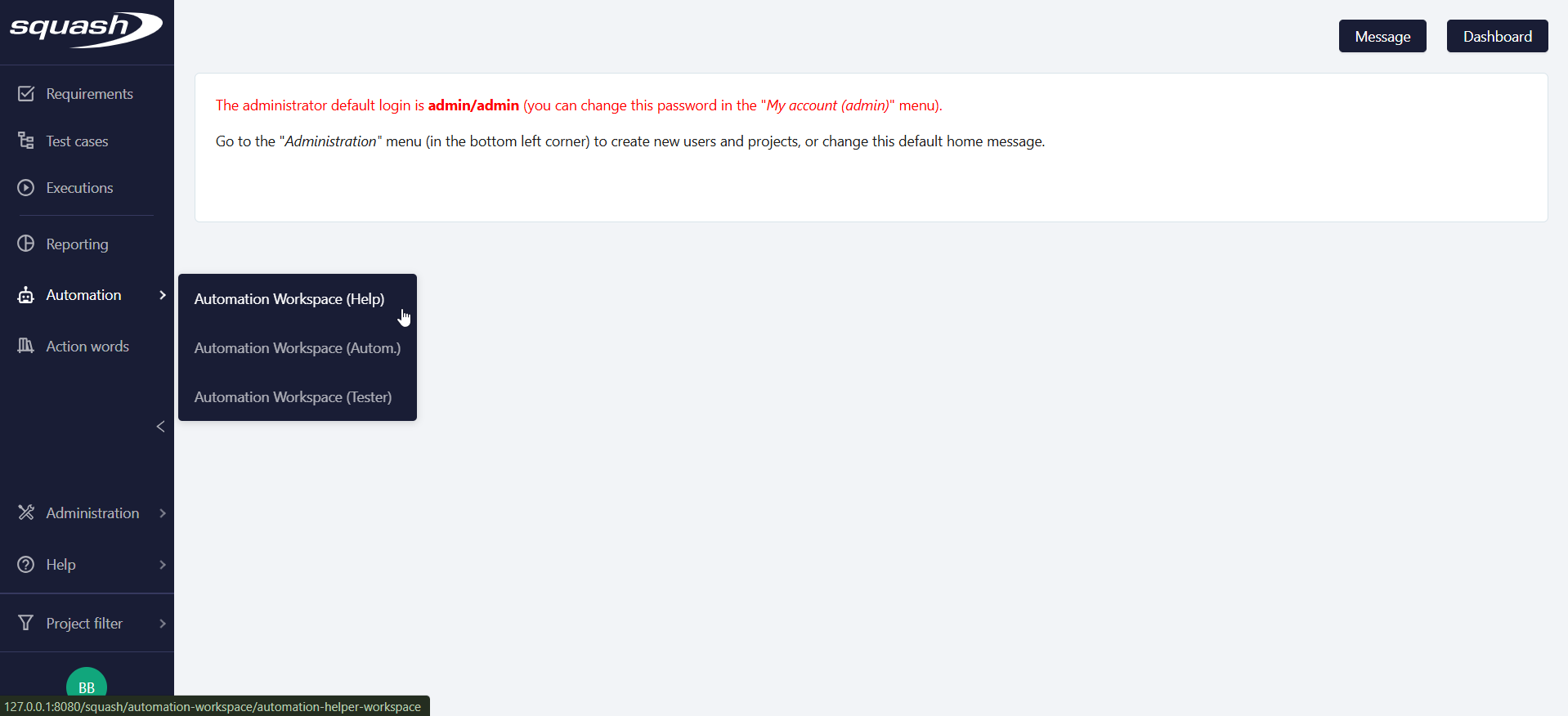
The automation help space is located in the Automation workspace. All users with access to the Automation workspace have access to the Automation Help section.
Automation priority calculation
The priority calculation and its tracking is available by clicking on the Suggested test cases anchor 
Eligibility conditions
For a test to be analyzed, it must meet the following conditions:
- Not be obsolete
- Not be already automated (no linked script)
- Have eligibility set to to instruct (for projects with automation workflow)
- Not have been already approved or rejected manually (see Approval and rejection of suggested tests)
Recommendation threshold
Only tests with a score above 50 are suggested for automation.
Calculation criteria
The priority score is calculated on 100 points based on the following criteria:
| Criteria | Maximum points | Description |
|---|---|---|
| Test type | 10 points | +10 if the test is of non-regression type |
| Importance | 30 points | From +5 (low) to +30 (very high) |
| Success rate | 30 points | Based on the last 10 executions |
| Execution frequency | 30 points | Calculation relative to other tests in the project Minimum 4 executions required |
Calculation details
Success rate:
- Analyzes the last 10 executions (minimum 4 if fewer than 10 available)
- Formula:
(success percentage - 70)(cannot be lower than 0) - Example: A test with 85% success: (85-70) = 15 points
Execution frequency:
- Formula:
(nb_exec_test - nb_exec_min) × 30 / (nb_exec_max - nb_exec_min) - Score distributed proportionally among tests with at least 4 executions
- Example: Test with 75 executions in a project where the most executed test has 89 executions, and where the least executed test has 20 executions
- Score: (75-20) × 30 / (89-20) = 24 points
Complete calculation example:
"User login" test in a project where the most executed test has 89 executions, and where the least executed test has 20 executions:
- Test type = non-regression: +10 points
- Importance = high: +20 points
- Success rate = 90%: +20 points (90-70 = 20)
- Execution frequency = 75 executions: +24 points
Total score: 74 (10+20+20+24)
Launch priority calculation
Scope selection
It is possible to define the analysis scope before launching the calculation. By default, all user projects are included in the scope to be analyzed.
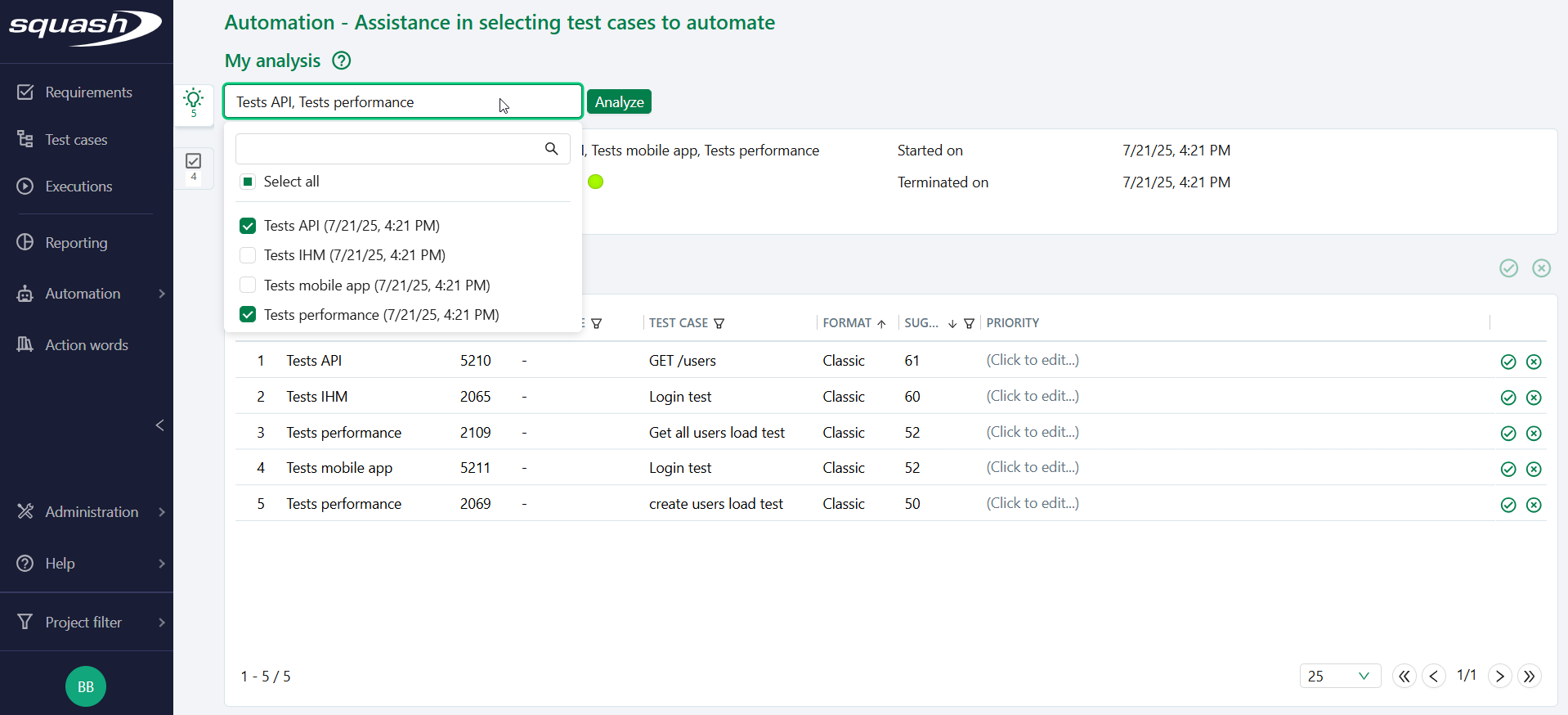
To define a specific calculation scope, simply click on the projects dropdown list in the automation help space. A menu opens allowing you to select or deselect projects to include in the analysis.
Unavailable Projects
Some projects may appear grayed out in the dropdown list. This indicates that they are already included in an ongoing analysis launched by another user.
These projects cannot be selected until the previous analysis is completed.
Analysis launch
Once the scope is defined, it is possible to launch the analysis by clicking the Analyze button. SquashTM then analyzes all eligible tests from the selected projects.
Performance
The calculation may take a few minutes depending on the number of tests and projects selected in the scope.
Results are displayed in real-time as processing progresses, in the My analysis block.

Calculation duration
When an analysis is running, progress is updated in real-time and it is not possible to launch a new analysis until the previous one is completed.
Once the analysis is complete, information about it is available in the My analysis section.

It is possible to update recommendations by relaunching an analysis.
New execution data will be taken into account.
View the list of suggested tests
The list of test cases suggested by the analysis is available by clicking on the Suggested test cases anchor
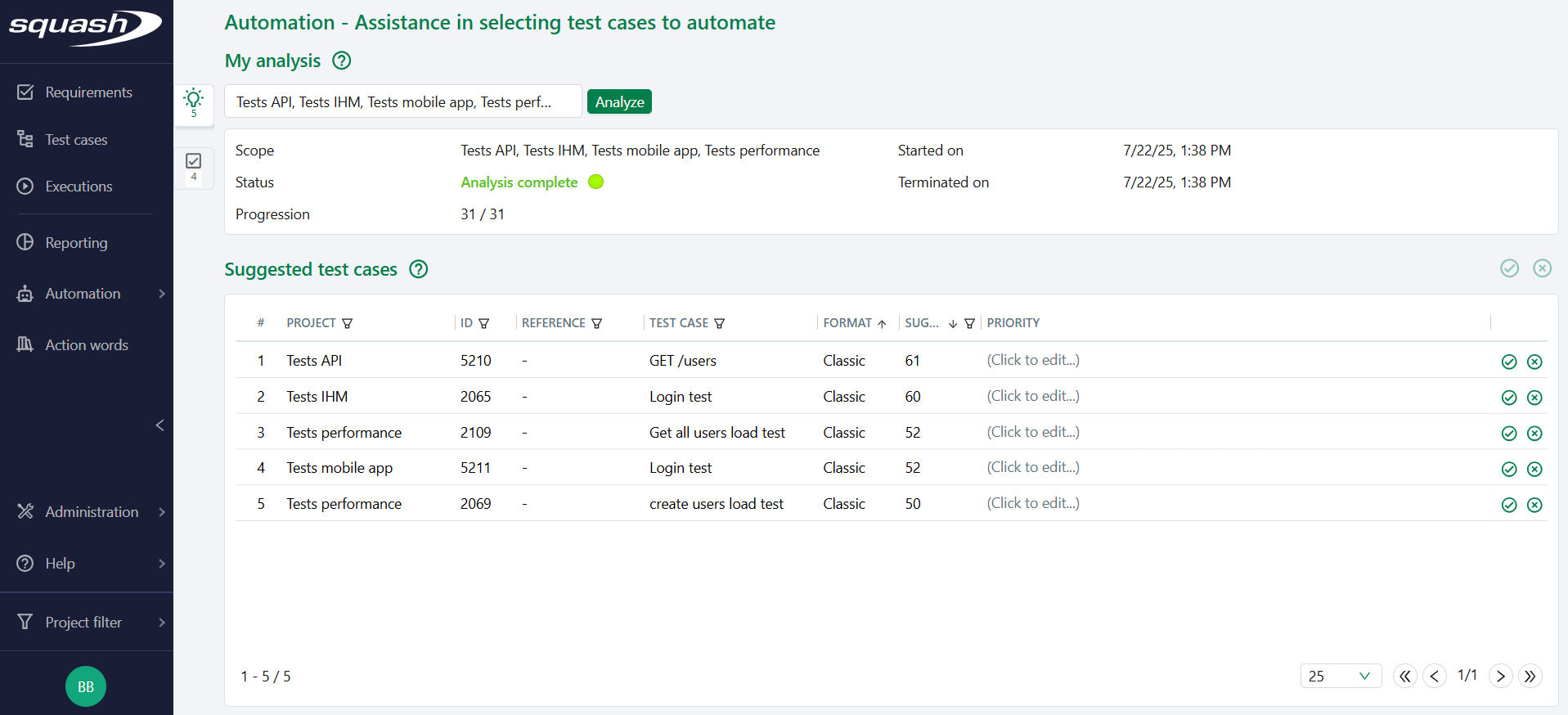
The list of suggested tests is displayed as a table with the following columns:
- Project: Project containing the test case
- ID: Test case ID
- Reference: Test reference
- Test case: Test case name
- Format: Test case format (Classic, Gherkin, BDD)
- Suggested priority: Priority score out of 100, calculated by SquashTM
- Priority: Field to edit priority, and override the value calculated by SquashTM, if desired.
By default, the table is sorted by descending priority.
Approval and rejection of suggested tests
To approve a suggested test, simply click the  button.
The test disappears from the suggestions list and appears in the Eligible test cases for automation tab.
Before validating the suggestion, it is possible to modify the suggested priority by entering the new value in the priority field. This new value will only be saved upon validation.
For projects with automation workflow, in the test case automation block:
- the eligibility field is set to eligible
- the priority field is updated with the score value: either the one suggested by SquashTM if it has not been modified, or the one manually entered by the user during suggestion validation.
To reject a suggested test, simply click the  button.
The test permanently disappears from the suggested test cases list. It will no longer be included in the scope of future analyses, and will no longer be suggested as a test case to automate.
Definitive approval or rejection of a test case for projects without automation workflow
For tests from projects without automation workflow, once it is approved or rejected, it is no longer possible to cancel the action.
The test can no longer be analyzed again. It will no longer be presented as a suggestion in future analyses.
For tests using automation workflow, if the user wants this test to be analyzed again by SquashTM, it is possible to manually modify the test eligibility, setting it to eligible then back to to instruct.
View approved tests
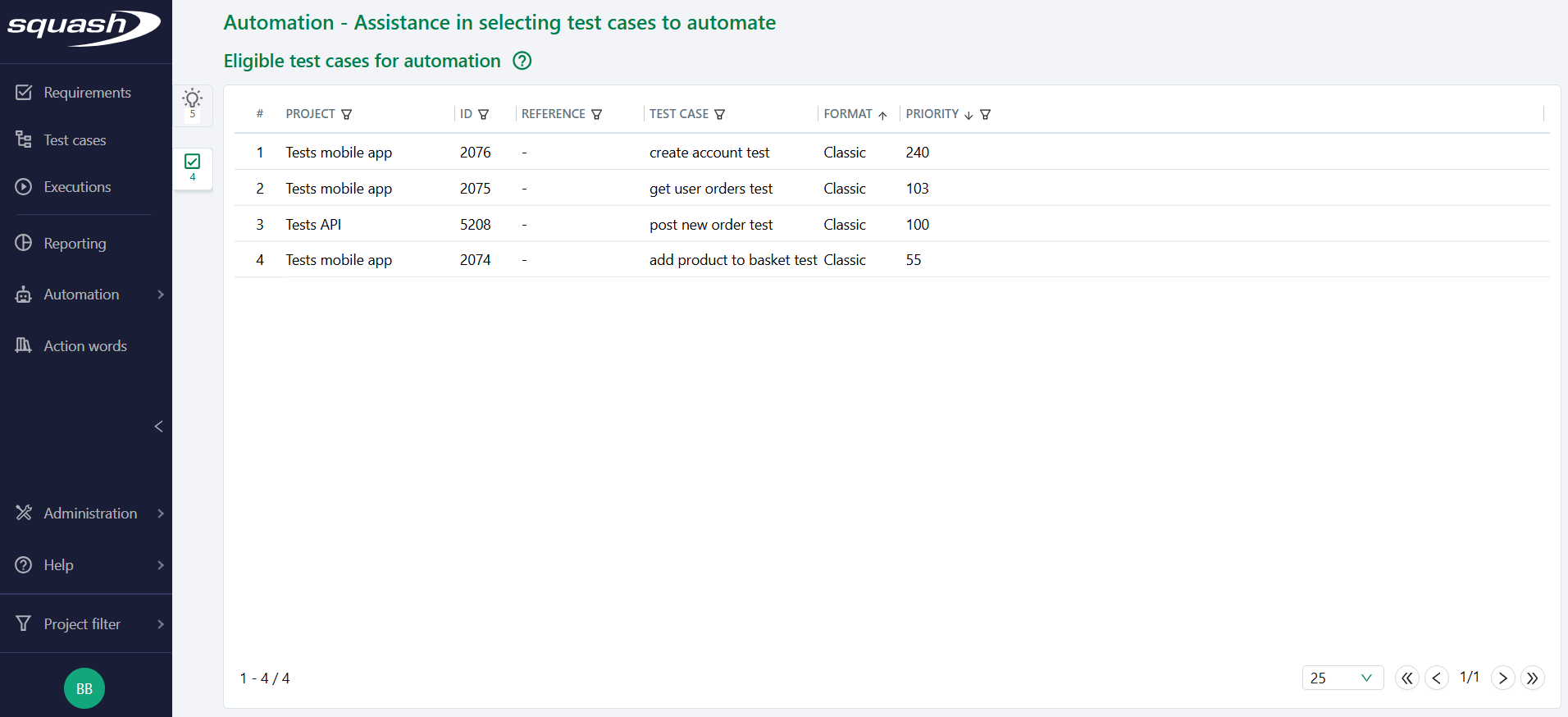
The list of eligible test cases is available by clicking on the Test cases eligible for automation anchor 
This list contains all tests marked as eligible for automation:
- Tests approved from suggestions
- Tests manually marked as eligible (for projects with automation workflow)
Tests are sorted by descending priority.