Custom Campaign Exports
This reporting feature enables you to generate a custom export for a campaign, iteration, or test suite thanks to a wizard that helps you select the perimeter and the data to export.
Custom exports are in .csv format.
You can generate a custom export from the Reporting workspace via the button  , then Add a custom export.
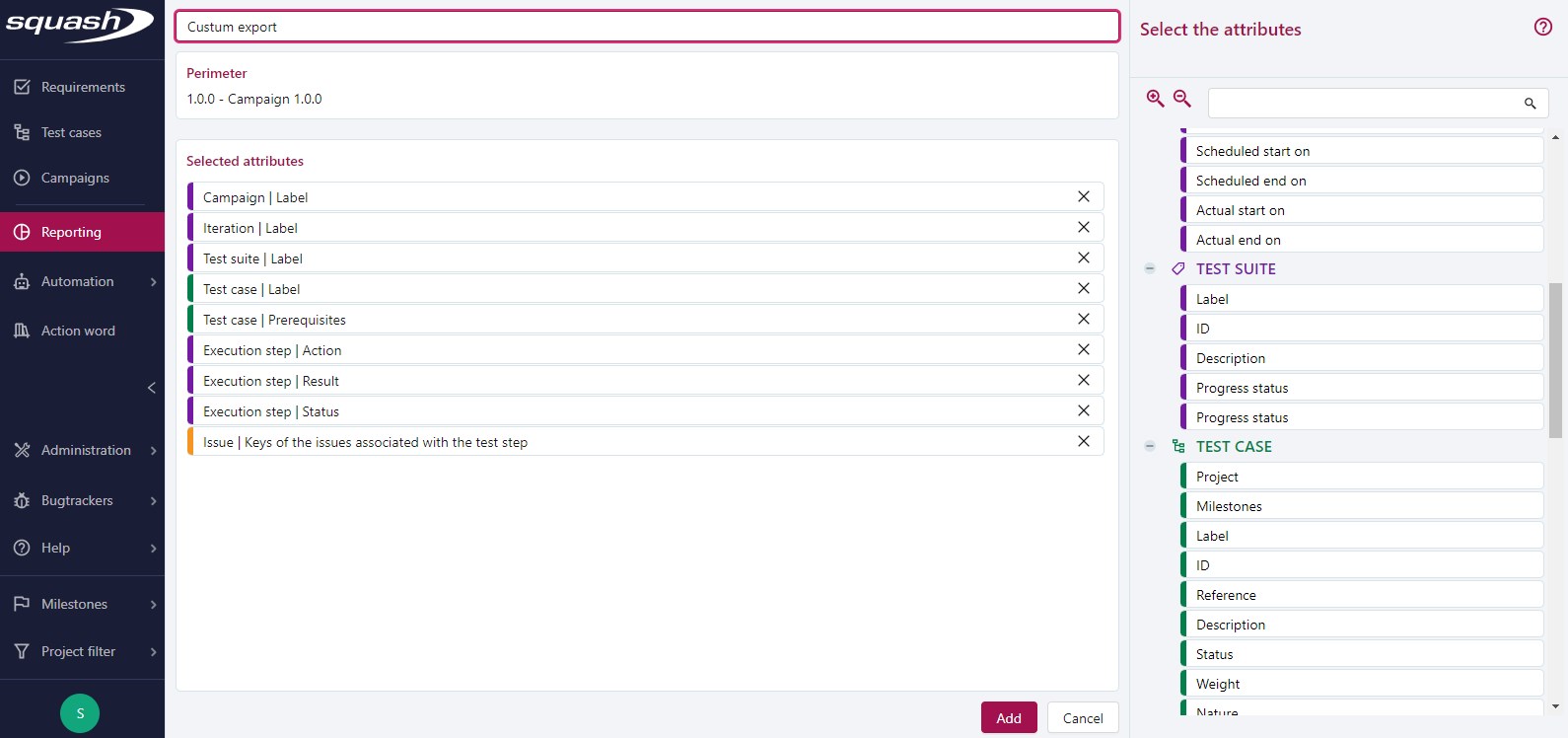
Custom Export creation page
A custom export creation page is divided in two parts:
- on the left, there is the export name, panel to select the perimeter, and summary of the selected attributes;
- on the right, the list of the attributes that you can select, organized by entity.
To save a custom export, you must:
- enter its name;
- select its perimeter;
- select at least one attribute.
Once you have saved the custom campaign export, from its consultation page, you can modify it by clicking on the button  or download it by clicking on the button
  .
.
From this page, it is also possible to choose whether to export only the last execution or all executions of each test plan item.
Choose the perimeter
For custom exports, what you can select as a perimeter can be:
- a campaign folder;
- a campaign;
- an iteration;
- a test suite;
- a multi-selection.
Select attributes
The entities that contain the attributes you can select are:
- Campaigns;
- Iterations;
- Test suites;
- Test cases;
- Executions;
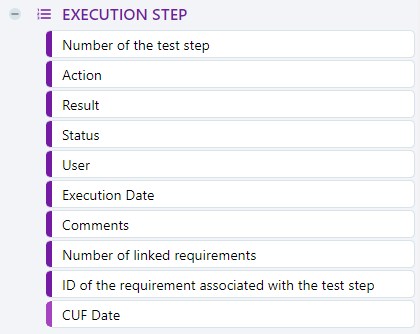
- Execution steps;
- Issues.
You can select each attribute independently from the others.
To select an attribute, you must drag and drop the attribute from the panel Select the attributes on the right to the Selected attributes one on the left.
For the entities Campaigns, Iterations, Test suites, Test cases, Executions, and Executions steps, you can select their associated custom fields as attributes. The color of the pill tag is then slightly lighter than for the Squash native attributes. The custom fields appear according to the selected perimeter.
Structure of the Custom Export file
| Column Name in Export | Description |
|---|---|
| CPG - Label | Campaign label |
| CPG - ID | Campaign ID |
| CPG - Reference | Campaign reference |
| CPG - Description | Campaign description |
| CPG - State | Campaign status |
| CPG - Progress rate | Campaign progress rate |
| CPG - Milestone | Milestone associated to the campaign |
| CPG - Scheduled start on | Campaign scheduled start on |
| CPG - Scheduled end on | Campaign scheduled end on |
| CPG - Actual start on | Campaign actual start on |
| CPG - Actual end on | Campaign actual end on |
| IT - Label | Iteration label |
| IT - ID | Iteration ID |
| IT - Reference | Iteration reference |
| IT - Description | Iteration description |
| IT - State | Iteration status |
| IT - Scheduled start on | Iteration scheduled start on |
| IT - Scheduled end on | Iteration scheduled end on |
| IT - Actual start on | Iteration actual start on |
| IT - Actual end on | Iteration actual end on |
| SUI - Label | Suite label |
| SUI - ID | Suite ID |
| SUI - Description | Suite description |
| SUI - Execution status | Suite execution status |
| SUI - Progress rate | Suite progress rate |
| TC - Project | Name of the test case's project |
| TC - Milestones | Milestone(s) associated to the test case |
| TC - Label | Test case label |
| TC - ID | Test case ID |
| TC - Reference | Test case reference |
| TC - Description | Test case description |
| TC - Status | Test case status |
| TC - Weight | Test case weight |
| TC - Nature | Test case nature |
| TC - Type | Test case type |
| TC - Dataset | Test case dataset |
| TC - Prerequisite | Test case prerequisites |
| TC - Number of associated requirements | Number of requirements associated to the test case |
| TC - Linked requirement ID | ID of the requirements linked to the test case |
| EXEC - ID | Execution ID |
| EXEC - Execution mode | Execution mode (manual ou automatic) |
| EXEC - Status | Execution status |
| EXEC - % Passed | Execution success percentage |
| EXEC - User | Login of the user who executed the test case |
| EXEC - Execution date | Execution date |
| EXEC - Comments | Comments linked to the execution |
| EXEC_STEP - Number of test step | Execution step number |
| EXEC_STEP - Action | Execution step action |
| EXEC_STEP - Result | Test step expected result |
| EXEC_STEP - Status | Test step execution status |
| EXEC_STEP - User | Login of the user who executed the test step |
| EXEC_STEP - Execution date | Test step execution date |
| EXEC_STEP - Comments | Comment linked to the execution step |
| EXEC_STEP - Number of linked requirements | Number of requirements linked to the execution |
| EXEC_STEP - Requirement linked to test step | ID of the requirements linked to the execution step |
| BUG - Number of issues linked to the execution | Number of issues linked to the execution |
| BUG - Execution | Key(s) of the issue(s) linked to the execution |
| BUG - Number of issues linked to the execution step | Number of issues linked to the execution step |
| BUG - Execution step | Key(s) of the issue(s) linked to the execution step |