Configure Xsquash in Jira
Xsquash and Xsquash Cloud enhance the integration between Squash TM and Jira Data Center, and Cloud. They retrieve the test cases and executions associated with requirements synchronized with Xsquash4Jira in Squash TM, to display them directly in Jira requests.
Focus
It is imperative to use the Xsquash4Jira plugin in Squash TM to be able to use Xsquash or Xsquash Cloud on the Jira side.
To learn more about using the Xsquash4Jira plugin, visit the page Configure Xsquash4Jira in Squash TM.
An administrator must have configured the public URL of Squash.
Learn more
The page Follow testing activity in Jira describes how test cases and executions are displayed in Jira.
Configure Xsquash on Jira Data Center
Xsquash is an additional component for Jira Data Center available on the Atlassian Marketplace.
Install Xsquash
To install Xsquash on Jira Data Center:
- Log onto Jira as an administrator;
- Go to the Jira administration and choose the option Manage apps. The Jira Atlassian Marketplace appears;
- Search for "Xsquash" on the Marketplace;
- Click on the [Install] button to download and install the plugin.
Info
By default, the last version of Xsquash compatible with the Jira version will be installed.
To install a previous version of the Xsquash plugin on Jira:
- Visit the Xsquash page Version history on the marketplace;
- Download the version you want on your computer;
- Log onto the Jira instance as an administrator;
- Manually import the plugin by using the "Import app" feature on the "Manage apps" page.
Declare a Server in Xsquash
You can configure the Xsquash plugin from the Jira administration, in the "Manage apps" part. In the menu on the left of your screen, search for "Xsquash", then click on "Configuration". Xsquash enables you to configure multiple Xsquash4Jira servers from different Squash TM instances:
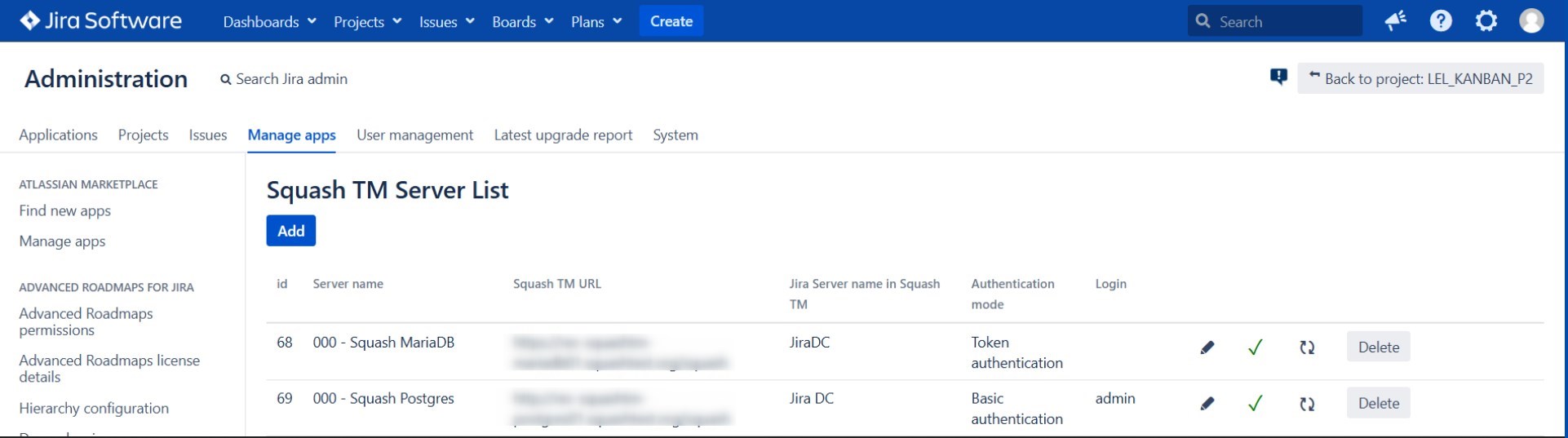
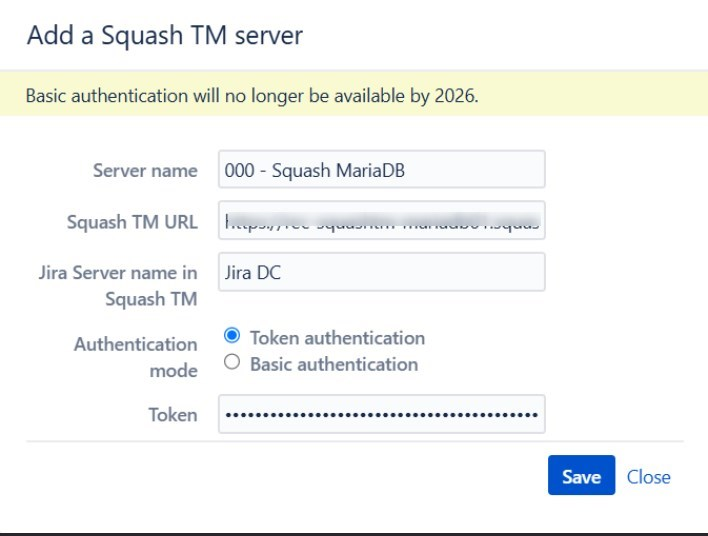
To add a new server, click on the [Add] button and fill in the form with the following information:
- Server name (unrestricted);
- Squash TM's base URL (stop at
/squash); - Name of the
jira.xsquashserver declared in Squash TM corresponding to the Jira instance (case-sensitive); Depending on the authentication mode, login and password, or API token with read permission of a Squash TM account. This account will be used for all the API requests the plugin will send to Squash TM.
Warning
Basic authentication will no longer be available by 2026, learn more here.
Learn more
For more information about generating API tokens in Squash TM, see Personal API tokens section.
We recommend that you use a Squash TM administrator account for this configuration because this one has access to all the projects on the instance. However, you can still use a guest profile with only reading permissions for projects containing acceptance data (test cases and executions) to be synchronized in Jira.
Configure Xsquash for a Project
You must configure the Xsquash plugin independently for each Jira project.
To configure Xsquash for a project, go to [Project parameters], search for "Xsquash" in the vertical menu, then click on [Configure]. Activate Xsquash via the radio button, then select the server you want in the list.

By default, the synchronization tabs of the Squash TM acceptance data are named Squash TM test cases and Squash TM executions. The configuration pop-up enables you to rename these tabs that appear in the Jira requests of the project. Once the configuration is done, click on [Save].
Focus
You must have administration rights for the Jira project to be able to activate the Xsquash plugin.
Configure Xsquash Cloud on Jira Cloud
Xsquash Cloud is an application hosted on an internal server of the company Henix.
Warning
- Xsquash Cloud is only available for clients with a Squash Premium or Ultimate License.
- Squash TM and Xsquash Cloud must be in compatible versions, so it is necessary to contact the Squash Support Team to request an update of Xsquash Cloud when Squash TM has been upgraded.
Install Xsquash Cloud
There are two ways you can install the Xsquash Cloud app on Jira Cloud:
Install Xsquash Cloud Manually
To manually install Xsquash Cloud:
- Log onto the Jira Cloud instance as an administrator.
- Click on the [Parameters] button, choose [Apps], then the Manage apps option.
- Click on [Parameters] to open the Settings window.
- Check the option Enable development mode, then click on the [Apply] button.
- On the Manage apps page, click on [App importable] to open the Upload app window.
- Enter the URL provided by the Squash Support Team, then click on the [Upload] button.
- The Xsquash Cloud application appears in the installed applications list.

Install Xsquash Cloud via the API
Before installing the Xsquash Cloud application in Jira Cloud via API, you must have an administrator account with an API token beforehand.
Learn More
To learn how to generate an API token, please visit this page.
Here are the steps to follow to install the Xsquash Cloud app via the API:
Make a
GETrequest with BASIC AUTH at the URLhttps://<JiraURL>.atlassian.net/rest/plugins/1.0/?os_authType=basicwith the following information in the header:and for the authentication, use the administrator's username and their API token.Accept: application/vnd.atl.plugins.installed+jsonRetrieve the value of the header
upm-tokenin the response.Make a
POSTrequest with BASIC AUTH at the URLhttps://<JiraURL>.atlassian.net/rest/plugins/1.0/?token=upm-tokenwith the following information in the header:the following body with the URL provided by the Squash Support Team:Content-type: application/vnd.atl.plugins.uri+json Accept: application/jsonand, for the authentication, use the administrator's username and API token.{ "pluginUri": "https://<XsquashCloudURL>.com/atlassian-connect.json", "pluginName": "Xsquash Cloud" }
Declare a Server in Xsquash Cloud
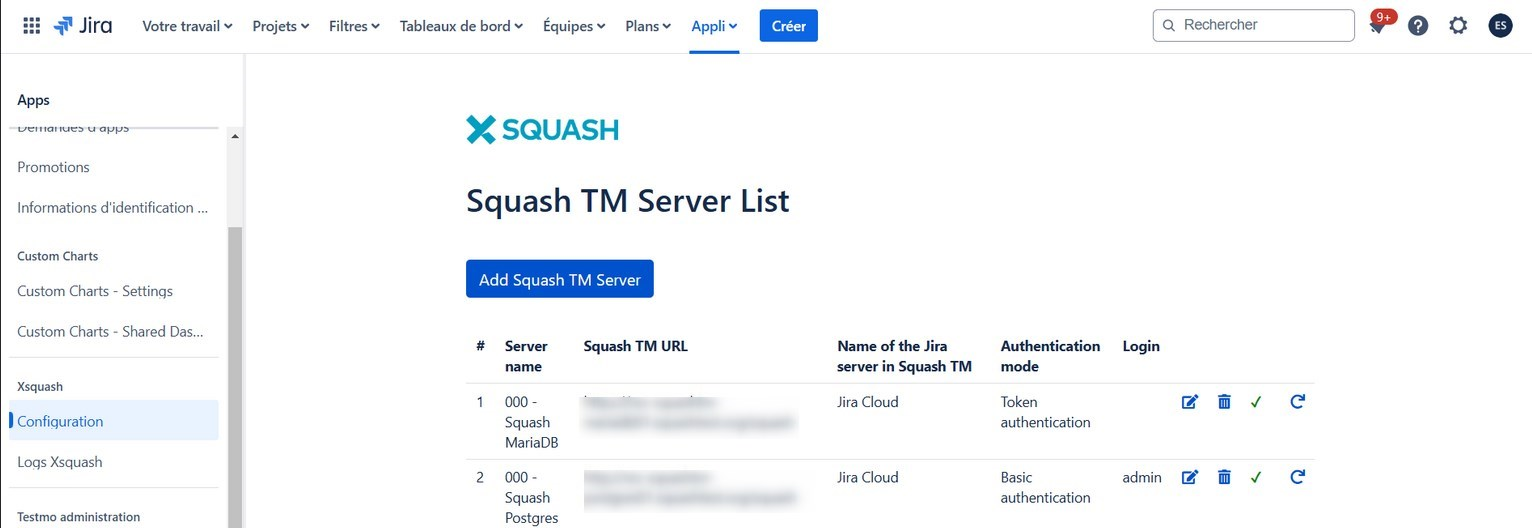
To configure Xsquash Cloud, click on [Parameters] > Apps. In the menu on the left of your screen, search for "XSQUASH", then click on "Configure". Xsquash enables you to configure multiple Xsquash4Jira servers from different Squash TM instances:
Info
A check mark at the end of each server row indicates that the communication between the Squash TM server and Jira Cloud is working.
You can download the logs of the Xsquash Cloud plugin from the "Xsquash Logs" option.
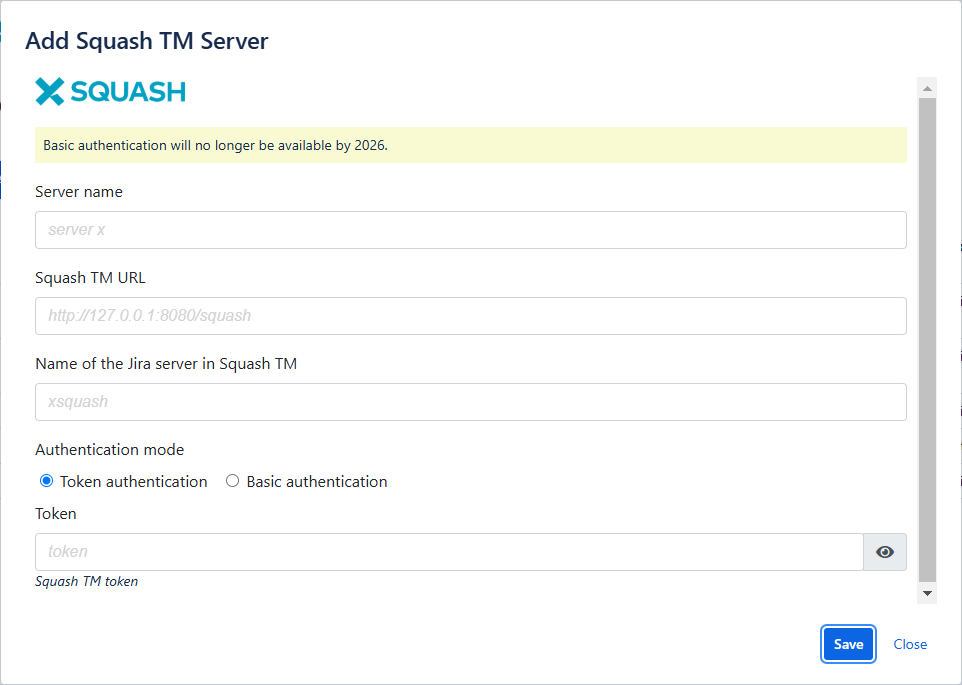
Click on the [Add Squash TM server] button to add a new Squash TM server and fill in the form with the following information:
- Server name (unrestricted);
- Squash TM's base URL (stop at
/squash); - Name of the
jira.xsquashserver declared in Squash TM corresponding to the Jira instance (case-sensitive); Depending on the authentication mode, login and password, or API token with read permission of a Squash TM account. This account will be used for all the API requests the plugin will send to Squash TM.
Warning
Basic authentication will no longer be available by 2026, learn more here.
Learn more
For more information about generating API tokens in Squash TM, see Personal API tokens section.
We recommend that you use a Squash TM administrator account for this configuration because this one has access to all the projects on the instance. However, you can still use a guest profile with only reading permissions for projects containing acceptance data (test cases and executions) to be synchronized in Jira.
Configure Xsquash Cloud for a Project
You have to configure the Xsquash Cloud plugin independently for each project.
To configure Xsquash Cloud for a project, go to Project parameters, then click on Configure Xsquash in the vertical menu. Activate Xsquash via the radio button, then select the server you want in the list.
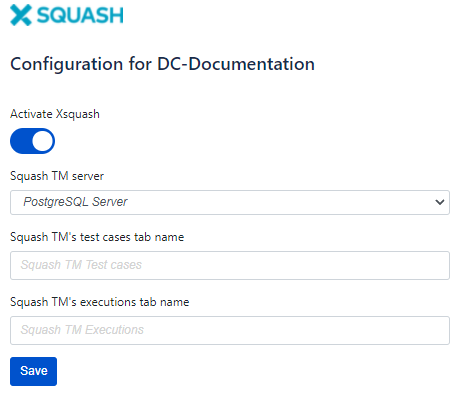
By default, the synchronization tabs of the Squash TM acceptance data are named Squash TM test cases and Squash TM executions. The configuration pop-up enables you to rename these tabs that appear in the Jira requests of the project. Once the configuration is done, click on [Save].
Preview of a Jira Request
In Jira Data Center and Jira Cloud, the tabs added by Xsquash appear in the Activity block of the configured project's requests.
See the Follow testing activity in Jira page for more information.