Install SquashTM License and Plugins
Install SquashTM Plugins
There are two ways to install plugins in SquashTM:
By using the plugin files embedded in SquashTM distribution
- Retrieve the plugin in the
squash-tm/plugin-filesfolder; - Move or copy the folder corresponding to the plugin to be installed to the following folder:
- for Linux tarball:
/opt/squash-tm/plugins; - for Windows:
C:\<rep>\squash-tm\plugins;
- for Linux tarball:
- In Linux, give read permission to the squash-tm user for the
.jarfiles; - If it is a commercial plugin, make sure that the license file
squash-tm.licis in the folderlicense; - Restart SquashTM for the plugins installation to be taken into account.
By downloading the plugins
- Download the plugin from the Downloads page;
- Extract the plugin;
- Select all the
.jarfiles it contains and put them in the following folder:- for Linux tarball:
/opt/squash-tm/plugins; - for Windows:
C:\<rep>\squash-tm\plugins;
- for Linux tarball:
- In Linux, give read permission to the squash-tm user for the
.jarfiles; - If it is a commercial plugin, make sure that the license file
squash-tm.licis in the folderlicense; - Restart SquashTM for the plugins installation to be taken into account.
Info
Plugins can also be put in subfolders of the plugins folder.
Info
The list of installed plugins can be directly viewed in SquashTM by a functional administrator in the system information.
Once installed, some plugins can operate right away, such as API or reporting plugins. Other plugins need to be configured in the server or in SquashTM Administration workspace.
Learn More
To learn more about configuring plugins in the server, please read Configuring plugins. For other configurations, please read the Administrator Guide.
Install the Commercial License
The use of SquashTM commercial plugins is determined by the presence of a license file: squash-tm.lic. This file is mandatory to start SquashTM with commercial plugins.
This file is given to the client by the SquashTM Support Team following the formalization of a new license or a renewal.
The license file is unique to each client. It contains the following information:
- expiration date;
- number of users;
- list of the authorized commercial plugins according to the license(s) you have.
You can use this license file for production instances as well as preproduction instances.
To install the license file in SquashTM:
- In SquashTM's
pluginsdirectory, create a subdirectory entitledlicense - Put the file
squash-tm.licgiven to you by the SquashTM Support Team in that subdirectory; - Restart SquashTM.
The license file controls the number of active users in SquashTM. When the maximum number of users is exceeded, a message appears to alert the administrators. If this number is exceeded by more than 20%, the creation of new users is blocked.
Two months before the license's expiration date, a message alerts the administrators. Beyond this date, the message will alert all the users. If the license is still not renewed two months after the expiration date, SquashTM shuts off. You will then have to uninstall the commercial plugins to be able to restart SquashTM.
Install Xsquash for Jira Data Center
Xsquash is an additional component available on the Atlassian Marketplace for Jira Data Center that reinforces the integration between SquashTM and Jira. It displays SquashTM test cases and executions directly in Jira issues that were synchronized in SquashTM via Xsquash4Jira.
Info
The data is displayed in Jira via SquashTM's REST API. This plugin does not write in the Jira database.
This plugin requires at least Jira Data Center 8.4+.
Learn more
For more information on how to configure the Xsquash4Jira plugin, please visit the page Configure Xsquash4Jira in SquashTM.
To install the Xsquash plugin on Jira Data Center, please follow these steps:
- Log into Jira as an administrator;
- Go to Jira Administration and click on Manage Apps. The Atlassian Marketplace for Jira appears;
- Search for Xsquash in the Marketplace. The search results include the app versions that are compatible with Jira;
- Click on [Install] to download and install the app;
- Click on Close in the dialog window.
Xsquash must be configured for it to work.
Learn more
For more information on how to configure the Xsquash plugin, please visit the page Configure Xsquash in Jira.
Install the Xsquash Cloud app in Jira Cloud
Xsquash Cloud is an app hosted on an internal server of the company Henix. It reinforces the integration between SquashTM and Jira Cloud. It displays SquashTM test cases and executions directly in Jira issues that were synchronized in SquashTM via Xsquash4Jira.
This app is only available if you have a commercial license.
Warning
- Xsquash Cloud is only available for clients with a SquashTM Premium or Ultimate License.
- SquashTM and Xsquash Cloud must be in compatible versions, so it is necessary to contact the SquashTM Support Team to request an update of Xsquash Cloud when SquashTM has been upgraded.
Info
The data is displayed in Jira via SquashTM's REST API. This app does not write in Jira Cloud's database.
Learn more
For more information on how to configure the Xsquash4Jira plugin, please visit the page Configure Xsquash4Jira in SquashTM.
There are two ways of installing the Xsquash Cloud app in Jira Cloud:
Install Xsquash Cloud manually
To install Xsquash Cloud manually, please follow these steps:
- Log onto the Jira Cloud instance as an administrator.
- Click the [Settings] button and select [Marketplace apps];
- From the Manage apps menu, click [Take me there];
- From the Connected apps menu, click [Settings];
- Make sure that Developer mode is set to Enabled; if not, enable it;
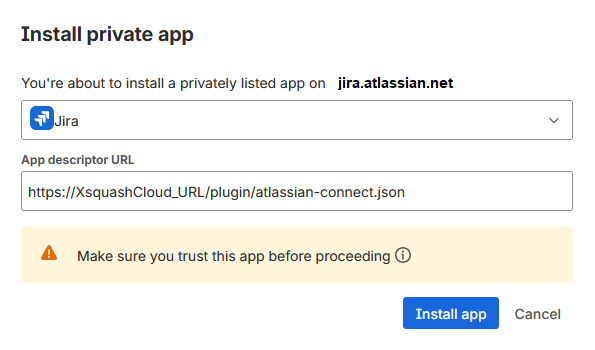
- On the Installed apps page, click [Install a private app] to open the Install private app window;
- In the Choose a product to install this app on field, select Jira;
In the App descriptor URL field, enter the URL provided by the SquashTM Support Team, then click the [Install app] button;
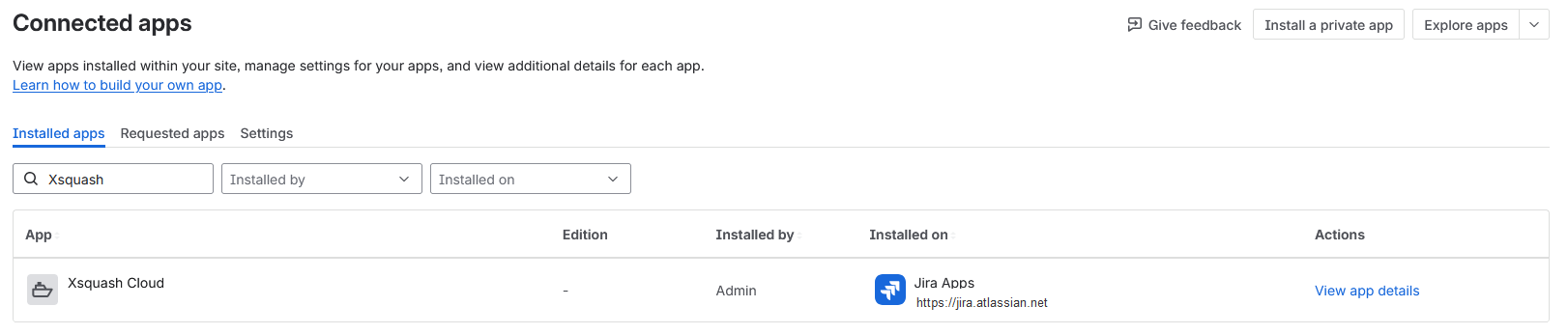
The Xsquash Cloud application then appears in the list of installed applications.
Install Xsquash Cloud via the API
Before installing the Xsquash Cloud app in Jira Cloud via the API, you must have an administrator account with an API token.
To generate an API token, please follow these steps:
- Login with your administrator account. In Your profile and settings, click on Settings;
- Click on Manage your account;
- Click on Security;
- In the API Token part, click on Create and manage API tokens;
- Click on Create an API token;
- Enter a description and click on Create;
- Copy the token.
Here are the steps to follow to install the Xsquash Cloud app via the API:
Make a GET request in BASIC AUTH to the following URL:
https://Jira-URL.atlassian.net/rest/plugins/1.0/?os_authType=basicwith the following info in the header:
Accept: application/vnd.atl.plugins.installed+jsonTo authenticate yourself, use the administrator's username and their API token;
Retrieve the header
upm tokenvalue in the answer;Make a POST request in BASIC AUTH to the following URL by replacing
upm-Tokenby the value of the headerupm-tokenyou just retrieved:https://Jira-URL.atlassian.net/rest/plugins/1.0/?token=upm-Tokenwith the following information in the header:
Content-type: application/vnd.atl.plugins.uri+json
Accept: application/json
and in the body the following command with the URL provided to you by the SquashTM Support Team:
{
"pluginUri": "https://Url-Xsquash-Cloud.com/atlassian-connect.json",
"pluginName": "Xsquash Cloud"
}
To authenticate yourself, use the administrator's username and their API token;
Xsquash Cloud then appears in the list of installed apps in Jira Cloud administration.
You must then configure the app in order to use it.
Learn more
For more information on how to configure the Xsquash Cloud app, please visit the page Configure Xsquash Cloud in Jira Cloud.