Analyze the results
Publication of the results of an execution plan
When using the test results publication API endpoint, a new automated suite is created in the test plan. This object has a status and provide details for each executed tests (status, duration, attachments...).
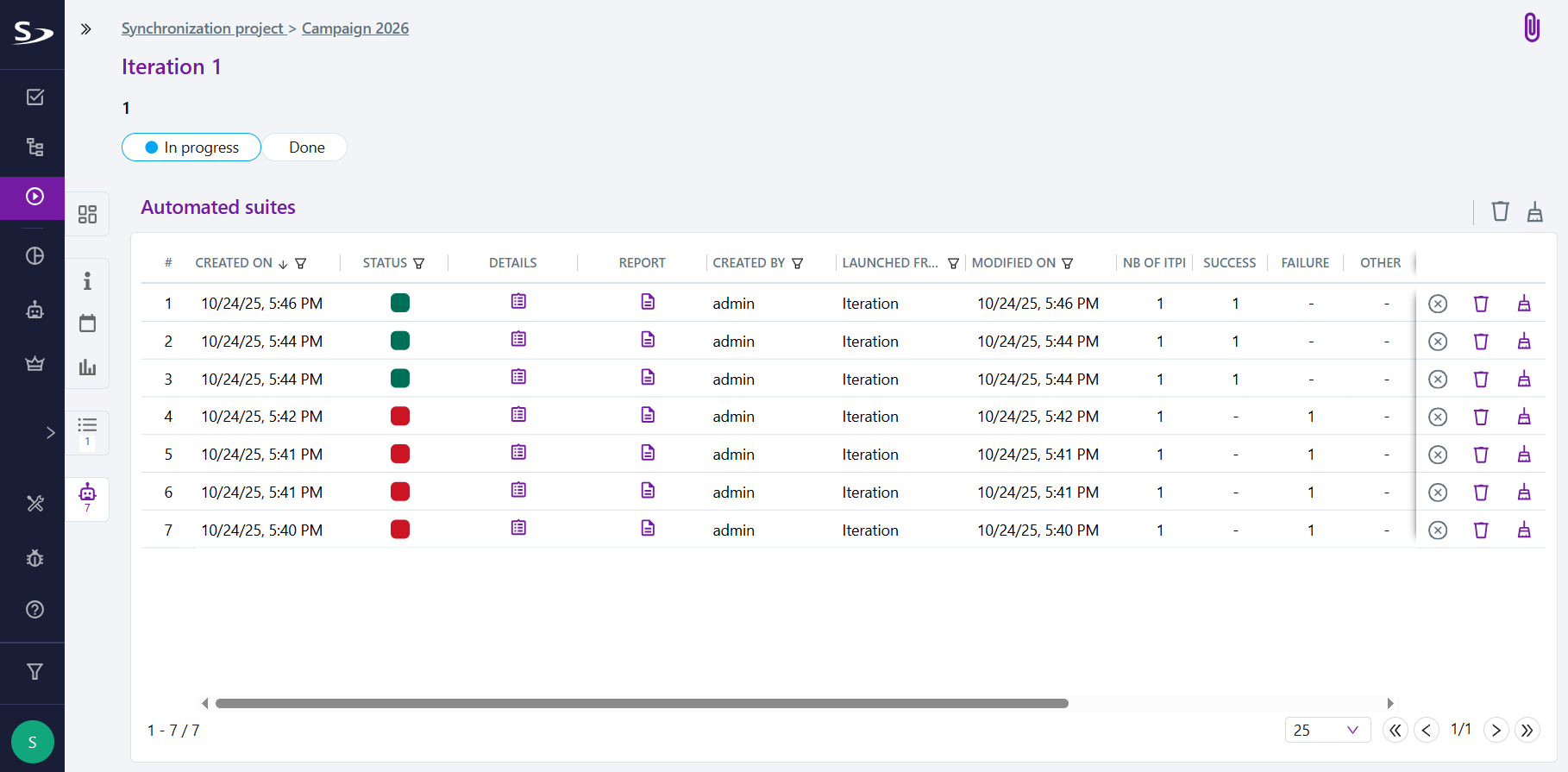
From the Automated Suites anchor of an iteration or a test suite, you can view the list of automated suites.
For each automated suite, the following information is available:
- creation date;
- status of the automated suite ('Passed', 'Failed', 'Cancelled', 'Blocked', 'Skipped');
- details containing the list of suite executions;
- user who published the automated tests;
- total number of executions;
- number of executions with a 'Passed' status;
- number of executions with a 'Failed' status;
- number of executions with another status ('Blocked', 'Cancelled', 'Ready', or 'Skipped');
Execution Status of Executions and Automated Suites
The following table describes the available statuses and their typical use cases.
| SquashTM Status | Color | Execution | Automated Suite |
|---|---|---|---|
| Ready |  | The test plan item is part of an automated suite that has been launched, but the corresponding automated script has not yet started. | - |
| Passed |  | The item has been executed and its result (as reported by the test framework) is 'passed'. | All items in the automated suite have been executed and have a status 'passed' or 'skipped'. |
| Failed |  | The item has been executed and its result (as reported by the test framework) is 'failed'. | All items in the automated suite have been executed, none have a status 'blocked', and at least one item has a status 'failed'. |
| Blocked |  | The item could not be executed or its results could not be analyzed: the test does not exist, a library/dependency/… is missing… | All items in the automated suite have been executed, at least one item has a status 'blocked'. |
| Skipped |  | The item was not executed or has a status 'skipped' (i.e., it was marked in the automated test code as not to be executed). | All items in the automated suite have been executed and have a status 'skipped'. |
| Cancelled |  | The item will never be launched because it was deliberately interrupted. | The automated suite was interrupted before all the items in the automated suite were executed. |
Consult an automated execution and its execution reports
From the execution plan
You can view a run and its reports from the execution plan.
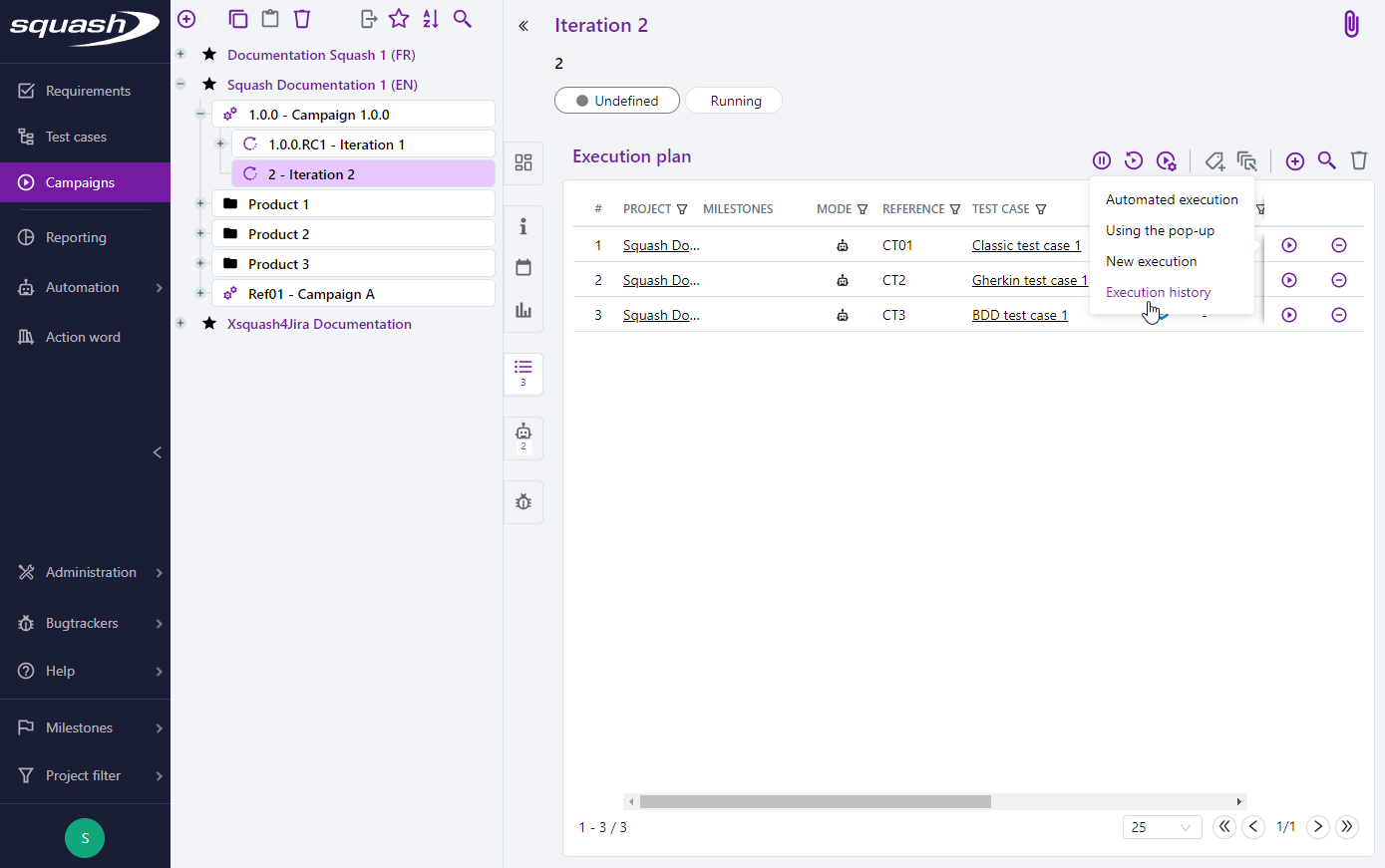
The run consultation page is displayed by clicking on the Run History submenu and then on the run number.
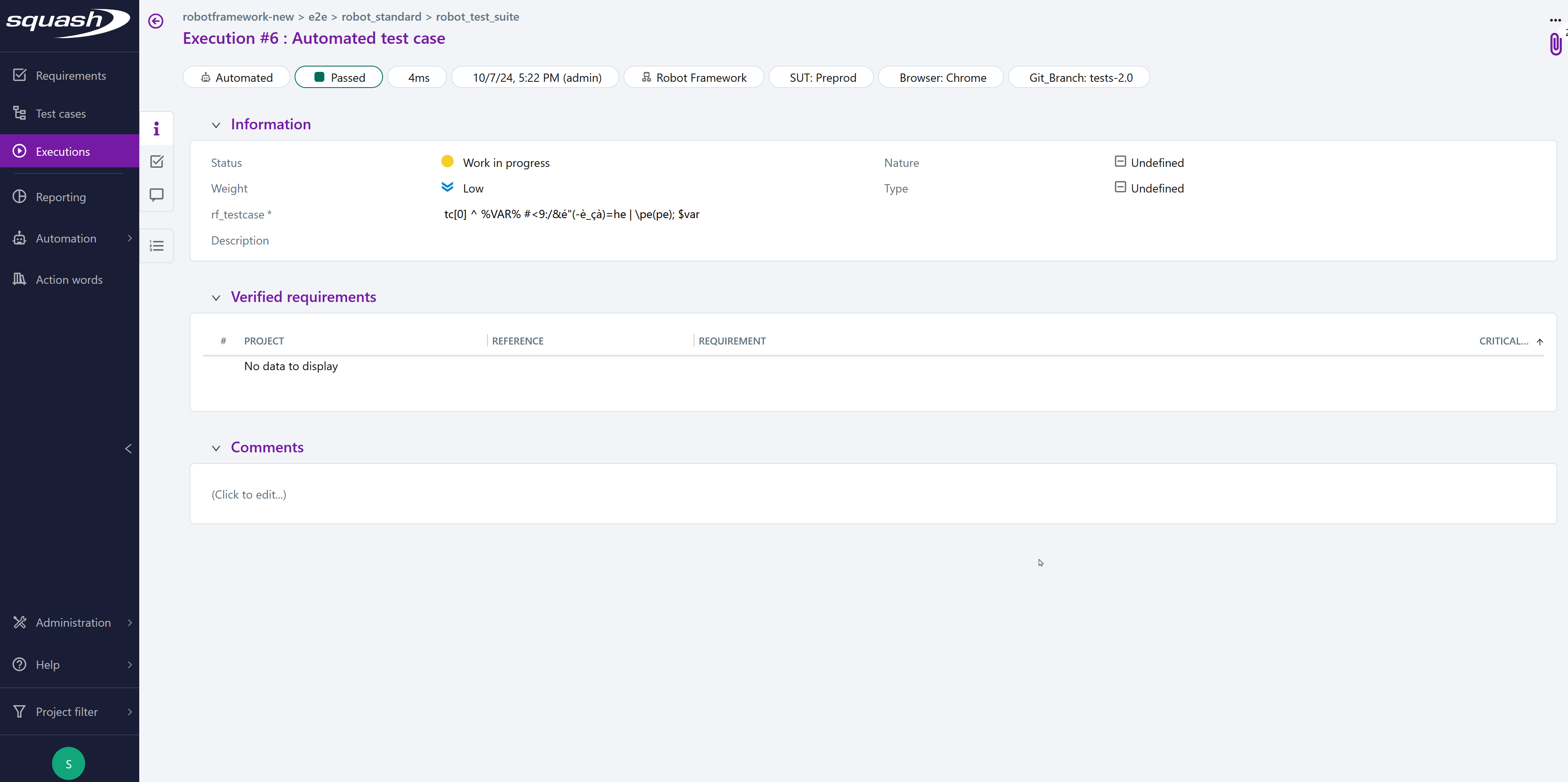
From the execution consultation page, the tags, the environment variables used, and the execution times are visible, and the execution reports can be downloaded in the attachments block.
From an automated suite
It is possible to view the details of an execution and its reports from the automated suite.
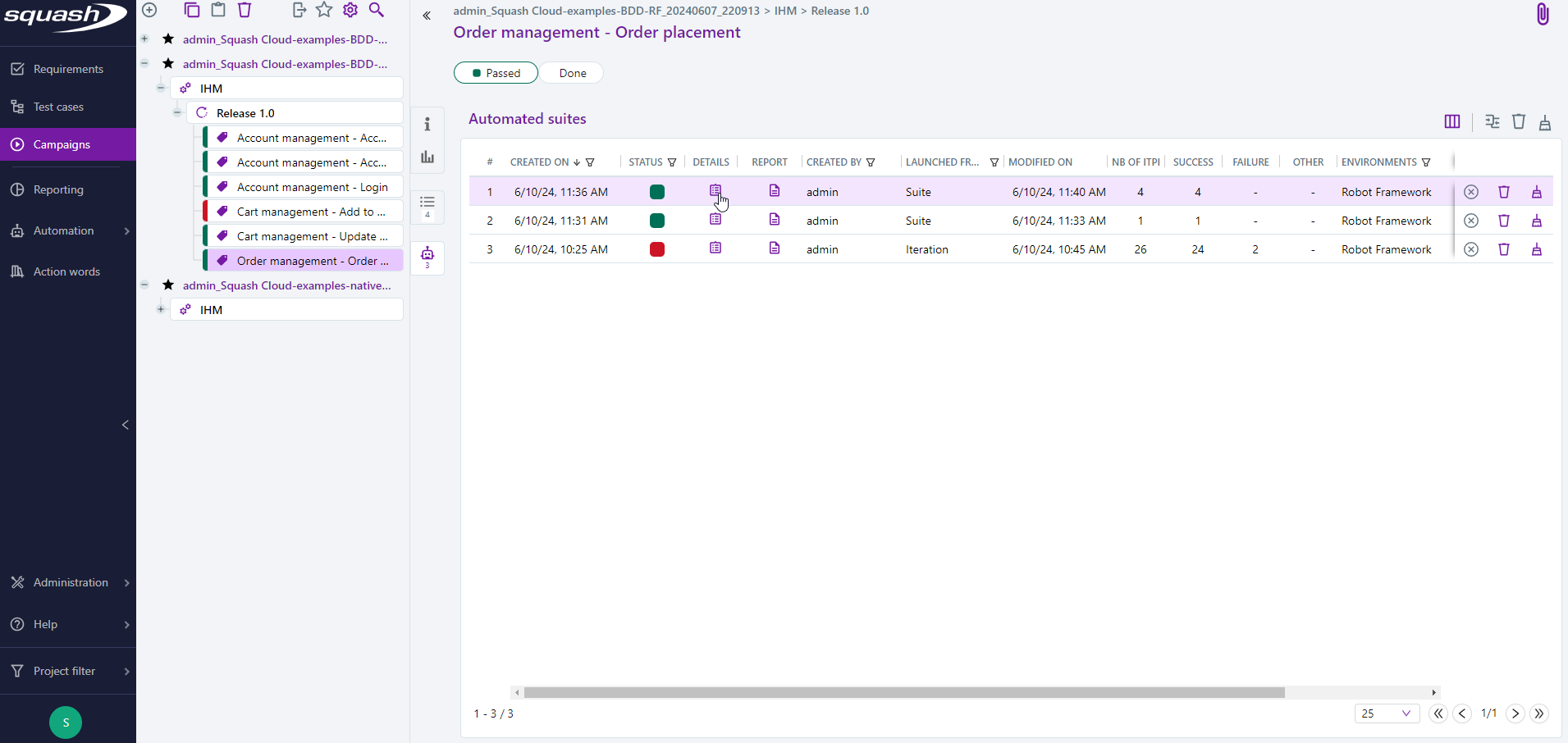
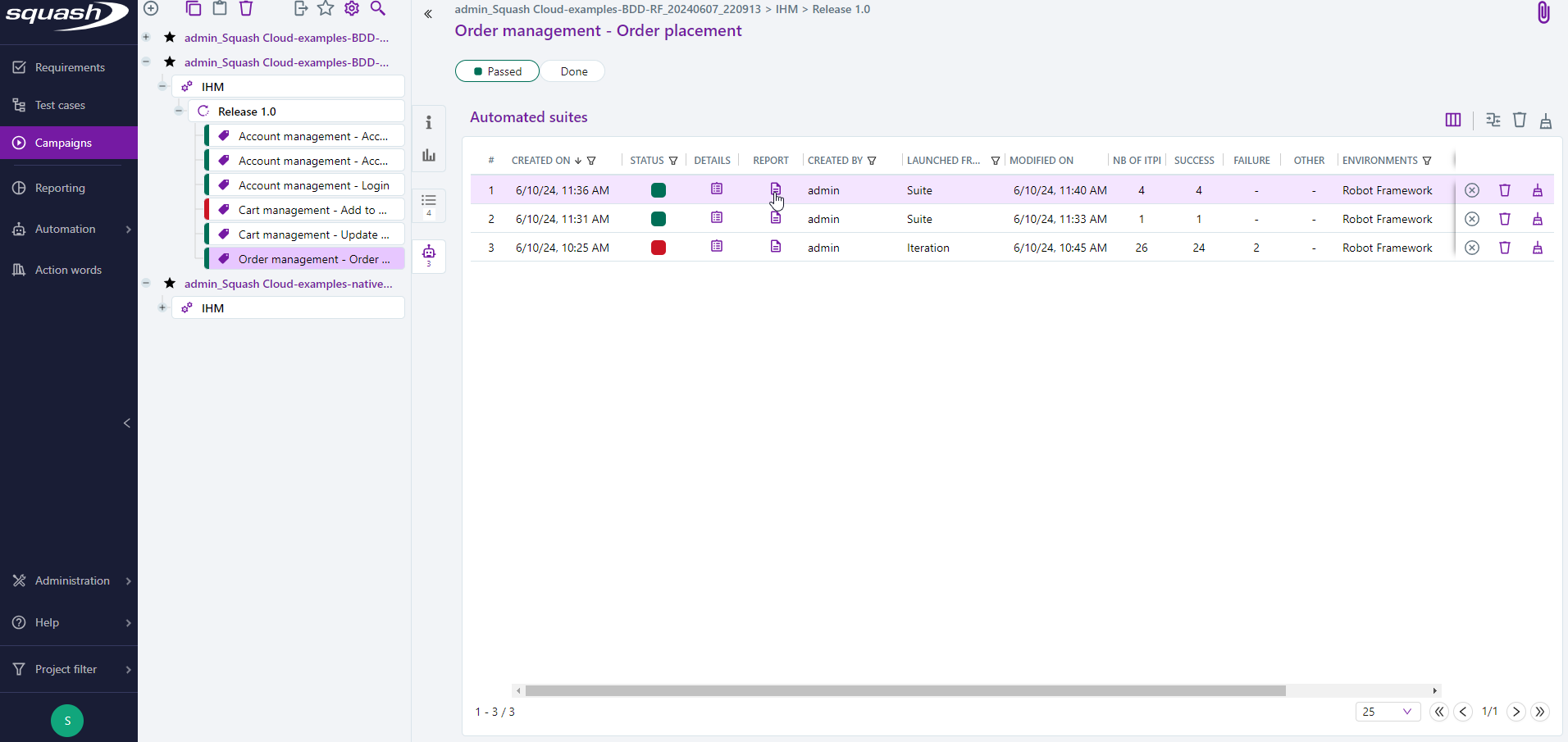
You can view the execution reports by clicking on the  button. They are organized by test case to make them easier to read.
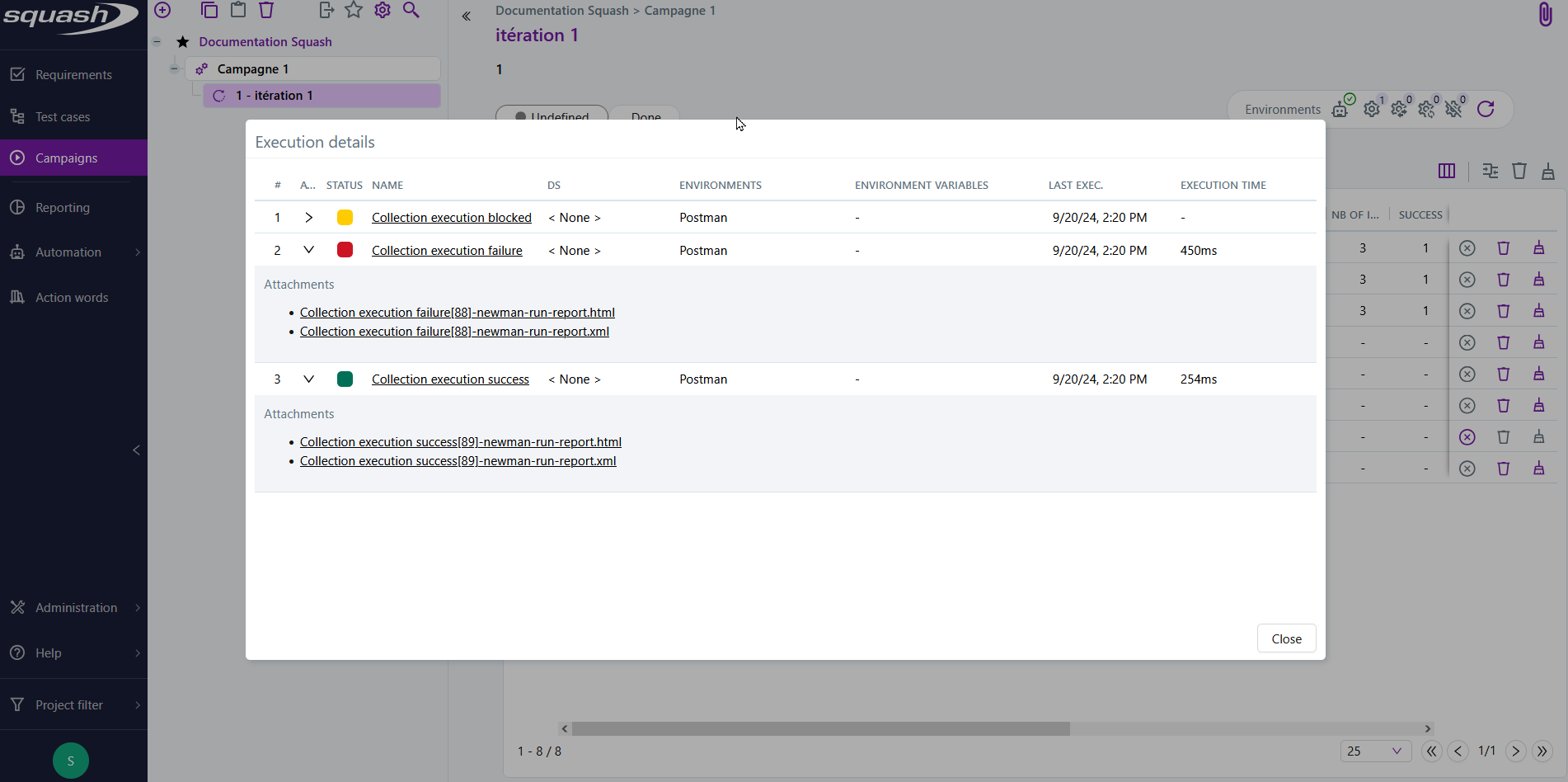
You can view the execution logs for the automated suite by clicking on the  button.
Assertion Failures
Info
This feature is available with SquashTM Premium 👑 and SquashTM Ultimate 💎 licenses, using the SquashTM Premium plugin.
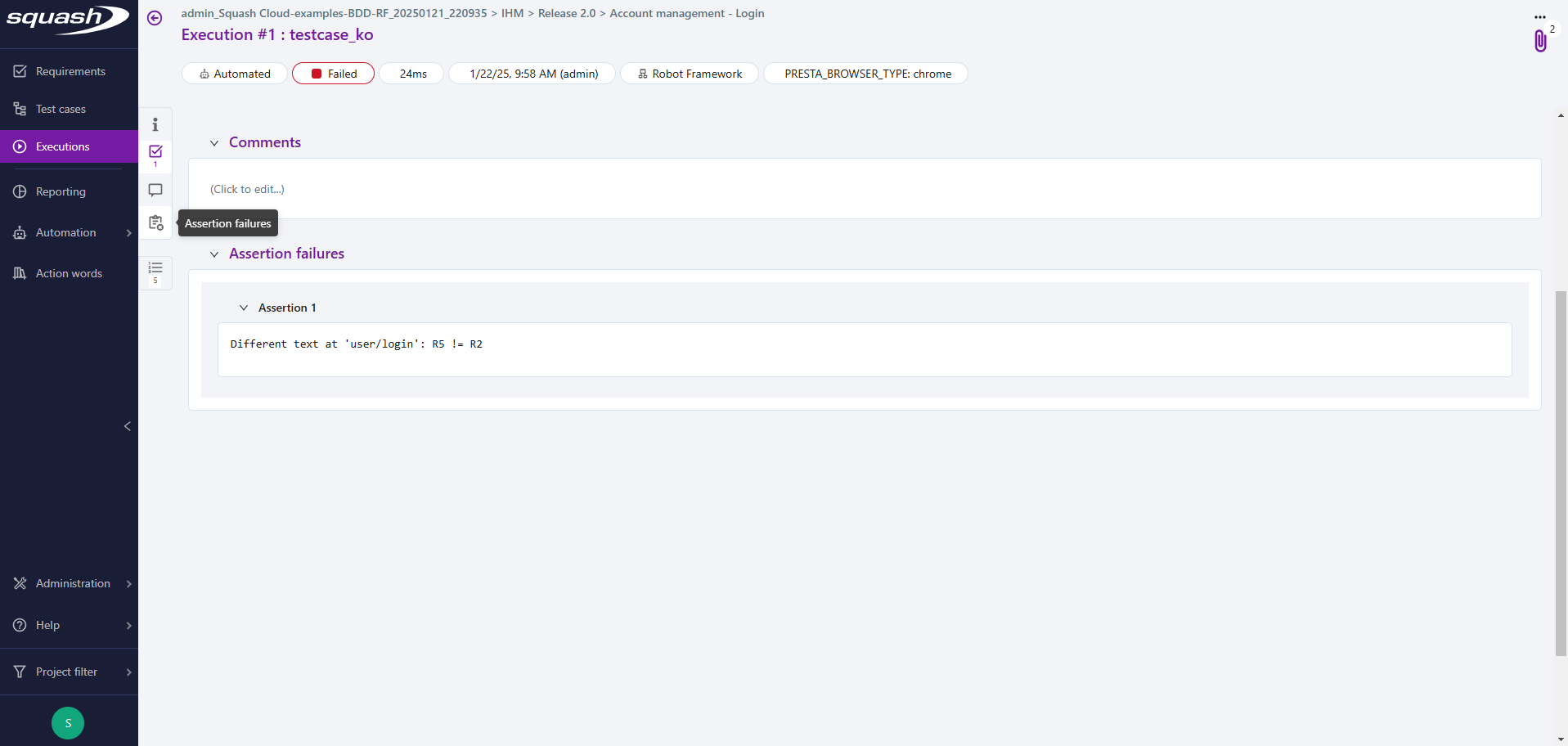
Assertion failures are a way to provide technical insight on a test failure, typically error messages or stack traces as found in test result reports.
For a given execution, if the same assertion failure appears multiple times in the test report, only one occurrence of the assertion failure will be taken into account and reported.
An assertion failure is linked to a test plan item, and when a new automated execution is created, if the status is "Failed" for the same assertion failure (same text), the assertion is automatically attached to this execution.
Assertion failures can be viewed:
- On the page of an automated execution:
- In the automated suites detail pop-up:
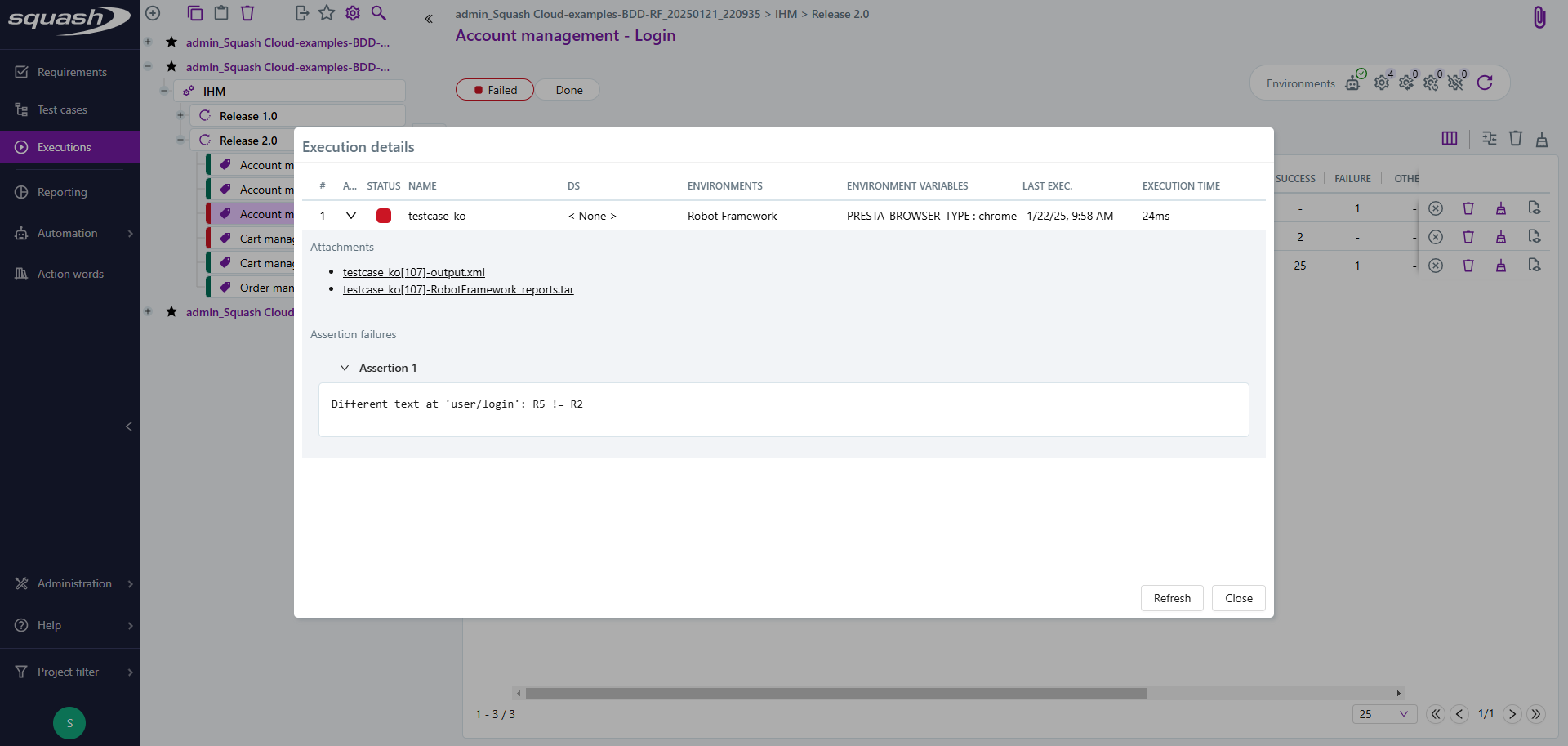
When an ITPI is deleted, all assertion failures linked to that ITPI are also deleted.
Report or attach an Issue to an Assertion Failure
If a bug tracker is linked to the project, you can:
- Report a new issue linked to the assertion failure;
- Attach an existing issue in the bug tracker to an assertion failure;
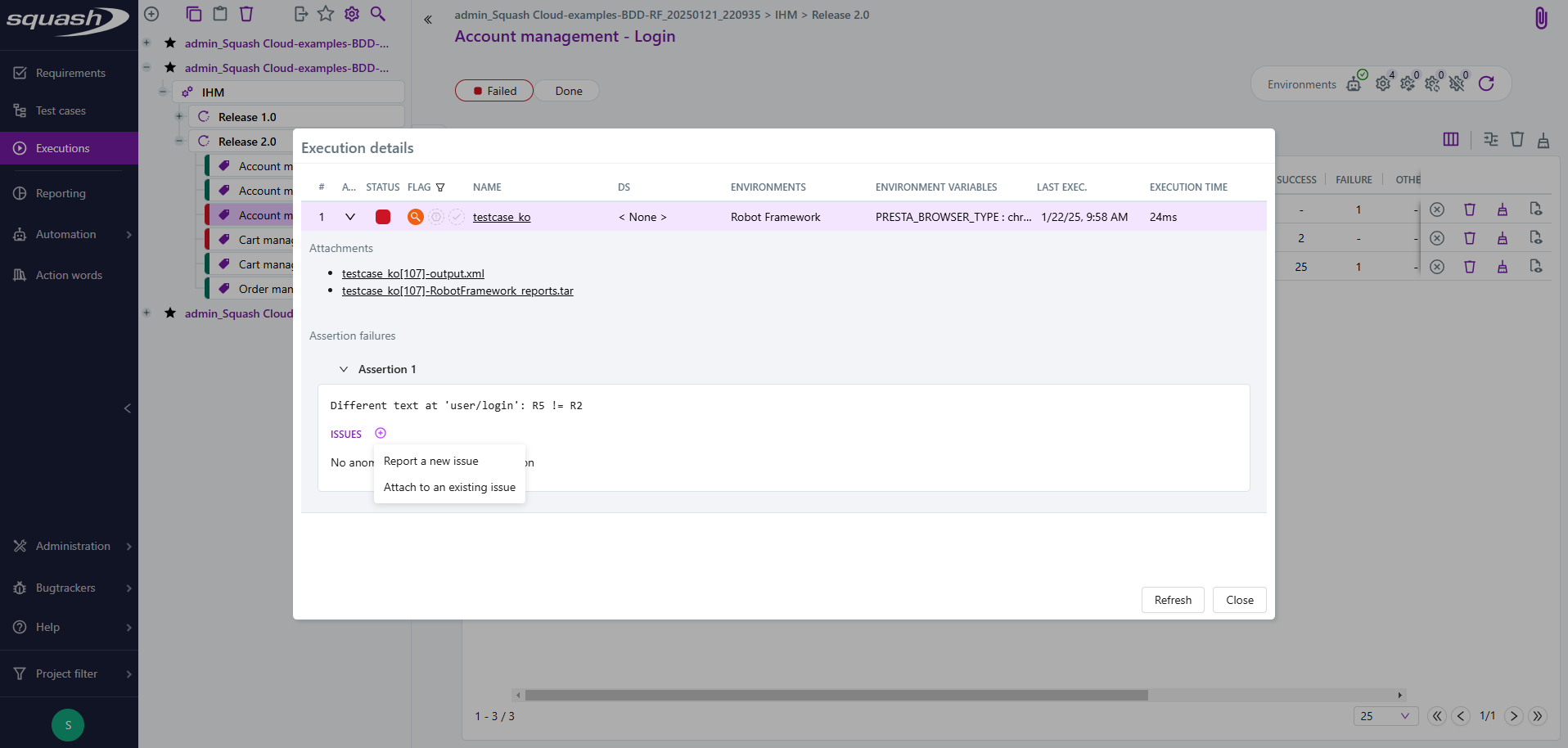
- View the list of issues associated with an assertion failure.
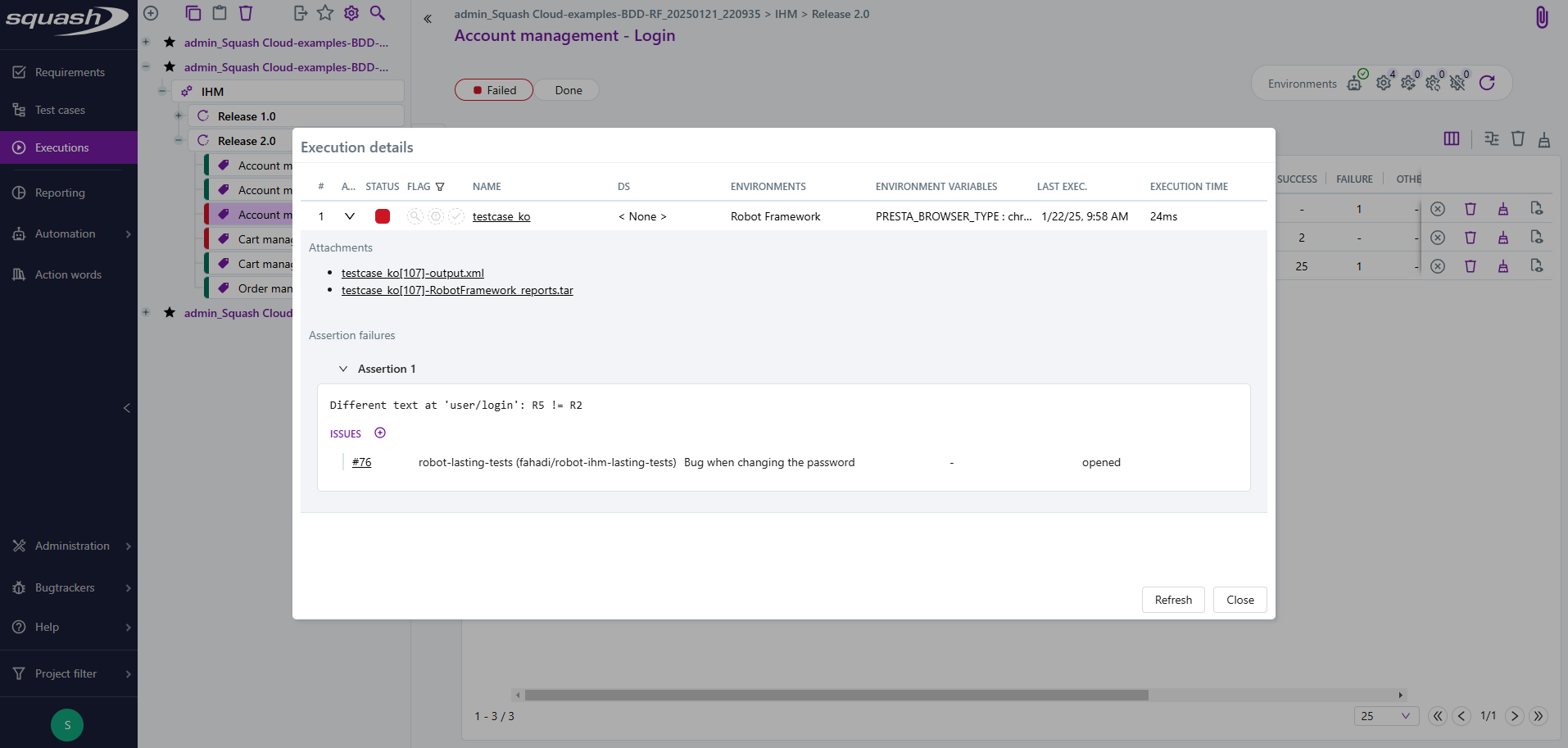
When an issue is linked to an assertion failure, it is also linked to the execution where the action was performed, as well as to all subsequent executions with the same assertion failure.
When an issue is unlinked from an assertion failure:
- Executions carrying the assertion failure remain linked to the issue.
- Future executions carrying the assertion will no longer be linked to the issue.
Viewing the Execution Statuses of BDD Test Steps
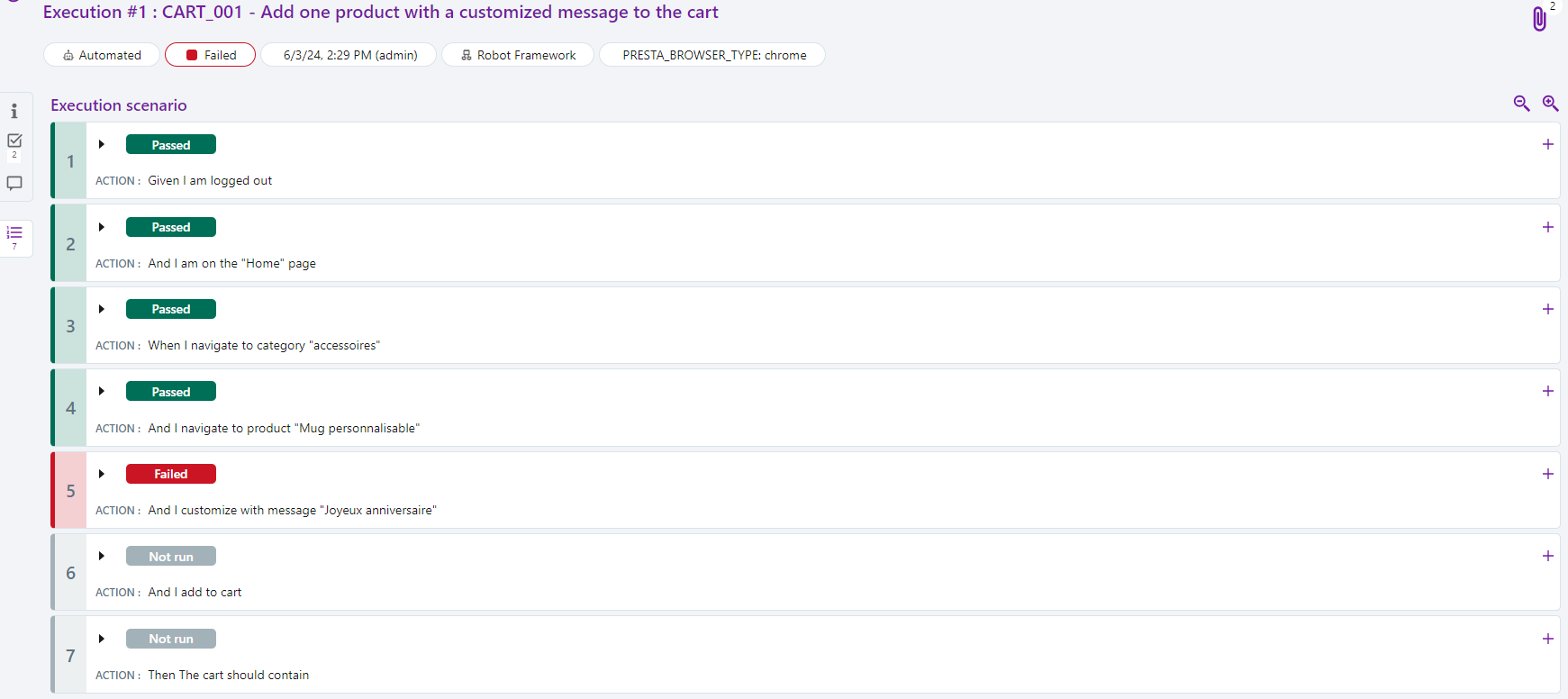
You can view the execution statuses of the test steps from a BDD test execution directly from the Execution Scenario anchor of an execution.
Warning
The execution status of test steps will not be updated and will remain "Ready" if they are not provided in the REST API call
Comparing Execution Statuses
Warning
Comparing execution statuses is a feature available with the SquashTM Premium license and the SquashTM Premium plugin.
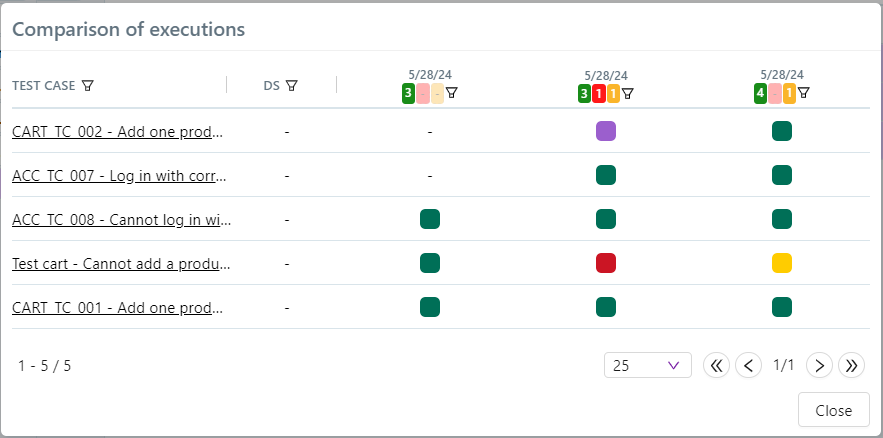
It is possible to compare the detailed execution statuses of test plan items from multiple automated suites.
To compare, select at least two automated suites, then click on the icon  .
.

The automated suites comparison pop-up contains a table with one row per test plan item and one column per automated suite.
The suites are sorted by selection order, and the columns can be filtered and sorted by execution status.