Manage prompt sets
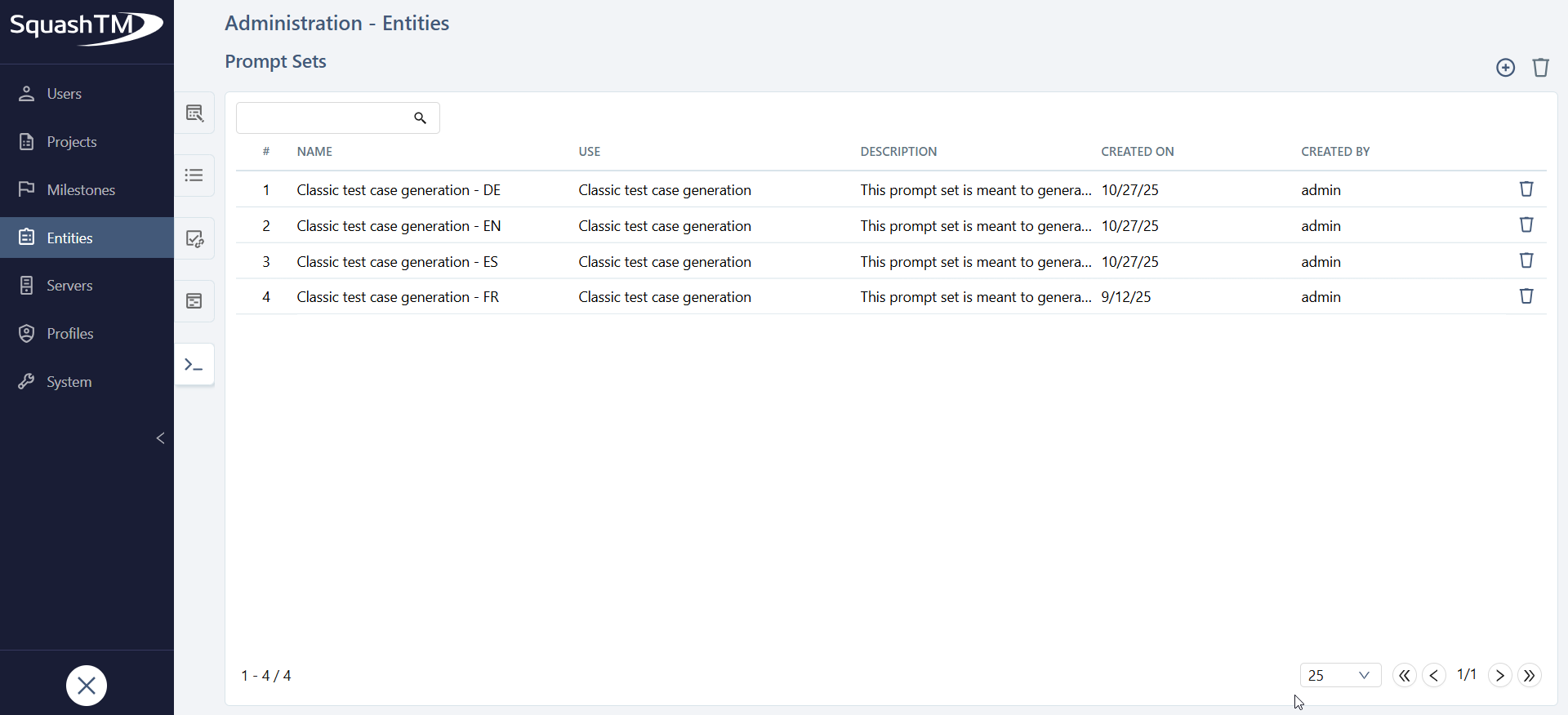
You can manage prompt sets from the Administration workspace. In the submenu Entities, click the anchor  .
.
A prompt set is a collection of prompts designed for a specific use of generative AI within SquashTM.
Each prompt includes a system prompt template and a user prompt template. SquashTM uses these templates to generate the system and user prompts sent to the AI.
Info
At present, the only application of generative AI in SquashTM is generating classic test cases from a requirement. Additional use cases will be introduced in future releases.
Managing prompt sets is available with the SquashTM Premium plugin and the Ultimate license.
Understanding prompt sets and prompts
Prompt set
A prompt set allows grouping prompts from which users can choose for a specific use of AI within SquashTM.
Each prompt set can be linked to one or more projects and contains one or more prompts.
Prompt
A prompt defines the data sent to the AI. It contains:
- a system prompt template: it defines the AI's role and the instructions it must follow,
- a user prompt template: it contains the specific request or question sent to the AI along with the context data.
These templates are Handlebars templates preprocessed by SquashTM before being sent to the AI. This notably makes it possible to:
- include SquashTM data using the
{{variable}}syntax; - conditionally display portions of text using
{{#if}}and{{/if}}; - iterate over data using
{{#each}}and{{/each}}; - …
Add, edit, delete a prompt set
Add a prompt set
From the prompt set management table, it is possible to add  or delete
  prompt sets individually or in bulk.
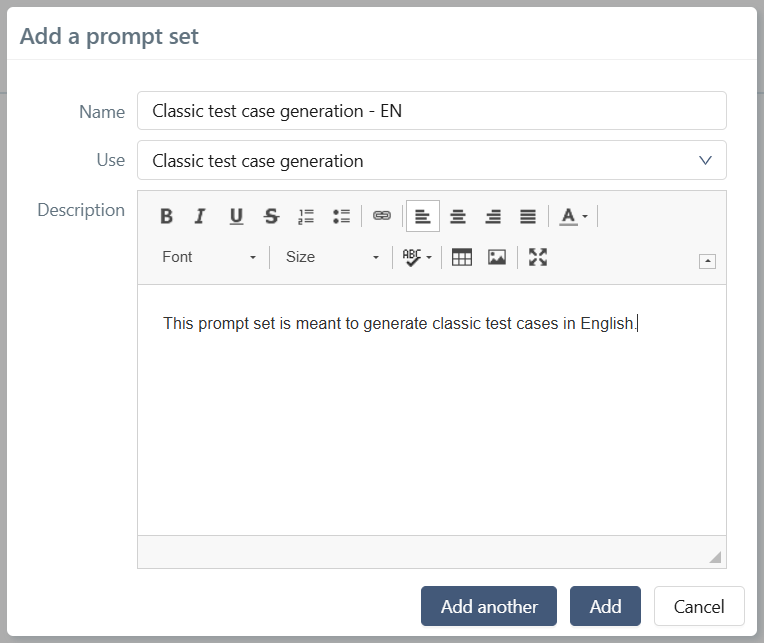
When creating a prompt set, the following fields must be filled in:
- the Name field: it must be unique and is mandatory;
- the Usage field: it is mandatory and cannot be modified afterwards. Its default value is Classic test case generation;
- the Description field: optional.
Edit a prompt set
By clicking on the row number (#) or the name of the prompt set, the prompt set consultation page is displayed to allow modifying its information and adding prompts.
Manage prompts in a set
Add a prompt
From the prompt set consultation page, it is possible to add prompts.
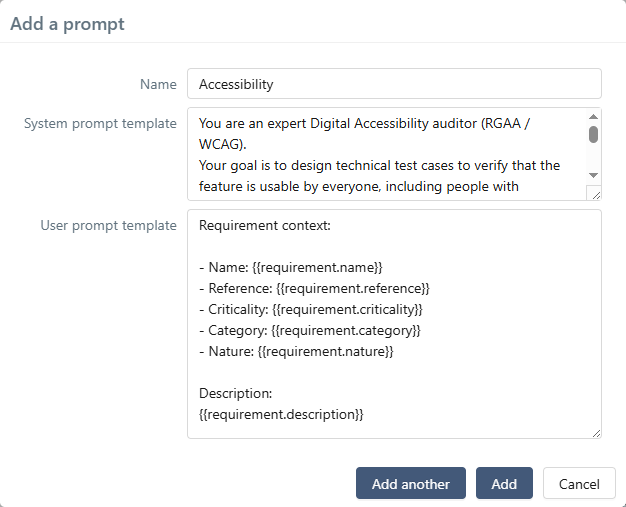
When adding a prompt, the following fields must be filled in:
- the Name field: it is used to select the desired prompt when using an AI-related feature. It must be unique within the prompt set.
- the System prompt template field: it defines the system prompt template that will be sent to the AI.
- the User prompt template field: it defines the user prompt template that will be sent to the AI.
All fields are mandatory.
Edit a prompt
To display the details of a prompt:
- click the
 icon on the corresponding row;
 - or click the
 button to display all prompts.
All elements are directly editable.
Delete a prompt
To delete a prompt, click the icon on the corresponding row.
Prompts for classic test case generation
In the case of classic test case generation from a requirement, the User prompt template may use data from the selected requirement through Handlebars variables.
Available Handlebars placeholders
The following variables are available in the User prompt template:
requirement is an object representing the currently selected requirement. It exposes in particular the following fields:
name: name.reference: reference.criticality: criticality.category: category.nature: nature.description: description.
If a field is not filled in the requirement, the corresponding placeholder generates an empty value.
Prompt examples for test case generation
The examples below illustrate two ways of using prompts for AI-driven test case generation from a requirement:
- a simple example, recommended for most use cases.
- a more complete example, allowing additional requirement informations to be used when context requires it.
These examples serve as starting points and may be adapted or expanded depending on project needs.
Example 1 — Simple prompt
This example corresponds to the most common use. Test case generation relies mainly on the requirement description.
System prompt template
You are a manual software testing expert.

Your role is to define the test cases required to validate a functional requirement,
based primarily on its description.

The test cases must be provided exclusively in the following structured JSON format:

{
  "testCases": [
    {
      "name": "test case name",
      "description": "test case description",
      "prerequisites": "prerequisites",
      "testSteps": [
        {
          "action": "action",
          "expectedResult": "expected result"
        }
      ]
    }
  ]
}

Your response must contain only this JSON.
Do not use code blocks or explanatory text.
User prompt template
Generate test cases from the following requirement:

{{requirement.description}}
Example 2 — Complete prompt (taking requirement context into account)
This example illustrates an advanced use of AI-driven test case generation. The system prompt explicitly describes how the criticality, nature, and category of the requirement must influence the generated test cases.
System prompt template
You are a manual software testing expert, following ISTQB best practices.

Your role is to define test cases that verify that a system
meets the expected behavior described in a SquashTM requirement.

Adapt the test strategy and the generated test cases
based on the requirement characteristics when this information is available:

Criticality:
  - the higher the criticality, the wider and deeper the test coverage must be;
  - include nominal scenarios, error scenarios,
    boundary cases and, if relevant, non-regression checks;
  - for lower criticality, focus on targeted scenarios
    covering the expected behavior.

Requirement nature:
  - if the requirement is high-level, it describes a macro functionality:
    split it into concrete and testable functional scenarios;
  - if the requirement is classic, it describes a precise behavior:
    directly produce operational test cases.

Category:
  - adapt the test cases to the type of requirement (e.g., business,
    ergonomic, performance, non-functional, etc.);
  - adjust prerequisites, actions and expected results
    depending on this category.

The test cases must be provided exclusively in the following structured JSON format:

{
  "testCases": [
    {
      "name": "test case name",
      "description": "test case description",
      "prerequisites": "prerequisites",
      "testSteps": [
        {
          "action": "action",
          "expectedResult": "expected result"
        }
      ]
    }
  ]
}

Your response must contain only this JSON.
Do not use code blocks or explanatory text.
User prompt template
Explicit version:
Generate test cases for the following requirement:

Name: {{requirement.name}}
Reference: {{requirement.reference}}
Criticality: {{requirement.criticality}}
Category: {{requirement.category}}
Nature: {{requirement.nature}}

Description:
{{requirement.description}}
Equivalent version with a more concise Handlebars syntax:
{{#with requirement}}
Generate test cases for the following requirement:

Name: {{name}}
Reference: {{reference}}
Criticality: {{criticality}}
Category: {{category}}
Nature: {{nature}}

Description:
{{description}}
{{/with}}
Delete a prompt set
Deleting a prompt set is accessible from the prompt set consultation page or through the prompt set grid.
Warning
Deleting a prompt set results in the deletion of all contained prompts. If this set is used by a project's AI feature, the feature will no longer work until a new prompt set is associated with the project.