Manage the admin recycle bin
Attention
This feature is available with a SquashTM Premium or Ultimate license.
The admin recycle bin management is accessible from the space Administration. By clicking on the submenu Recycle bin, the inter-project library is displayed and presents the projects in the space color.
Info
Only the "Administrator" or "Project Leader" profiles are authorized to manage the recycle bin. For the latter, access is limited to the scope of their respective projects.
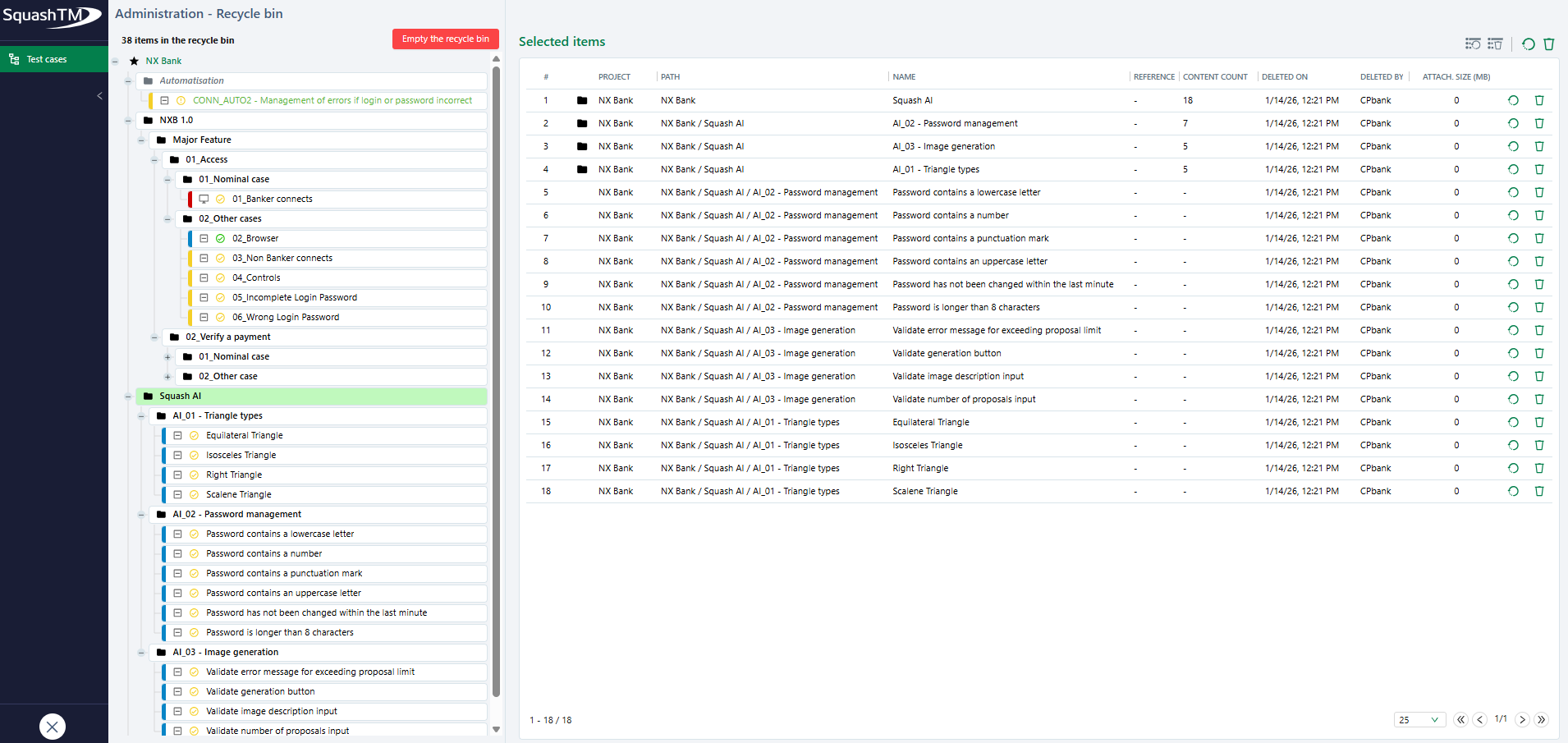
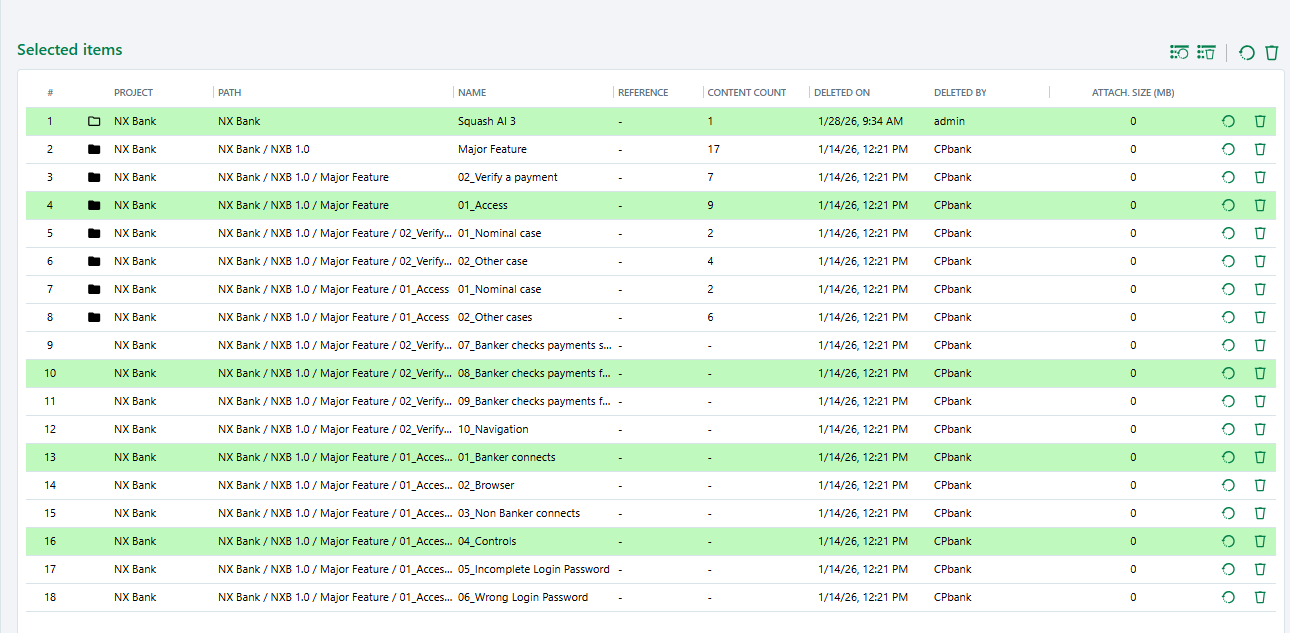
When a selection (project, folder, or object) is active in the library of a space, it appears in the management table and can be restored or permanently deleted.
Focus
- The trashing of an object does not delete its parent folder. It is kept and simply appears in italic in the tree.
- Conversely, when a folder is moved to the recycle bin, all objects in it are moved to the recycle bin. This behavior is valid for the restoration or permanent deletion of a folder.
The recycle bin management table
For each object, this information is displayed:
- (#): the line number (#) which allows a finer selection;
- Project : the name of the project to which it belongs;
- Path : the object's path;
- Name : the object's name;
- Reference : the object's reference;
- For a folder:
- an empty folder icon
 or full
  whether or not it contains objects;
 - Content count: the total number of objects that a folder contains (including itself);
- an empty folder icon
- Deleted on and Deleted by: the date and author of the deletion;
- Attach. size (MB): the size of attachments attached to the object.
Restore
From the recycle bin management table, it is possible to restore the entirety  of the objects, a selection
  or a specific object by clicking on the button present at the end of the line. Once restored, each object automatically returns to its original location.
Delete permanently
The permanent deletion  is done from the management table as well as from the tree by clicking on the button [Empty the recycle bin] to perform a mass deletion.