Manage Artificial Intelligence servers
Info
The generation of test cases by Artificial Intelligence is available with a SquashTM Ultimate license 💎 and the SquashTM Premium plugin.
Warning
AI servers were an experimental feature added in Squash TM 7. In SquashTM 13, these servers have been fully redesigned. AI servers declared in SquashTM 12 or earlier (indicated as "legacy") are still usable, but no new legacy servers can be added. Support for legacy AI servers will be dropped in SquashTM 16.
Add or delete an Artificial Intelligence server
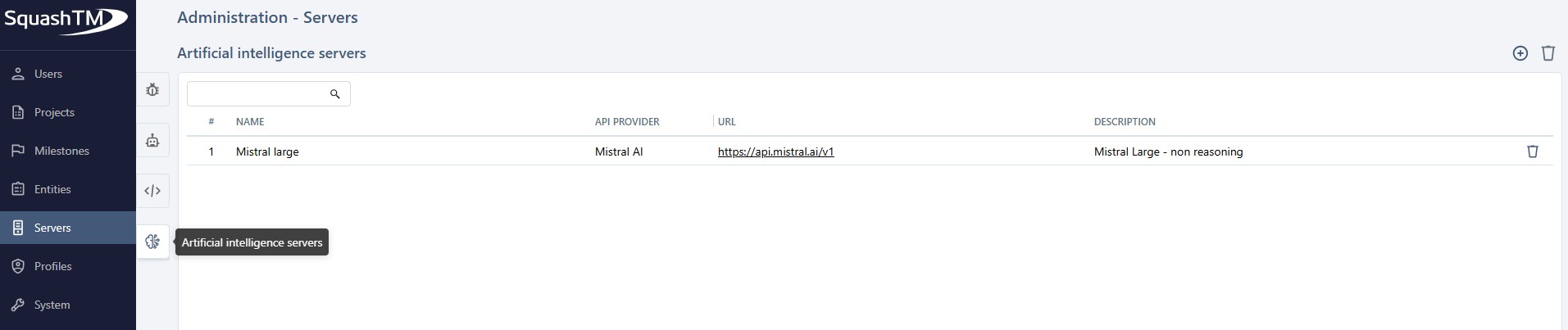
From the Artificial Intelligence servers table, accessible by clicking on the  icon, you can add
  or delete
  one or more servers.
If you delete a server linked to a project, it will be removed from that project's configuration.
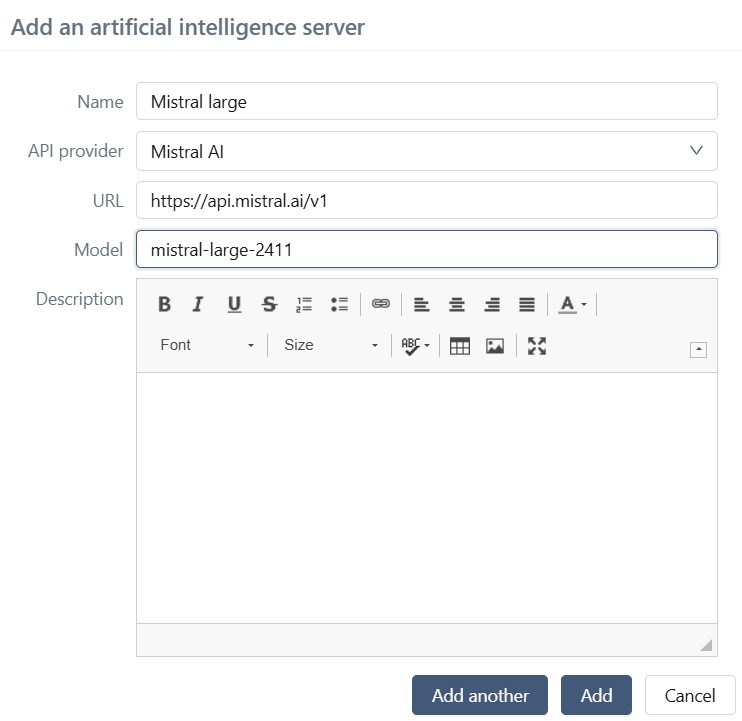
When creating a server, the Name, API provider, URL, and Model fields must be filled in. The URL is the base URL of the API endpoints of the provider.
Clicking on the ID (#) or the Name of a server opens its details page, where you can configure it fully.
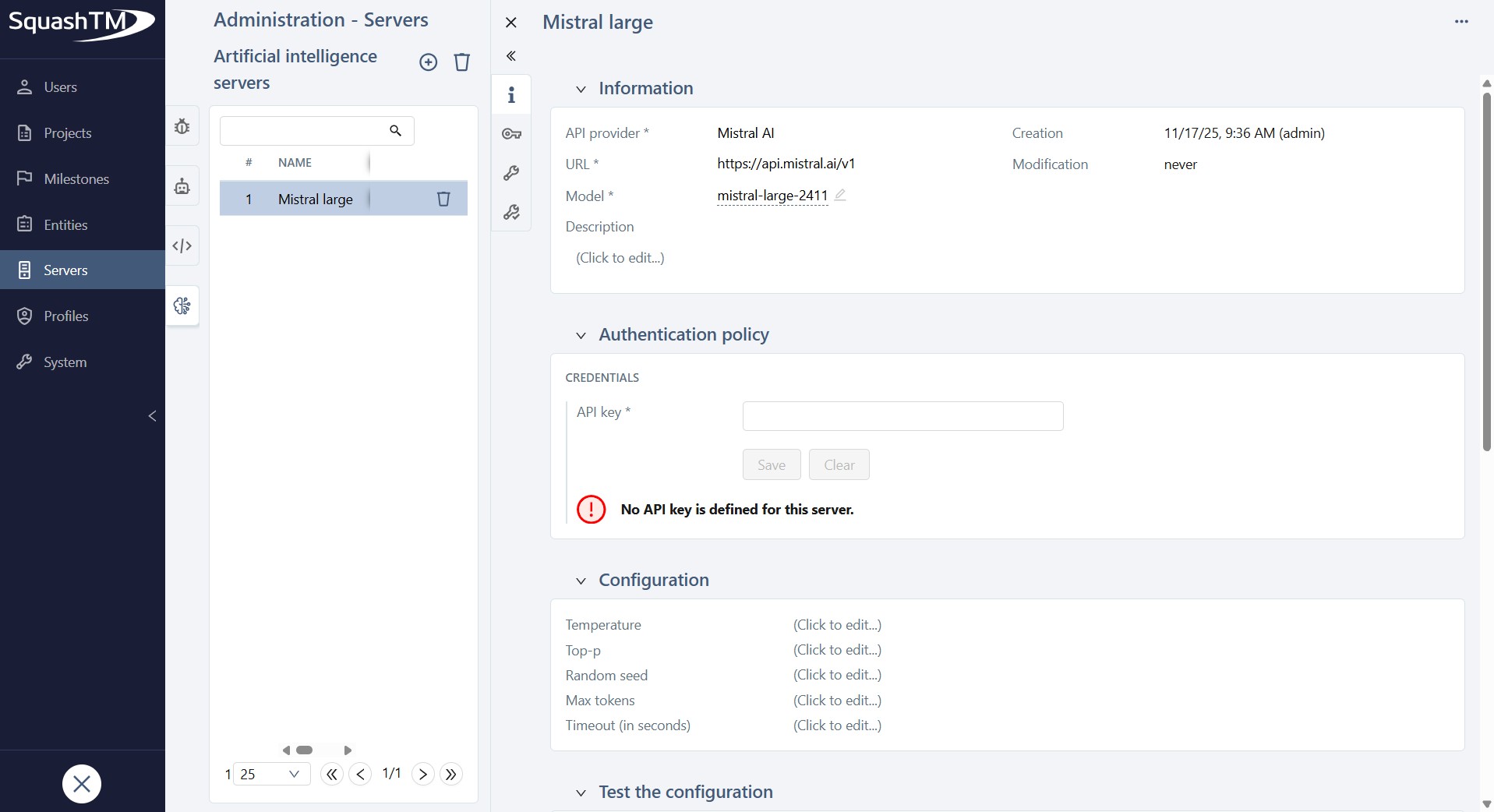
You can perform several actions from the AI server consultation page:
- set or modify the server Name, API provider, URL, Model, and Description;
- set the server authentication API key;
- set provider-specific configuration parameters;
- test the configuration;
- delete the AI server using the [...] button.
SquashTM natively supports several major AI providers, with, additionally, a mechanism that allows configuration of any other provider.
The following paragraphs describe the configuration for each provider.
Configure an Artificial Intelligence server
Model parameter configuration
Each AI provider supports different configuration parameters, and their behavior varies by model.
Before configuring parameters:
Check the provider's documentation (linked in each section below) to
- verify which parameters are supported by the model you selected;
- determine the applicability of a parameter which may depend on the value of another one;
- know each parameter's default value when left unspecified.
Default values:
If you do not set a parameter, the provider typically uses its own default. However, in a few cases, the AI library embedded in SquashTM will impose a specific value instead. When this occurs, the imposed default is documented in the relevant provider section below.
Configuration for Anthropic
The default URL is https://api.anthropic.com/v1, this is the root URL for the API endpoints to access the models hosted by Anthropic themselves. If you use an Anthropic API hosted somewhere else, you need to change this default URL.
The models provided by Anthropic are listed here.
The API key is to be generated from your Anthropic account page.
The following request parameter can be defined:
- Timeout
The maximum duration (in seconds) allowed for waiting for the model's answer.
The following model parameters (described on this page) can be tuned:
- Temperature
- Top-p
- Max tokens
If unset, the default value1024is communicated to Anthropic. - Thinking type
- Thinking budget tokens
Configuration for OpenAI
The default URL is https://api.openai.com/v1, this is the root URL for the API endpoints to access the models hosted by OpenAI themselves. If you use an OpenAI API hosted somewhere else, you need to change this default URL. In the case of Azure OpenAI, see the paragraph below.
The models provided by OpenAI are listed here. Be sure to use a model supporting the v1/chat/completions endpoint, this support is indicated on each model's description page.
The API key is to be generated from your OpenAI account page.
The following request parameters can be defined:
- Organization ID
- Timeout
The maximum duration (in seconds) allowed for waiting for the model's answer.
The following model parameters (described on this page) can be tuned:
- Temperature
- Top-p
- Seed
- Max completion tokens
- Reasoning effort
Configuration for Mistral AI
The default URL is https://api.mistral.ai/v1, this is the root URL for the API endpoints to access the models hosted by Mistral AI themselves. If you use a Mistral AI API hosted somewhere else, you need to change this default URL.
The models provided by Mistral AI are listed here. Be sure to use a text-to-text model, you can check the features of each model on this page.
Info
Only a subset of Mistral models is supported. Refer to the LangChain4j documentation for the current list of supported models.
The API key is to be generated from your Mistral AI organization page.
The following request parameter can be defined:
- Timeout
The maximum duration (in seconds) allowed for waiting for the model's answer.
The following model parameters (described on this page) can be tuned:
- Temperature
- Top-p
- Random seed
- Max tokens
Configuration for Azure OpenAI
The default URL is https://YOUR_RESOURCE_NAME.openai.azure.com. You must replace YOUR_RESOURCE_NAME by the name of your Microsoft Azure resource.
The models provided by Azure OpenAI are listed here.
The API key is to be generated from your resource page on Microsoft Azure Portal.
The following request parameters can be defined:
- API version
The allowed values are2022-12-01,2023-05-15,2023-06-01-preview,2023-07-01-preview,2024-02-01,2024-02-15-preview,2024-03-01-preview,2024-04-01-preview,2024-05-01-preview,2024-06-01,2024-07-01-preview,2024-08-01-preview,2024-09-01-preview,2024-10-01-preview, or2025-01-01-preview. - Timeout
The maximum duration (in seconds) allowed for waiting for the model's answer.
The following model parameters (described on this page) can be tuned:
- Temperature
- Top-p
- Seed
- Max tokens
- Max completion tokens
Configuration for Google Vertex AI
The URL field is unused.
The models provided by Google Vertex AI, as well as the regions where each is available, are listed here.
You must generate the JSON private key in your Google Cloud Console.
It should have this format:
{
  "type": "...",
  "project_id": "...",
  "private_key_id": "...",
  "private_key": "...",
  "client_email": "...",
  "client_id": "...",
  "auth_uri": "...",
  "token_uri": "...",
  "auth_provider_x509_cert_url": "...",
  "client_x509_cert_url": "...",
  "universe_domain": "..."
}
The following request parameters must be defined:
- Project ID
Your Google Cloud project ID. - Region
The region where AI inference should take place.
The following model parameters (described on this page) can be tuned:
- Temperature
- Top-p
- Seed
- Max output tokens
Configuration of a custom AI server
The configuration of a custom AI server is described on this page.
Test the AI Server Configuration
This feature allows you to verify that the AI server is correctly configured.
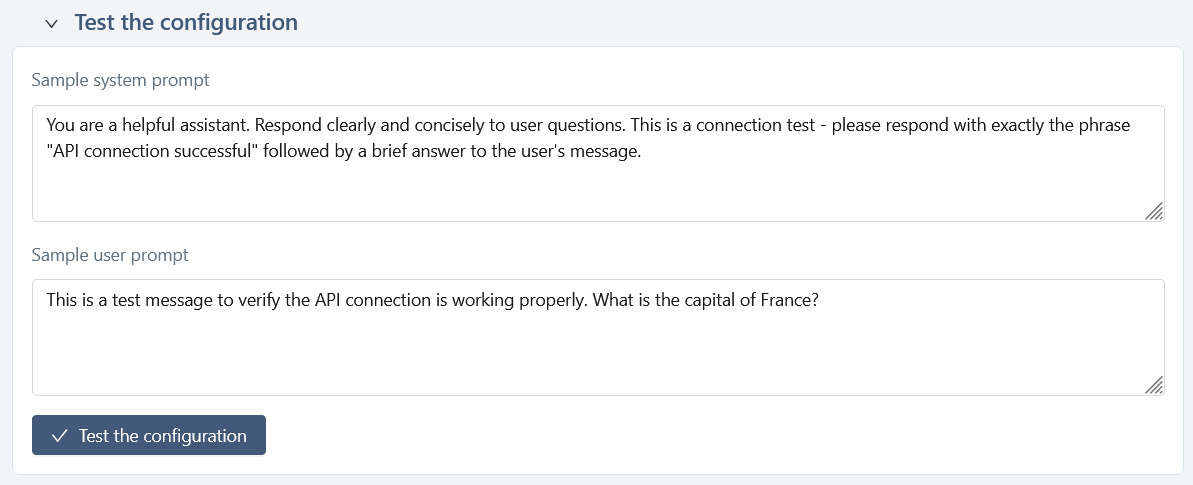
You can modify these prompts for your test, but these changes will not be saved.
Expected Result
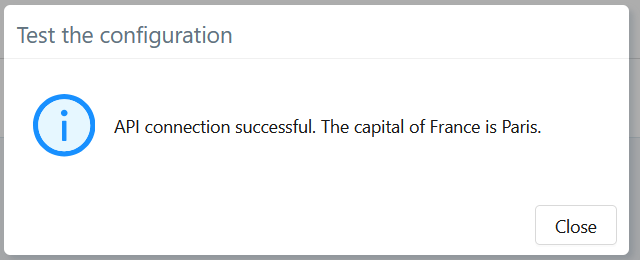
If the connection to the AI server and the generation process work correctly, the response should look similar to:
Error Display
If the request fails, an error message is displayed along with the response returned by the API provider.
Common errors include:
- an invalid or missing API key;
- an incorrect model name or endpoint;
- a timeout or network issue;
- a provider-side error.
The panel displays the raw error returned by the API to facilitate diagnosis.
For example:

Unavailable for SquashTM Cloud
For security reasons, this error message is not accessible to SquashTM Cloud customers who use a URL other than the provider's default API endpoint.