Follow testing activity in GitLab
The Xsquash4GitLab plugin is able to transfer information related to testing activity from SquashTM to GitLab. It allows the entire team to track coverage progress, execution progress, and user stories validation directly in GitLab.
Publishing the test progress status in a comment
When this option is enabled, Xsquash4GitLab automatically adds a comment to GitLab issues during the synchronization process and updates it if needed.
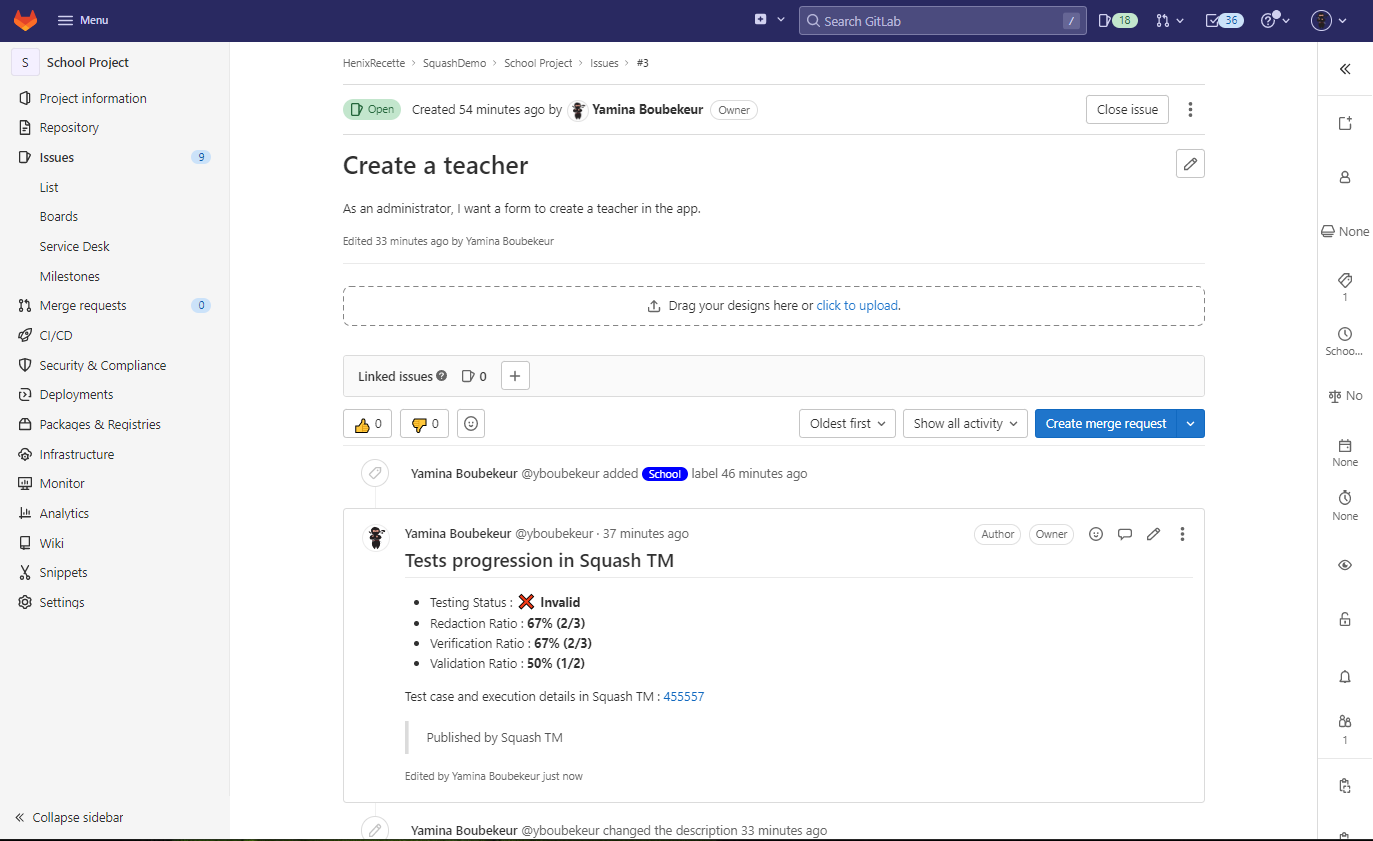
The information included in these comments is detailed below. Each comment contains: - an overall test progress status; - coverage indicators in the form of rates and ratios; - a link to the corresponding synchronized requirement in SquashTM to access the details of the test cases and executions.
GitLab permission issues
If the configured token does not permit modifying an existing note (due to insufficient role or revoked token), a new note will be created instead. A comment will be added to the previous note to indicate that it is now obsolete.
Publishing the test progress status as a GitLab label
When this option is enabled, a GitLab label, named following a configurable convention, directly reflects the value of the "testing status" displayed in the progress note. For example:
- TestingStatus::Not initialized
- TestingStatus::Conception in progress
- TestingStatus::Ready
- TestingStatus::Validation in progress
- TestingStatus::Valid
- TestingStatus::Invalid
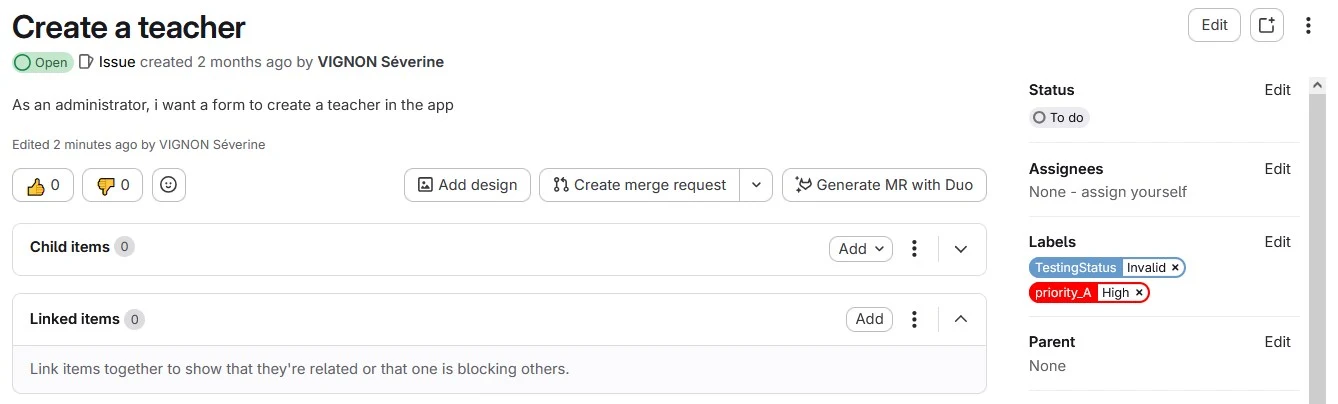
These labels must be created in GitLab. The prefix is freely chosen, but the status value must correspond to one of the values above.
Learn more
These functionnalities can be activated or deactivated. For more information, visit the page Configure the reporting from SquashTM to GitLab.
Coverage indicators
Redaction Ratio
This indicator enables you to see the progress of the test case writing. It consists of a rate followed by the number of relevant test cases (X/Y test cases). For a synchronized requirement, this rate is equal to:
Number of test cases covering the requirement or one of its children with the status Under review or Approved** / Number of test cases covering the requirement or one of its sub-requirements no matter their status.
If a requirement is not covered, this rate equals 0.
Verification Ratio
This indicator enables you to track the execution progress of the test cases linked to a requirement or one of its children. It consists of a rate followed by the number of relevant test cases (X/Y test cases). For a given synchronized requirement, this rate is equal to:
Number of test plan items linked to a test case covering the synchronized requirement or one of its children with a final execution status (Blocked, Failed, Untestable, Passed, Settled), only taking into account the last execution (or last fast pass) / Number of items linked to test cases covering the synchronized requirement or one of its children
Validation Ratio
This indicator enables you to track the validation of a requirement. It consists of a rate followed by the number of relevant test cases (X/Y test cases). For a synchronized requirement, this rate is equal to:
Number of test plan items linked to a test case covering the synchronized requirement or one of its children with a validated execution status (Passed or Settled), only taking into account the last execution (or last fastpass) / Number of items linked to a TC covering the synchronized requirement or one of its children with a final execution status, only taking into account the last execution (or last fast pass)
Testing Status
It's a synoptic field that summarizes the different possible testing statuses for a given requirement.
The calculation method is:
| Writing Rate | Verification Rate | Validation Rate | Testing Status |
|---|---|---|---|
| 0 | 0 | 0 | Not initialized |
| 0 < Writing Rate < 100 | 0 | 0 | Design in progress |
| 100 | 0 | 0 | To execute |
| All | 0 < Verification Rate < 100 | 100 | Execution in progress |
| All | 0 < Verification Rate | Validation Rate < 100 | Not validated |
| All | 100 | 100 | Validated |
Test cases and executions details
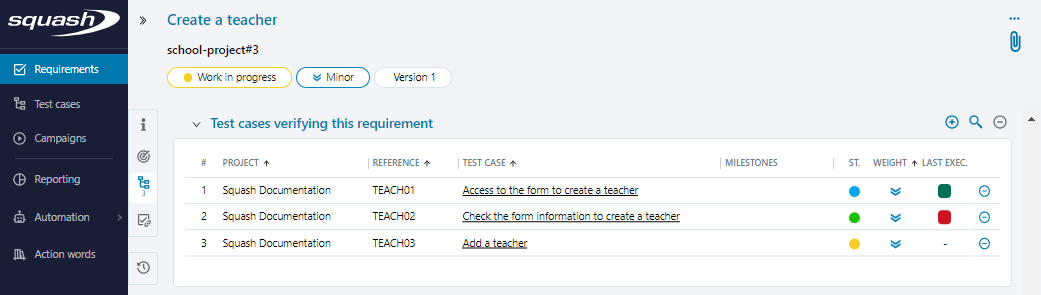
In the note, the SquashTM test cases and executions details part enables you to access the synchronized requirement matching the issue in SquashTM.
From this page, you can visualize the test cases and executions linked to the GitLab issue.
It allows the product owner, scrum master, and developer to see what is or what is not tested, and which test cases are passed or failed.
Focus
To access test cases and executions details, it is necessary to have a SquashTM account with reading permissions on the project where the synchronized requirement is.