Writing test cases with AI assistance
AI-driven test case generation assists the tester in writing test cases based on an existing requirement.
Warning
This feature is a writing aid.
The tester remains responsible for the quality, relevance, and completeness of the generated test cases.
Required license
This feature is available with the SquashTM Ultimate 💎 license and requires prior configuration by an administrator.
Accessing AI-driven test case generation
From a requirement, the user can launch AI-driven test case generation by selecting the Generate test cases action from the menu located at the top right of the screen.
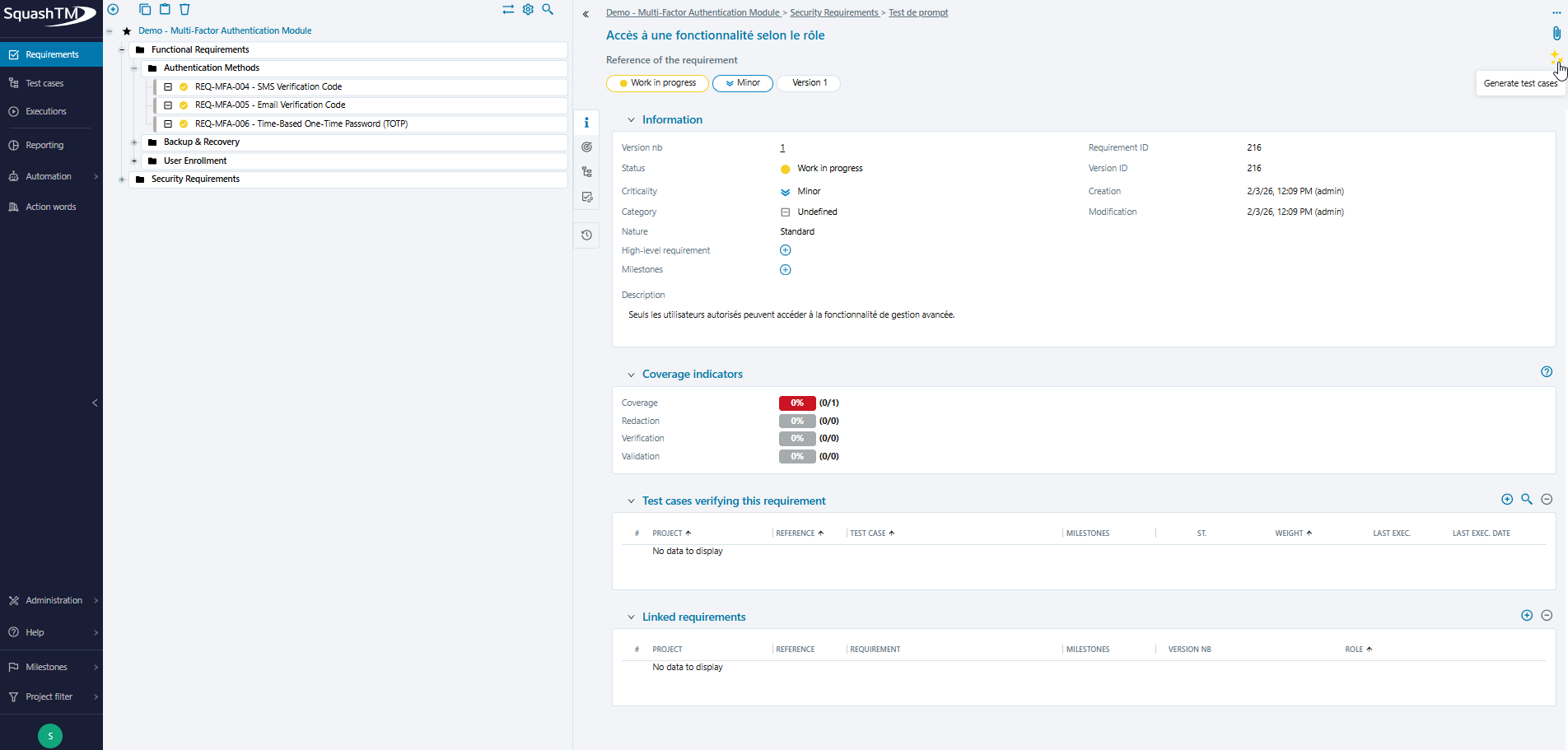
The Generate test cases action is available only if:
- the user has test case creation permissions on at least one project;
- an AI server is configured;
- a prompt set is associated with the project.
Defining the test case generation prompt
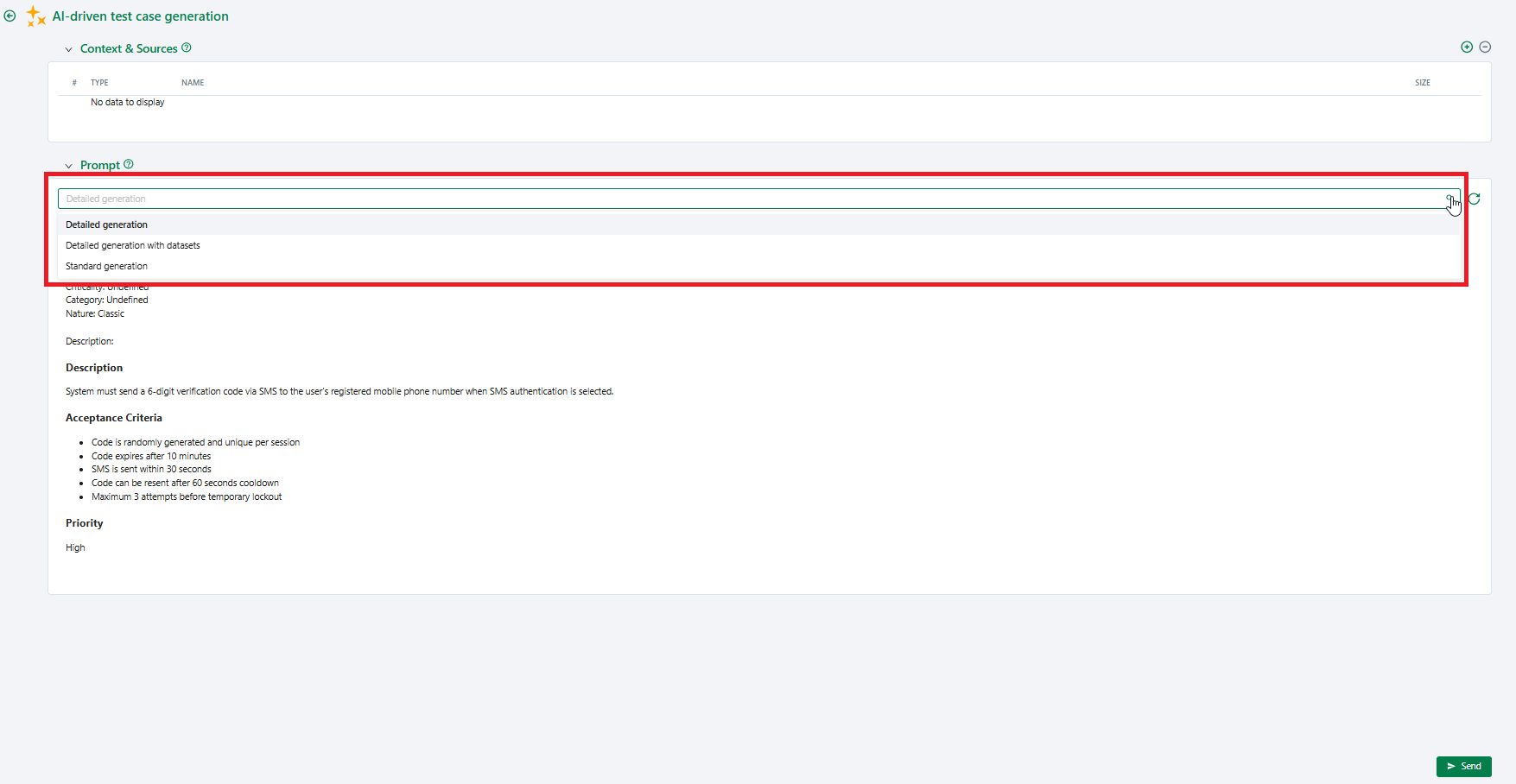
Available prompts are defined and maintained by an administrator through the prompt set management interface.
The prompt allows specifying what the AI should generate. It can be selected from the dropdown list, and its content can be adapted before being sent to the AI server.
For example, it is possible to:
- request a specific number of test cases;
- target a particular behavior or user journey;
- guide the generation toward a specific business case.
Changes made on this screen:
- are not saved in the requirement;
- apply only to the current generation.
Enriching the generation with additional context
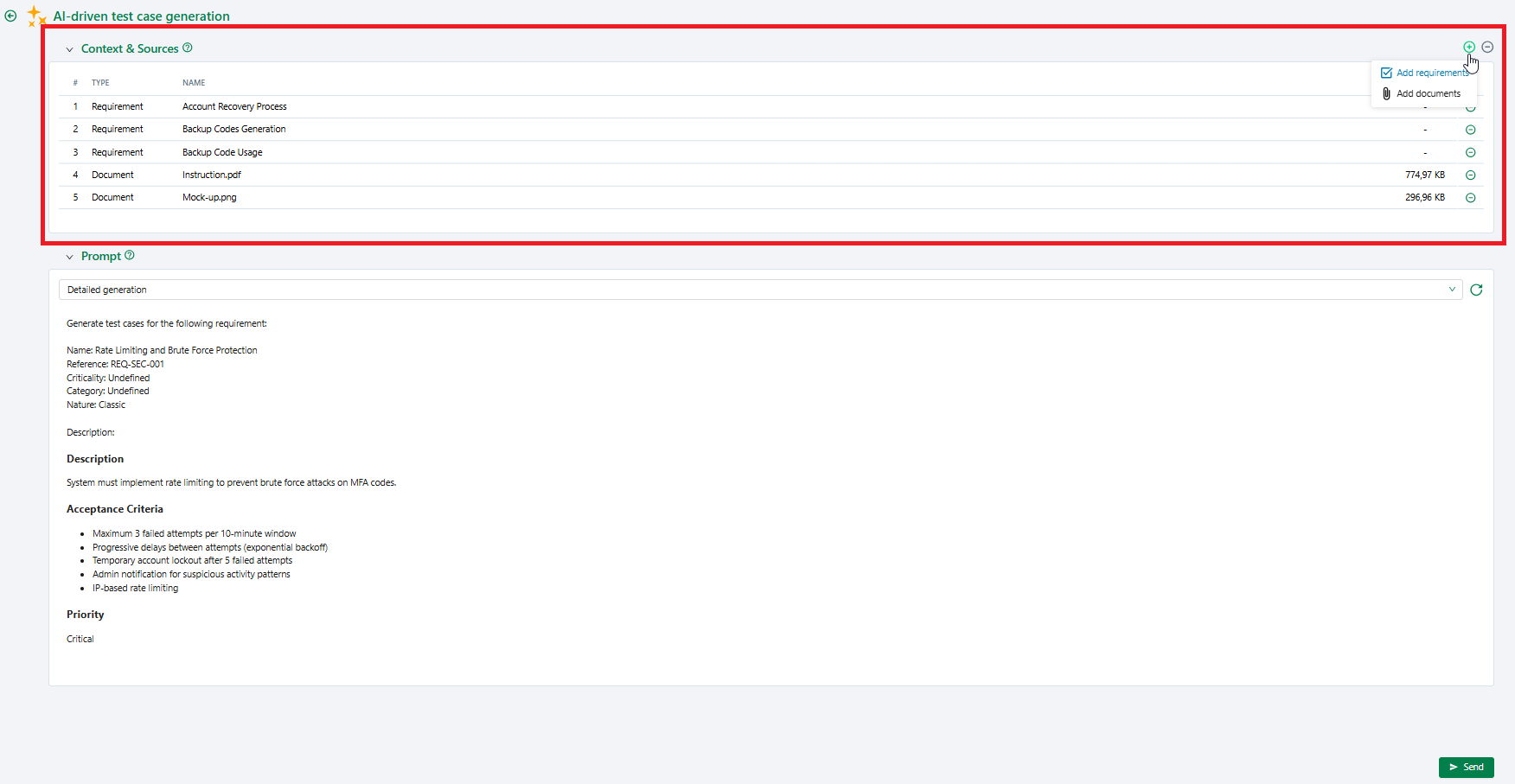
The Context & Sources panel allows adding requirements and/or documents to enrich the context sent to the AI and obtain more relevant test cases.
Panel visibility
The Context & Sources panel is only available if the selected prompt contains a context wrapper template configured by the administrator. For more information, see the Manage prompt sets page.
Document formats and sizes
The accepted file formats and the maximum total allowed size are defined by the administrator on the AI server page (see Document context limits). Adding a file whose extension is not enabled, or that would exceed the allowed total size, is rejected.
Warning
Adding context documents is not available for Custom server types.
Adding requirements as context, however, is available for all server types.
Image handling
Images contained in rich text fields such as the description are sent to the AI for the source requirement as well as for the requirements added to the context, subject to the following conditions.
Image formats and sizes
Images are subject to the same constraints as context documents: they must comply with the accepted formats and the maximum total size defined by the administrator on the AI server (see Document context limits).
Images inserted through an external link
Only images imported directly into SquashTM (pasted or uploaded) are sent to the AI. Images inserted through an external link (URL) in rich text fields are not transmitted.
Custom servers
Images are not supported by Custom server types. All images contained in the requirements are ignored during generation.
Launching test case generation
Once the prompt is ready, the generation can be launched using the Send button.
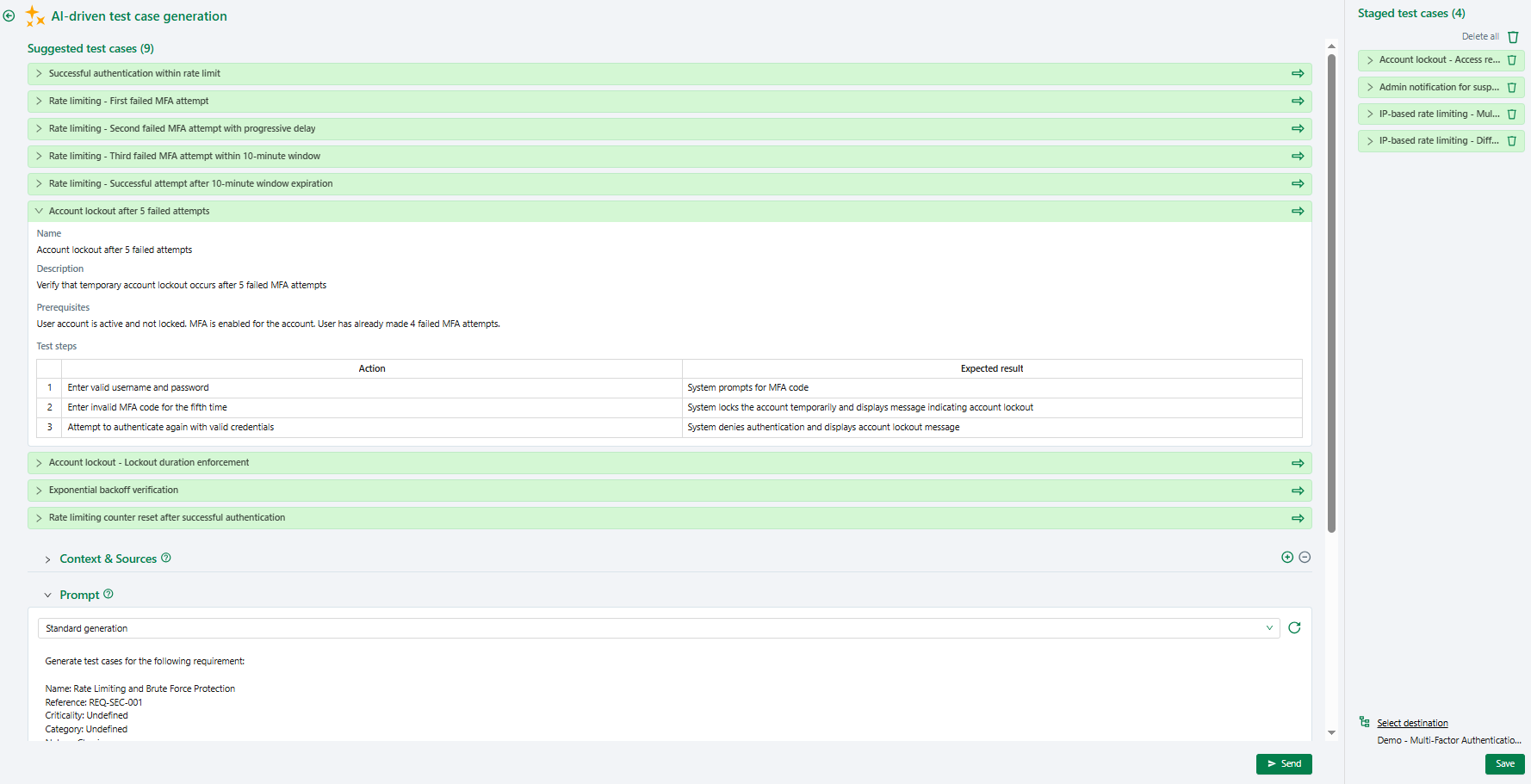
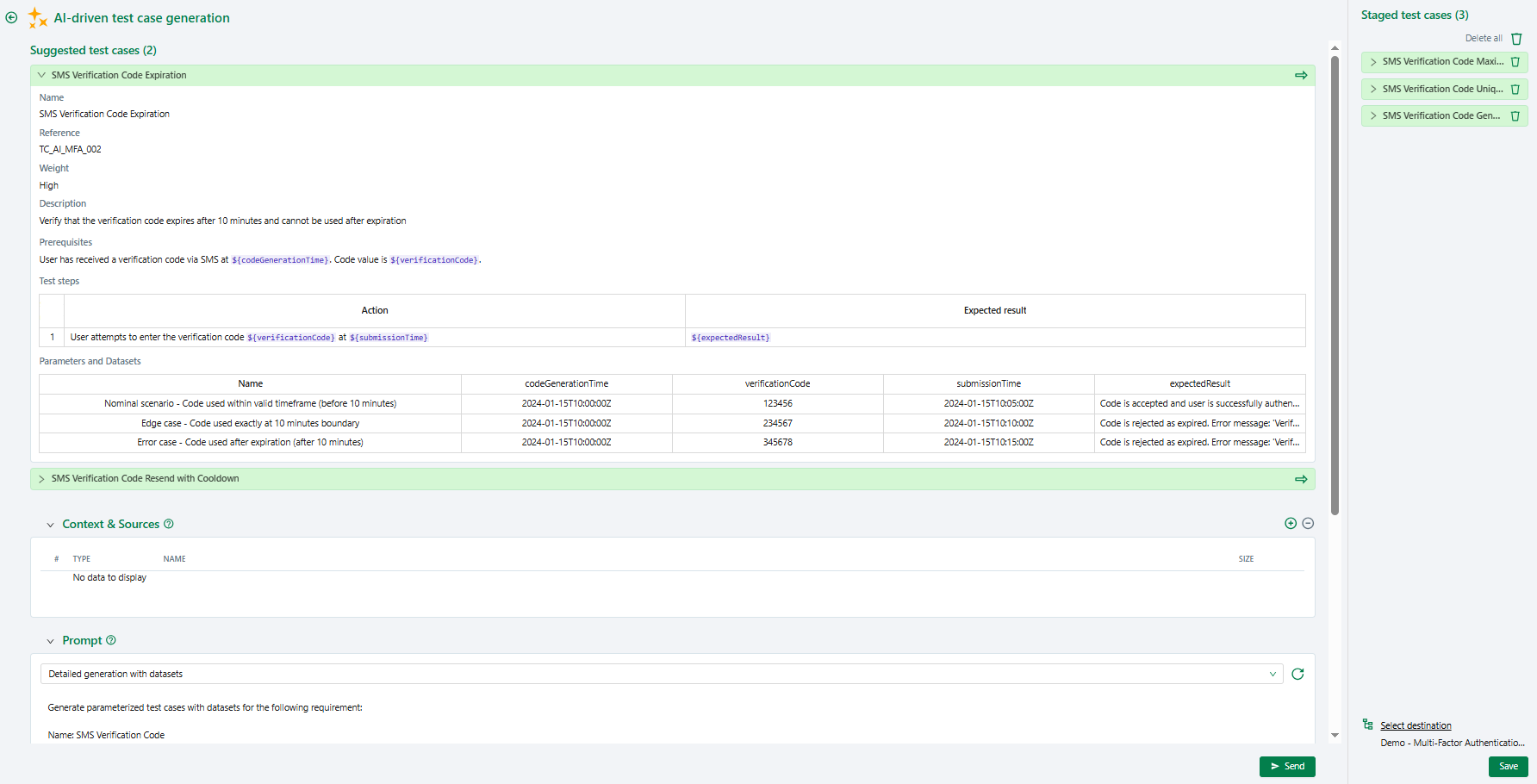
The test cases suggested by the AI are displayed in the main area of the screen. Each suggestion can be expanded to view its details.
Information displayed in suggested test cases
The information displayed in the generated test cases depends on the prompt set configured by the administrator and on the specific prompt selected. Possible fields include:
- Name: title of the test case;
- Description: purpose of the test;
- Prerequisites: conditions required before execution;
- Test steps: actions and expected results;
- Importance: criticality level of the test case (Low, Medium, High, and Very High);
- Reference: unique identifier of the test case;
- Datasets: if the prompt generates parameterized test cases, the parameters and their values are displayed in a table. Parameters are highlighted in the test steps and prerequisites with the syntax
${parameter_name}.
The combination of generated fields varies depending on the selected prompt.
Selecting test cases to create
The test cases suggested by the AI can be selected using the green arrow.
Selected test cases appear in the panel located on the right side of the screen, which corresponds to a staging area.
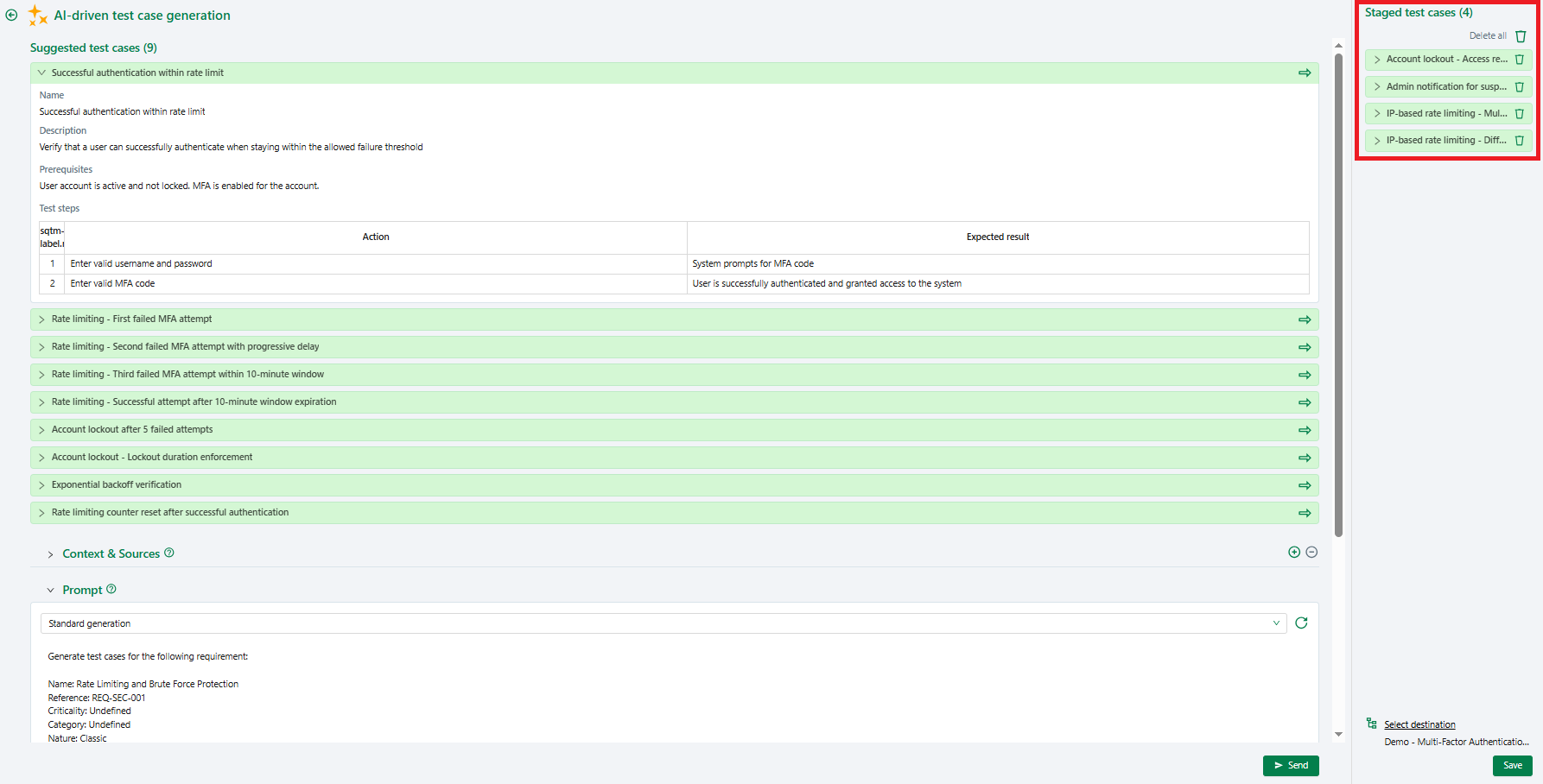
It is possible to:
- remove a test case from the selection;
- clear the entire selection before saving.
New generation
- A new submission replaces the list of suggested test cases.
- Test cases that have already been staged are not removed.
Choosing a location and saving generated test cases
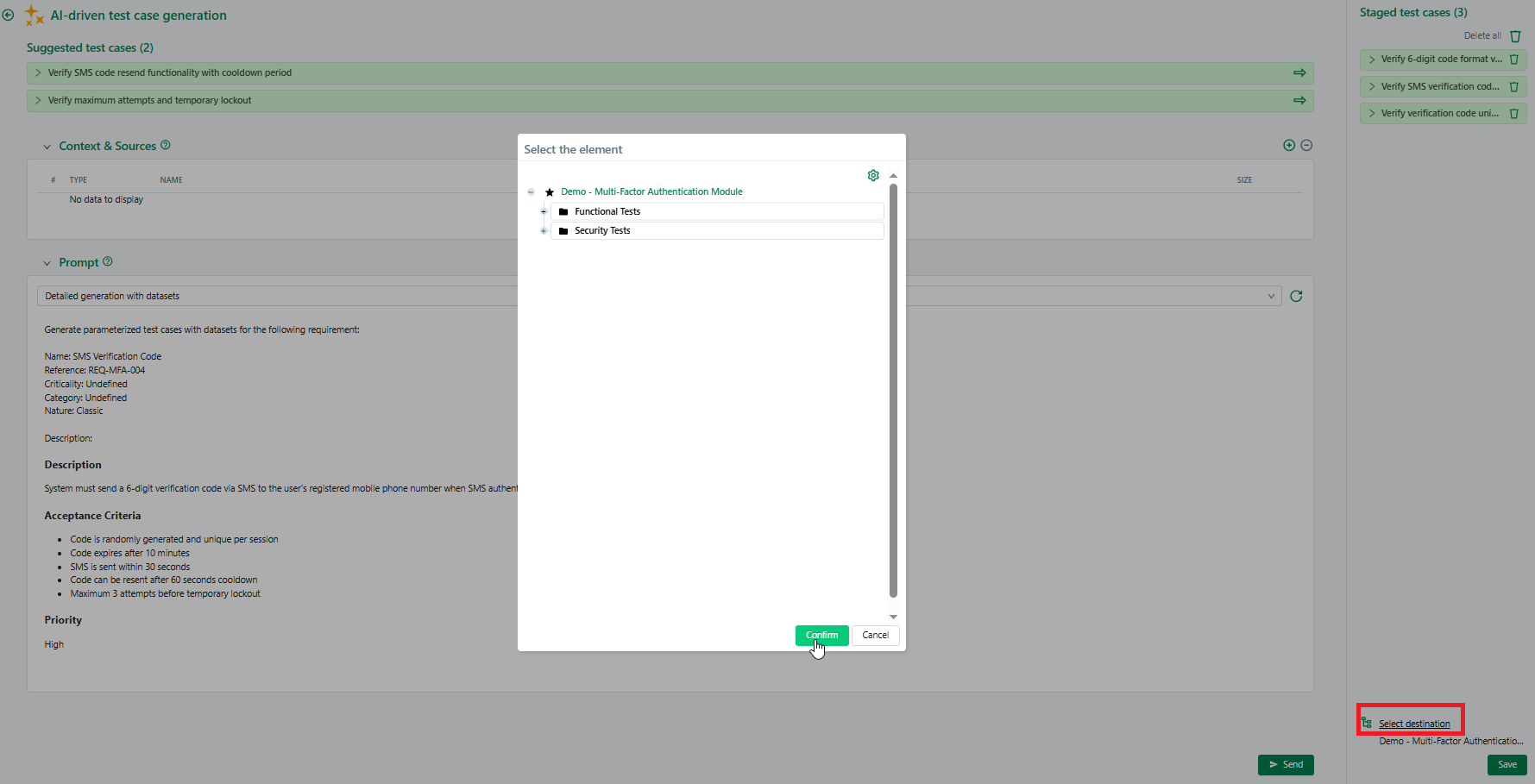
Before saving, a destination location where the test cases will be created must be selected.
The destination folder is selected directly from the generation screen.
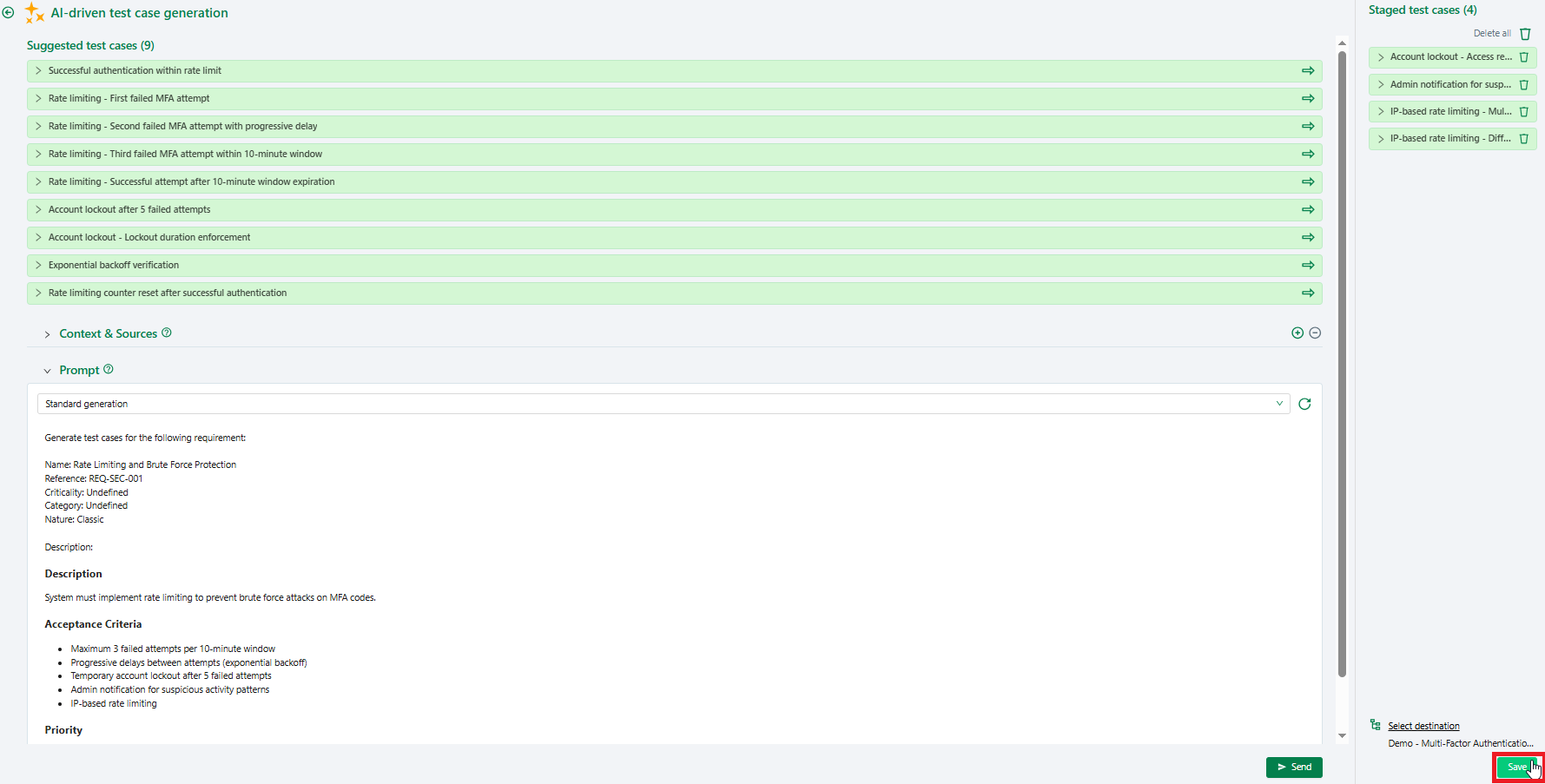
The Save button becomes available when:
- at least one test case is selected;
- a destination location is defined.
After saving, the test cases:
- are created in the Test cases workspace;
- are automatically linked to the originating requirement;
- are marked with the Drafted by AI label;
- remain fully editable.
Warning
Closing the screen before saving results in the loss of the current selection.
Generating test cases with a legacy AI server
The behavior described on this page corresponds to the new AI generation mode.
The behavior relying on legacy AI servers is described in the documentation of the previous SquashTM version:
Generate test cases with an AI server (legacy mode)