Create an Execution Plan
The execution plan is the anchor of the Execution workspace objects dedicated to the execution of test cases. Test cases to be executed are added to this table. There are several ways to build an execution plan.
Add Test Cases to an Execution Plan using the library
Above the execution plan of a campaign, iteration, test suite, and sprint requirement, the button  enables you to link test cases to the execution plan. To do so, drag and drop your selected test cases from the Test Case repository into the execution plan table.
Add Test Cases to an Execution Plan using search
To add test cases to an execution plan from the test cases or linked requirements search, click on the  button in the block Execution plan. Search for test cases by using the different criteria, then click on the button
  to link the selected items or on the button
  to link all the results.
Info
The linked requirements search enables you to search for test cases using requirements criteria. In the results, test cases linked to the requirements matching the selected criteria are displayed.
Example: Using this search, you can add to an execution plan all the test cases linked to requirements with a criticality set to "Critical" and a status set to "Approved".
Reuse a Campaign's Execution Plan in an Iteration
You can reuse a campaign's execution plan, with all the test cases it contains and their assignments, in the execution plan of a new iteration.
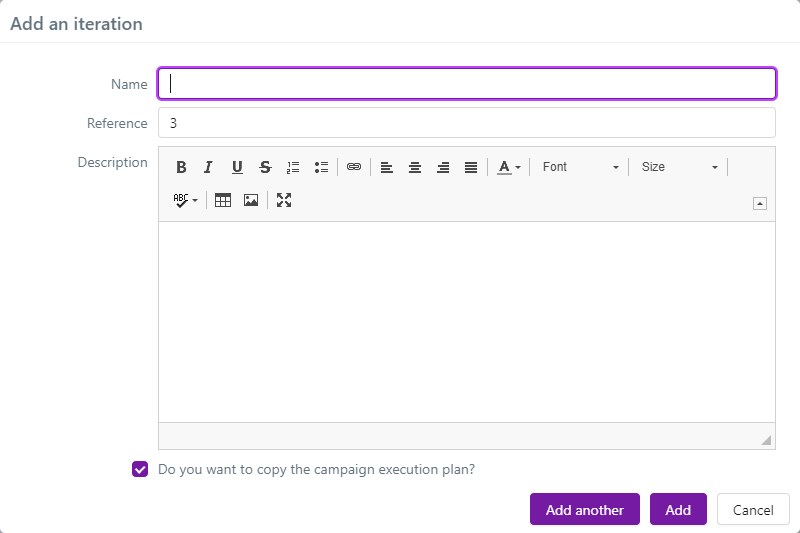
For this, in the creation pop-up, select the checkbox Do you want to copy the campaign execution plan?.
Info
You cannot execute the test cases that were added to a campaign's execution plan. Its only goal is to enable you to preselect the tests to execute in the iterations. It is ideal for storing the list of regression tests that must be executed for every iteration.
Identify the Tests to replay according to previous Execution results
Identify the Tests to replay according to search results
To re-execute test cases that were already executed in a previous iteration, you can use the Execution workspace search to create a filter. For this, click on the button above the Execution workspace library. Search for test plan items to add to an iteration's execution plan by using the different criteria. Select the items to reuse, then click on the button above the search results.
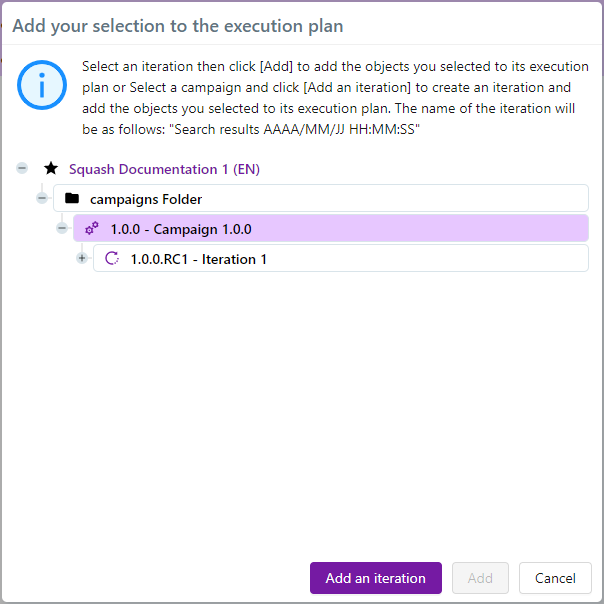
The pop-up Add your selection to the execution plan appears. You can:
- add the selected test plan items to an existing iteration's execution plan in the tree;
- add the selected items to a new iteration's execution plan of the selected campaign. The new iteration will be named as follows:
Search results YYYY/MM/DD HH:MM:SS.
Thus, the Execution workspace search enables you to add tests to an iteration to re-execute them, especially if they were previously executed as invalid with one of the following execution statuses: "Blocked", "Failed", or "Untestable".
Info
From the search page, you can re-execute a test plan item by clicking on the button  .
.
Identify Tests to replay using the Campaign Wizard
Introduction
The Campaign Wizard plugin has an iteration reuse feature in the form of a wizard. It enables you to create a new iteration and its execution plan more easily using an existing iteration, based on different criteria. These criteria can be simple (most frequent cases of reuse) or more advanced (the plugin enables you to select the tests to reuse more precisely).
Info
You must activate the Campaign Wizard plugin in the project's configuration page (Plugins anchor) to be able to use it. This plugin comes with the SquashTM Premium license.
The different steps of the selection process
To access the Campaign Wizard, select an iteration, click on the button  , then click on the option Campaign Wizard.
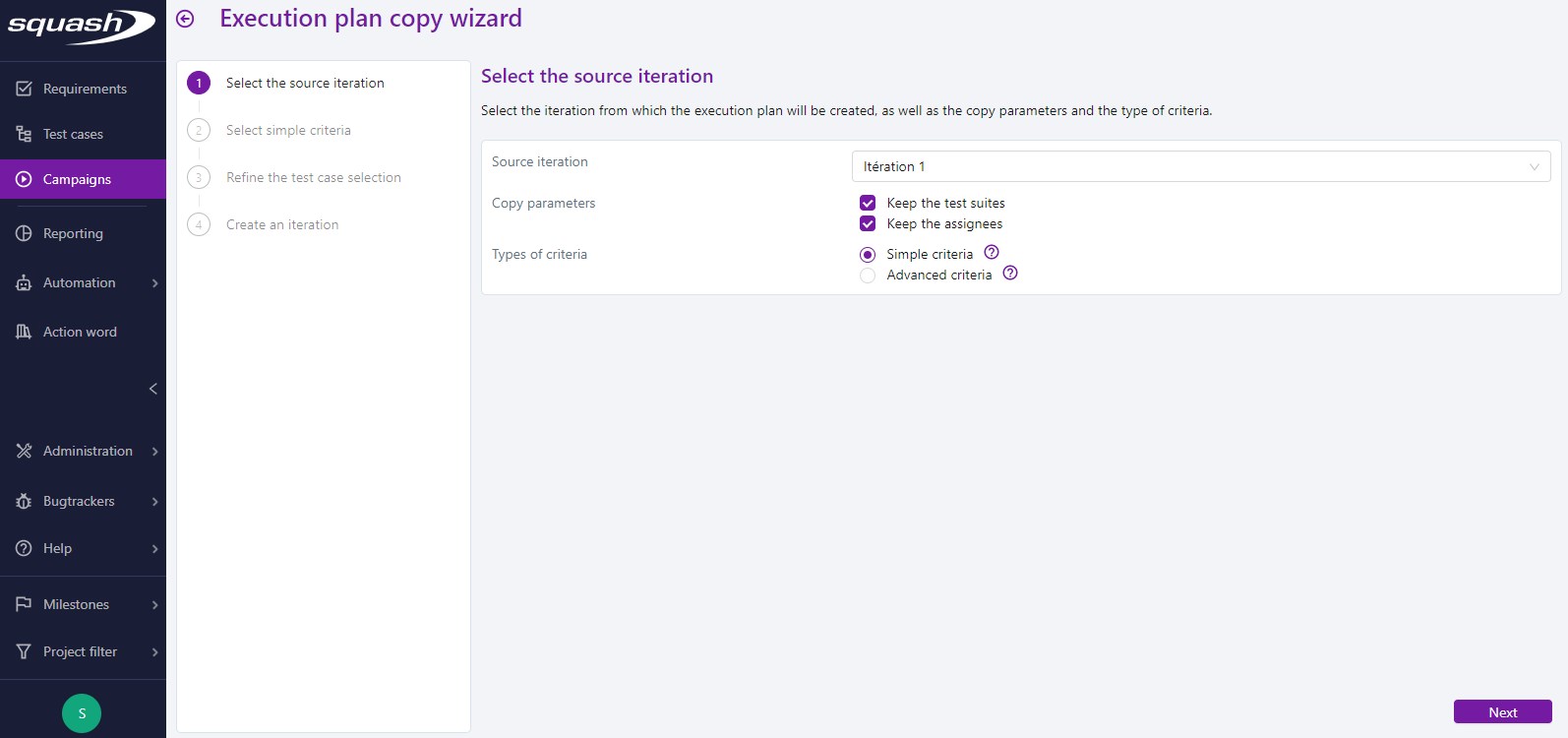
Step 1: Choose the Source Iteration
By default, the selected source iteration is the iteration from which the Campaign Wizard was launched. The selection list contains all the campaign's iterations. You can keep the source iteration's test suites and assignments in the new iteration. The field Type of criteria enables you to choose between simple or advanced criteria to select test plan items.
Step 2: Select simple/advanced criteria
In the case where multiple criteria are selected, all the tests that answer at least one criterion are reused.
Simple criteria
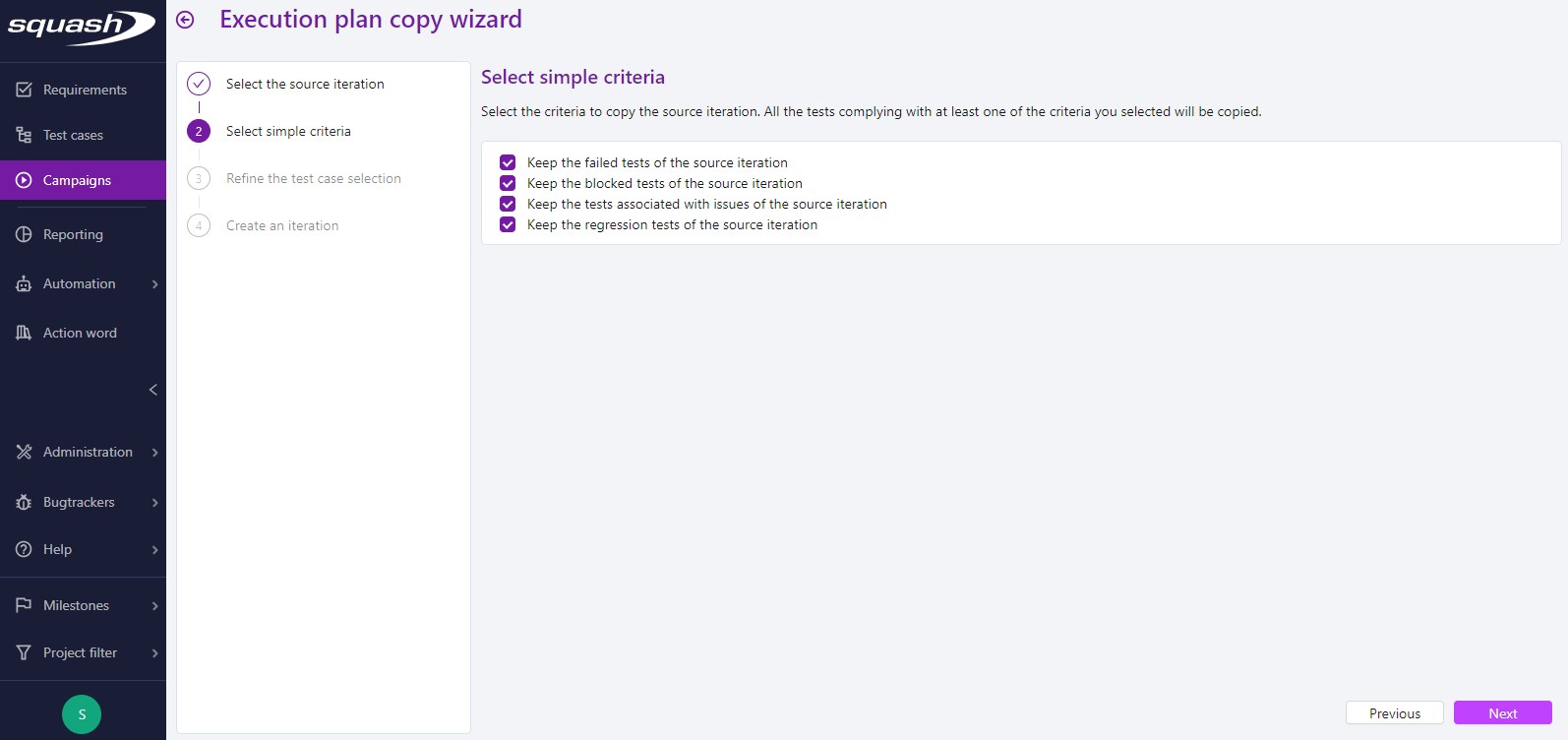
Simple selection allows you to keep the source iteration's tests with an execution status set at "Failed" or "Blocked", the tests linked to issues, or "Regression" test cases.
Advanced criteria
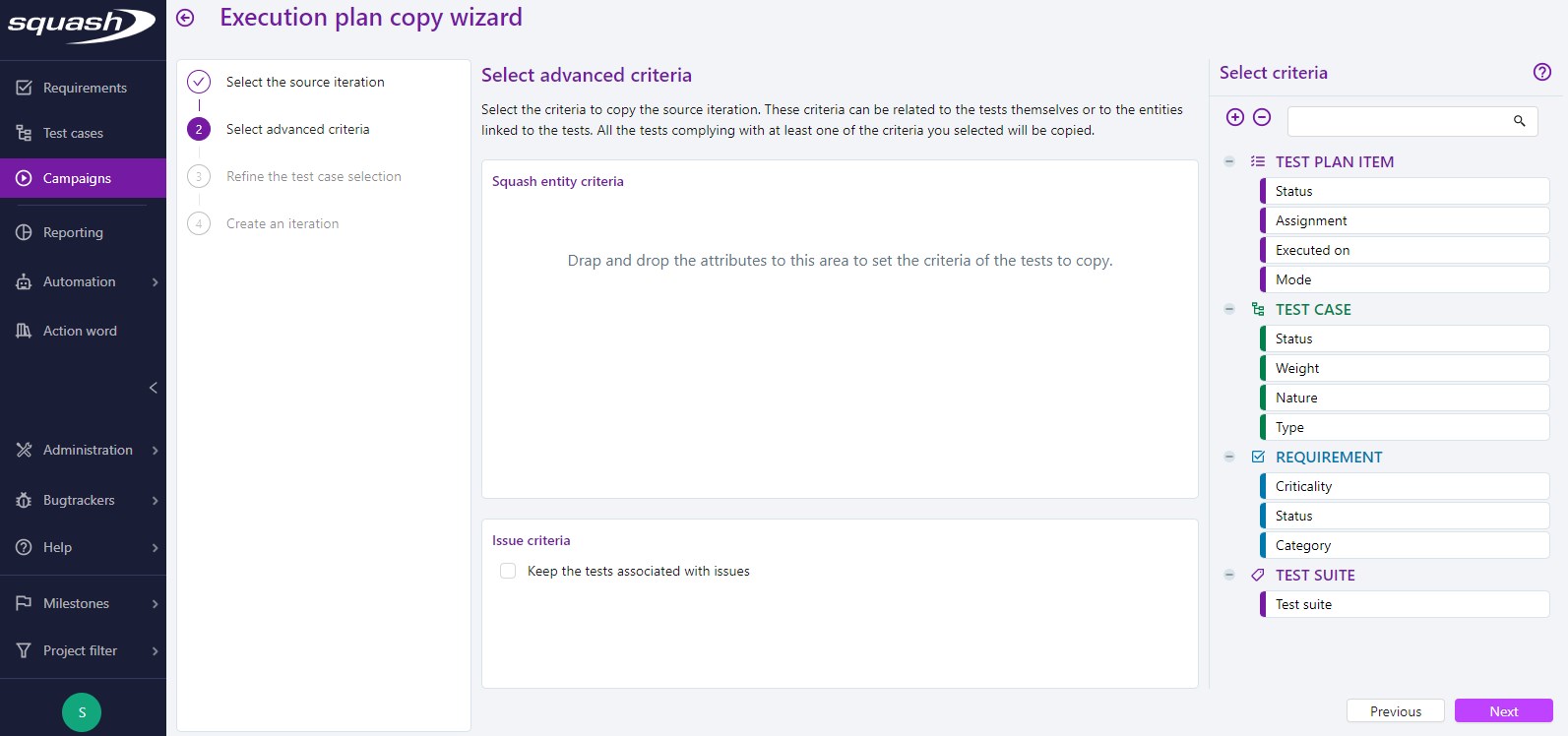
Campaign Wizard advanced criteria can relate to the tests themselves or the entities linked to them. To select criteria, drag and drop them into the SquashTM entities criteria block from the criteria selection workspace. This workspace contains the following entities:
- Test plan item;
- Test case;
- Requirement;
- Test suite.
It is ideal to use advanced criteria to identify test cases to re-execute because:
- they were not validated during the previous iteration;
- their importance is set to "Very high" or "High";
- they are linked to requirements with a criticality set to "Critical" or "Major".
Criteria in the Issue criteria block differ depending on the bugtracker linked to the project:
- If the SquashTM project is not linked to any bugtracker: the Issue criteria block is not displayed;
- If the SquashTM project is linked to a bugtracker other than Jira: the Issue criteria block is only displayed if the Keep the tests associated with issues criterion is selected;
- If the SquashTM project is linked to a Jira bugtracker (Jira.rest type): the Issue criteria block is displayed when the Keep the tests associated with issues criterion is selected. If the checkbox is checked, the Status, Priority, and Assigned to criteria, and the issue reuse mode are also displayed.
Step 3: Refine the selection of Test Cases
The list of test cases appears depending on the criteria selected during the previous step. You can refine this selection by unlinking the unwanted test cases in the new iteration by clicking on the button  .
.
Step 4: Create an Iteration
Enter a name, reference, and description for the new iteration, then click on the button [Create].
You can view the new iteration in the library of the Execution workspace with its execution plan composed of the list of test cases selected during Step 3.