Search for Test Cases
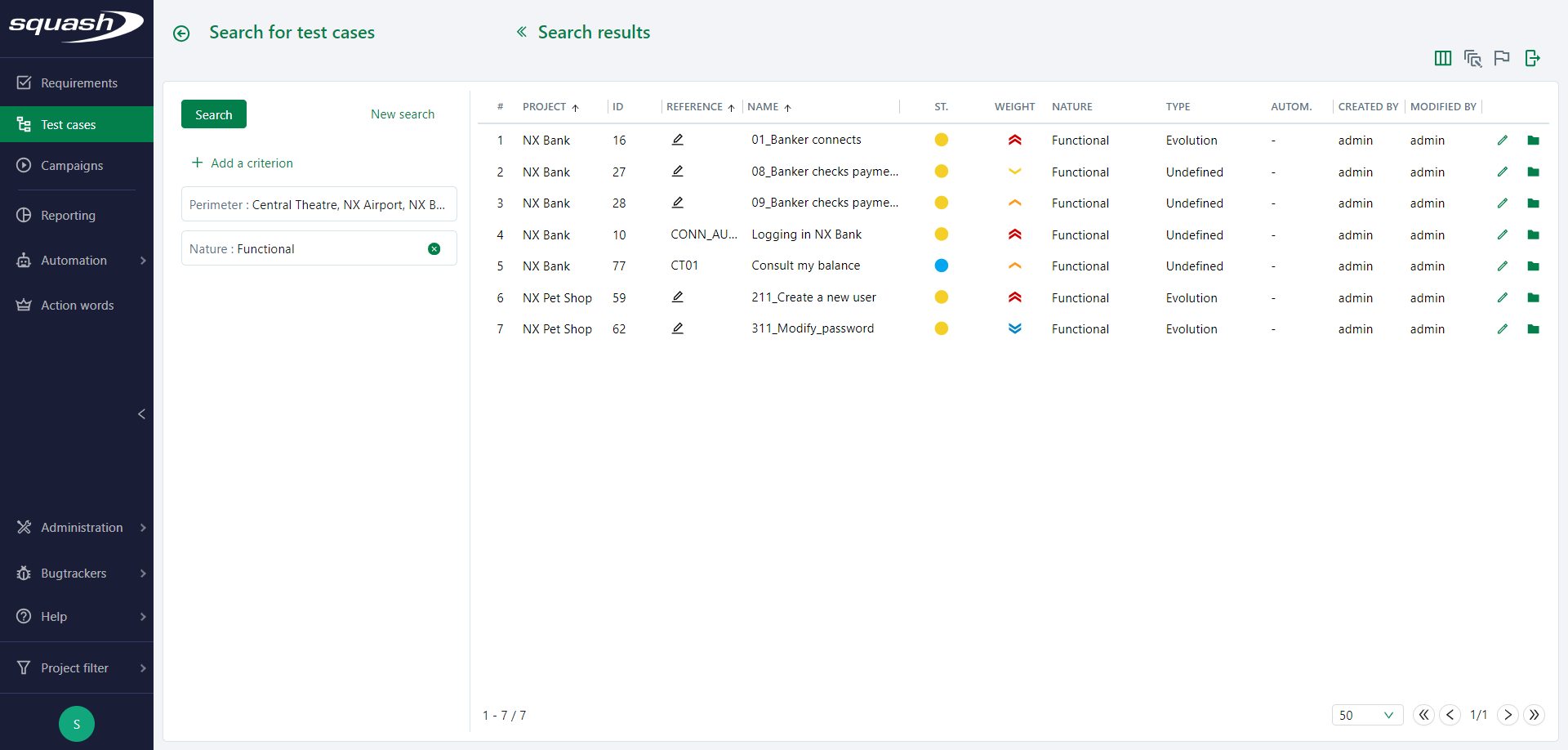
The test case search page is divided into two parts:
- on the left: search criteria block;
- on the right: search results.
Learn more
Visit the page Searching for an object to learn more about how the search page works.
As a reminder, the perimeter contains the projects in the projects filter by default. You can also search using a custom perimeter by selecting one or multiple folders, or test cases.
Test Case Search Criteria
There are many search criteria for test cases. They can all be paired with one another.
Search criteria can be divided into different categories:
- test case information;
- test case history (creation/modification date and login of the user who created/modified the test case);
- information related to the automation of the test case;
- information related to milestones;
- test case attributes;
- information related to test case content (test steps, parameters, datasets, test case calls, attachments);
- information related to associations with requirements, iterations, executions, and issues;
- custom fields associated with the test cases.
Info
Search criteria associated with milestones can only be seen if the milestones are activated on the instance.
For example:
In the Attributes category, select the Status criterion with the options "Writing in progress" and "To be approved"; and in the Associations category, the criterion Number of requirements, with the comparison "Equal to 0":
In the search results, you will only find test cases with the statuses "Writing in progress" and "To be approved" that are not linked to any requirement.
Search Results
Search results are displayed in a table with several columns containing different information on the test cases. The display of these columns can be configured via the icon  . You can export search results as Excel files in two different formats:
- the XLS format Current fields;
- the XLS format All fields.
Learn more
Visit the page Searching for an object to learn more about how to export search results.
In the search results table, you can individually modify the following attributes for each test case:
- Reference;
- Name;
- Status;
- Importance;
- Nature;
- Type;
- Eligibility for automation.
You can also bulk modify the following information using the action buttons on the top right of the table:
- modify information such as importance, status, type, nature, eligibility for automation, automated test technology, and URL of the source code repository;
- bulk link or unlink milestones from test cases (if they are linked to the project).
Warning
A test case associated with a milestone with a "Locked" status cannot be modified.