LDAP and Active Directory
LDAP and Active Directory connectors allow you to externalize the management of authentication to SquashTM. The management of user permissions remains inside of SquashTM.
Configure LDAP and AD
LDAP and AD connectors support both simple and multi-domain configurations. You can find examples of standard configurations in the following files, in the plugin's config folder:
Simple domain:
squash.tm.cfg.properties;Multi-domain:
multi-ldap(or ad).squash.tm.cfg.properties.
After installing the LDAP or AD .jar files in SquashTM's plugins folder, you must copy and paste this standard configuration in the file squash.tm.cfg.properties to complete it. You can find this file in SquashTM's conf folder.
LDAP Connector Properties
The LDAP connector allows for a more advanced configuration thanks to the following properties:
authentication.ldap.server.url: directory URL. Can beldap://orldaps://for a secured connection;authentication.ldap.server.managerDn: ID with the permission to browse the directory when it cannot be browsed in anonymous mode;authentication.ldap.server.managerPassword: password of the user who has the permission to browse the directory;authentication.ldap.user.searchBase: location where you can find the users who will be able to connect to SquashTM;authentication.ldap.user.searchFilter: allows you to search the user's attribute, which will be their login in SquashTM.
Use the LDAP Connector with an AD
You can use the LDAP connector to connect it to an AD and enjoy more advanced configuration options.
The configuration you must enter for an AD or LDAP connector is basically the same.
The main difference lies in the authentication property ldap.user.searchFilter:
- For an AD, it generally is the attribute
samAccountNameorUserPrincipalName; - For a LDAP directory, there are more possibilities: it can be
uid,id,uniqueMember, etc.
Operate the Connection
To connect to SquashTM, you must create at least one user in the LDAP directory or AD with a login that is identical to the one of the default SquashTM administrator: admin. With this user, you can then connect to SquashTM with an administrator profile. The administrator will then be able to add permissions for the other users.
Info
When you first use SquashTM, an administrator account is created. The login is admin.
For other users to be able to connect to SquashTM using the LDAP connector or AD, they must be in the directory:
If the user is missing from the LDAP directory or AD, they cannot authenticate to SquashTM. The connection is impossible;
If the user is already in the LDAP directory or AD, they can authenticate to SquashTM. The password is managed by the directory, whereas project permissions are managed in SquashTM. Two cases are then possible:
The user already has a user account in SquashTM: when they log in, they will have the permissions that go with their account
The user does not have any user account in SquashTM: when they first log in, a user account is automatically created in SquashTM, but they will have no permission granted to them. Subsequently, permissions can be granted to them by a SquashTM administrator.
Focus
When authentication is delegated to a directory, passwords can no longer be managed in SquashTM. The options [Reset] password (administrator) and change [Local password] (user) are deactivated.
Multi-Sources Authentication
You can authenticate into SquashTM using multiple sources (directory + local).
For this:
Install and configure the LDAP or AD plugins;
In the file
squash.tm.cfg.properties, complete the following property by addinginternalas an authentication source:authentication.provider=ldap,internal
Users will then be able to connect to the app using accounts that are in the directory and SquashTM local accounts.
Autoconnect to Bugtrackers
In the case where the SquashTM and bugtrackers logins credentials are managed by the same directory service, you can activate autoconnect to bugtrackers in SquashTM. In the System Parameters available from SquashTM's Administration workspace, you must activate the option that is in the block Automatic authentication to bugtracker at connection.
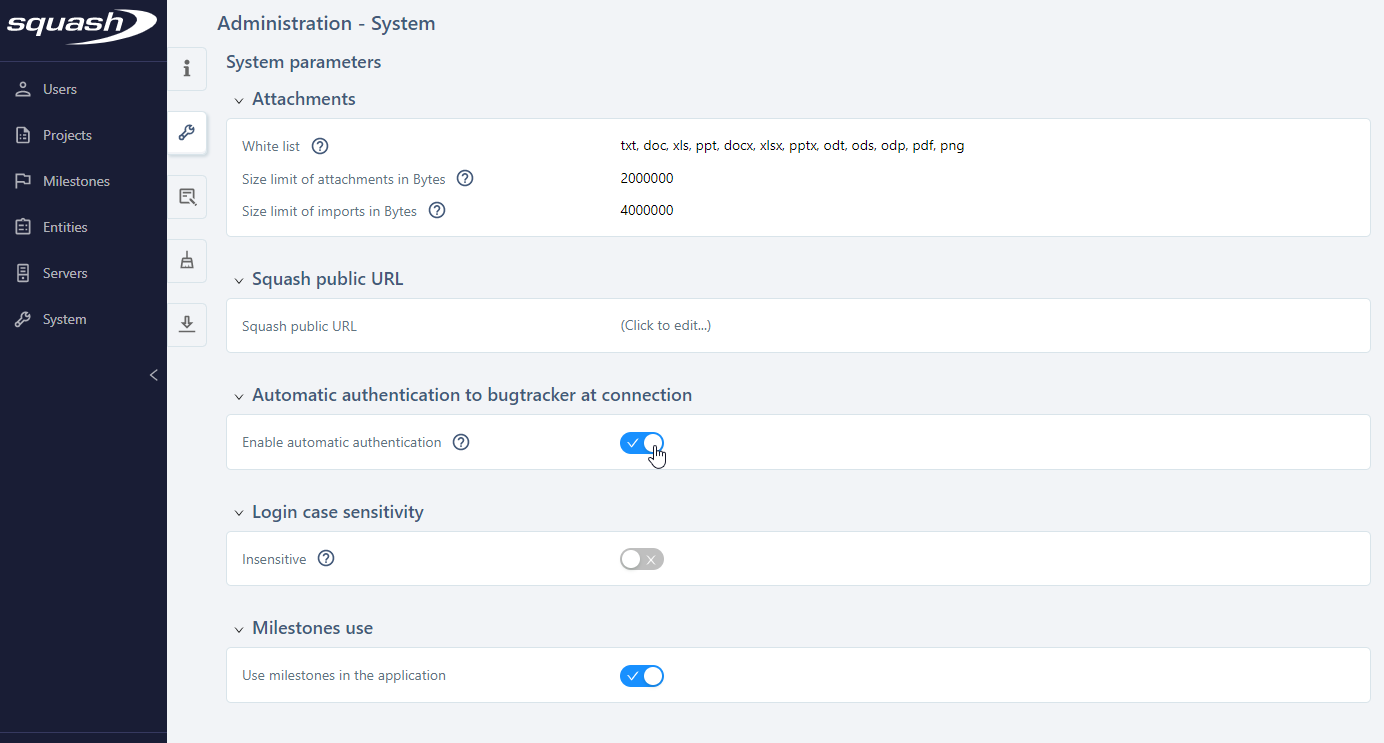
Once the option is activated, autoconnect triggers with each user login and attempts identification on the various bugtrackers to which the user is associated via projects they are authorized on. The information saved in the My Account section will then be ignored.
If this option is disabled, there will be no automatic connection attempt to the bugtracker, and the credentials entered in My Account will be taken into account.
Uninstall LDAP and AD
To uninstall the plugins LDAP and AD, you have to:
Stop SquashTM;
In the file
squash.tm.cfg.properties, delete or comment using a#the specific configuration lines of the plugins;Remove plugin
.jarfiles from SquashTM'spluginsfolder.